Adding Counters & Traces to Unreal Insights & Stats System
The only sane way to optimize your game is by having good profiling metrics in game code. Unreal Engine comes packed with several good profiling tools and the Stats System (controlled by Stat Commands) along with Unreal Insights is what I will be covering today. It allows us to measure pieces of our game in different ways. I will demonstrate how you can use these metrics to your advantage, the macros are slightly different for the Stats System vs. Unreal Insights and we will cover both.
It is good practice to add metrics to certain areas of your code early. As features may perform fine initially, but may degrade as content or code changes. Having profiling stats in place enables you to quickly understand what’s going on.
To find code samples for each of these traces you can view the source code of Project Orion (Co-op Action Roguelike) on GitHub.
Types of Trace Metrics
The first available metric type is a cycle counter, it tracks how much time is spent in a certain function or “scope”. The second metric type is a simply counter, this can be useful to track event frequencies or instance counts rather than a measure of time.
You can find more macros in the following locations in the engine source:
- Source/Runtime/Core/Public/ProfilingDebugging/CountersTrace.h (Counters for Unreal Insights)
- Source/Runtime/Core/Public/ProfilingDebugging/CpuProfilerTrace.h (Cycle Counters for Unreal Insights)
- Engine/Source/Runtime/Core/Public/Stats/Stats.h (the original “Stats System” to display in the game viewport, supported for viewing in Insights, you may need
-statnamedeventsenabled for some)
Counters
With Counters we can easily track frequencies of occurrences or other types of metrics such as instance counts of particular objects. You can use this information in a variety of ways, such as deciding on good pool sizes for certain Actors, testing the instance counts against other metrics such as cycle stats to understand how frame performance scales with X number of something.
If you just want to use the counters for Insights and not the viewport stats then available macros are slightly simpler to use.
Counters For Unreal Insights
Adding new Counters for Unreal Insights is very simple, define the following counter at the top of your cpp file:
TRACE_DECLARE_INT_COUNTER(CoinPickupCount, TEXT("Game/ActiveCoins"));
You can replace INT with FLOAT (TRACE_DECLARE_FLOAT_COUNTER) if you need decimal precision. You can now modify the defined Counter in game code with the following macros:
TRACE_COUNTER_SET(CoinPickupCount, CoinLocations.Num());
TRACE_COUNTER_ADD(CoinPickupCount, SomeNumber);
TRACE_COUNTER_SUBTRACT(CoinPickupCount, SomeNumber);
The counters can be viewed in the Counters tab of Insights. Keep in mind you need to use the -trace=counters trace channel for this data to be available.
Counters for Stats System
For the older Stats System is works slightly different since it requires a StatGroup under which to be displayed (eg. STATGROUP_Game). These stat groups are how stats are organized, you can type console command stat game to show everything listed in the STATGROUP_GAME, or stat anim for everything under STATGROUP_Anim. Define your own stat group by changing the following Macro:
DECLARE_STATS_GROUP(TEXT("My Group Name"), STATGROUP_MyGroupName, STATCAT_Advanced);
As an example, I track how many Actors get spawned during a session, so I added a counter to the ActorSpawned delegate available in UWorld.
At the top of the cpp file I declare the stat we wish to track. In the function that is triggered any time a new Actor is spawned we add the actual counter.
// Keep track of the amount of Actors spawned at runtime (at the top of my class file)
DECLARE_DWORD_ACCUMULATOR_STAT(TEXT("Actors Spawned"), STAT_ACTORSPAWN, STATGROUP_Game);
// Increment stat by 1, keeping track of total actors spawned during the play session (Placed inside the event function)
INC_DWORD_STAT(STAT_ACTORSPAWN); //Increments the counter by one each call.
The above example is to track occurrences, but often you want to measure execution cost instead. For that we use cycle counters.
Cycle Counters
Cycle counters can track how much CPU time is spent within a certain function or scope.
Cycle Counters for Stats System
In the next example I want to measure CPU time spent getting “Modules” on the player’s Ship.
DECLARE_CYCLE_STAT(TEXT("GetModuleByClass"), STAT_GetSingleModuleByClass, STATGROUP_LODZERO);
AWSShipModule* AWSShip::GetModuleByClass(TSubclassOf<AWSShipModule> ModuleClass) const
{
	SCOPE_CYCLE_COUNTER(STAT_GetSingleModuleByClass);

	if (ModuleClass == nullptr)
	{
		return nullptr;
	}

	for (AWSShipModule* Module : ShipRootComponent->Modules)
	{
		if (Module && Module->IsA(ModuleClass))
		{
			return Module;
		}
	}

	return nullptr;
}
In the next section we’ll go in how these stats can be displayed on-screen using the above two examples.
Showing metrics in-game (Stat Commands)
Toggling of these stats can be done per StatGroup and multiple can be on screen at once. To show a stat you open the console window (~ Tilde) and type stat YourStatGroup. For example, stat game or stat scenerendering.
Tip: To hide all displayed stats you can simply type: stat none.
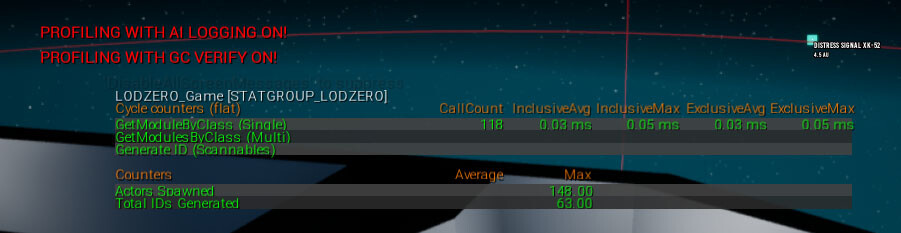
Adding new profiling metrics to your game
As you can see it only takes a few Macros to set up your own metrics. The one missing piece is how to define your own StatGroup if you want to have a custom view for your stats using the Stats System.
DECLARE_STATS_GROUP(TEXT("LODZERO_Game"), STATGROUP_LODZERO, STATCAT_Advanced);
// DisplayName, GroupName (ends up as: "LODZERO"), Third param is always Advanced.
Add the stat group to your game header so it can be easily included across your project. (eg. MyProject.h or in my case I have a single header for things like this called RogueGameTypes.h)
Finally, it’s important to note you can also measure just a small part of a function by using curly braces.
void MyFunction()
{
    // This part isn't counted

    {
         SCOPE_CYCLE_COUNTER(STAT_GetSingleModuleByClass);
         // .. Only measures the code inside the curly braces.
    }

    // This part isn't counted either, it stops at the bracket above.
}
Named Events
Named Events are a special option for tracing with additional detail, and add relatively significantly more overhead (I have heard numbers as high as 20%). They should not be used to gauge overall frame performance and instead are a powerful insight into your game code by including details such as which specific Actor or Class was running the traced logic. Where normally you might only know that some object in the frame was ticking CharacterMovementComponent, using Named Events you can find out exactly which class, such as BP_PlayerCharacter was who ticked the component.
To enable this level of detail either specify -statnamedevents on the command line or type stat namedevents while running the game. Add the following macro to your game code SCOPED_NAMED_EVENT, see below for examples.
SCOPED_NAMED_EVENT(StartActionName, FColor::Green);
SCOPED_NAMED_EVENT_FSTRING(GetClass()->GetName(), FColor::White);
First parameter is the name as it shows up in Unreal Insights or the Stats System, the second is the color for display, however by default Insights does not use this color.
The example below has two examples, one tracing the entire function while the second variation is placed within curly braces which limits the trace scope to within the curly braces. The _FSTRING variant lets us specify runtime names, but does add additional overhead so it should be used with consideration.
bool URogueActionComponent::StartActionByName(AActor* Instigator, FName ActionName)
{
  // Trace the entire function below
  SCOPED_NAMED_EVENT(StartActionName, FColor::Green);

  for (URogueAction* Action : Actions)
  {
    if (Action && Action->ActionName == ActionName)
    {

    // Bookmark for Unreal Insights
    TRACE_BOOKMARK(TEXT("StartAction::%s"), *GetNameSafe(Action));

    {
      // Scoped within the curly braces. the _FSTRING variant adds additional tracing overhead due to grabbing the class name every time
      SCOPED_NAMED_EVENT_FSTRING(Action->GetClass()->GetName(), FColor::White);

      Action->StartAction(Instigator);

      // ... running more code, all captured by the named event
    }

    // ... this code is not included in the _FSTRING trace since its outside the curly braces
    }
  }
}
Closing
(Cycle) Counters for both Unreal Insights and the Stats System are incredibly useful if used pragmatically and provide a quick insight in your game’s performance. Make sure you add stats conservatively, as they are only valuable if you get actionable statistics to potentially optimize. They add a small performance overhead themselves (in non-shipping builds only) and any stat that is useless just adds to your code base and pollutes your stats view.
You might be interested in my other C++ Content or follow me on Twitter!


