Rotating meshes using World Position Offset in Unreal Engine
Animating or simply rotating environmental meshes in your world adds a dynamic element, the obvious way of handling this is adding rotation to the SceneComponent which runs on the CPU (GameThread) and having the engine to pass the new transform to the GPU. This is relatively slow and unnecessary since we can run the entire animation directly on the GPU instead.
There is an old trick to instead rotate all vertices on the GPU directly using World Position Offset, which runs as a the vertex shader, completely skipping the CPU. Keep in mind that this does not update the rotation of the mesh collision. You should either disable collision or consider using a simple collision shape that doesn’t need to rotate and handles approximate collision regardless of the rotation.
While this trick is pretty common I was surprised to not find clear information on it for Unreal Engine. Especially on fixing the normals on the vertices after moving the vertices around. So this post should serve as a complete tutorial on how to rotate meshes on the GPU within Unreal Engine.
The planet’s mesh in the background isn’t rotating the mesh since it’s just a sphere. Instead, you simply add a UV-panner to the texture in the Planet’s Material.
Rotating Vertices on Axis
Rotating the vertices is luckily very easy as we have a ready-to-use material node available: RotateAboutAxis. We plug this into World Position Offset with some simple inputs like Time to determine rotation angle, and the object’s orientation for its rotation Axis.
Note: I used the ObjectPivotPoint, but keep in mind that its not available in the Pixel-shader. The “Normal”-pin runs on the pixel-shader while the “World Position Offset”-pin runs on the vertex shader.
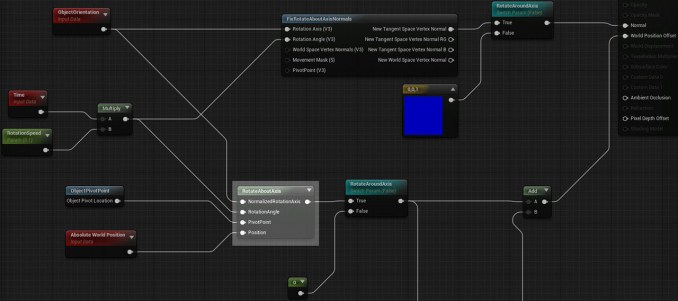
You may notice your lighting doesn’t correctly update now that your mesh rotates on the GPU. We’ll need to fix the vertex normals next.
Fixing Vertex Normals
With the vertices moved around we need to fix the vertex normals as they still point the original direction, causing lighting issues. Again, we have a Material Function already available: FixRotateAboutAxisNormals.

I was able to directly plug this into the pixel shader which is the “Normal” pin. The recommended way (as mentioned in the Material Function’s description) is to add CustomizedUVs (option in the Material properties itself) to the material and instead re-calculate the normals in the vertex shader and pass it as UVs to the pixel shader. This can heavily reduce the number of times you need to re-calculate normals. (equal to the number of vertices in your mesh instead of the number of pixels on-screen for that mesh) This is especially useful if your meshes have low vertex counts.
Closing
Hopefully, you’ve found this helpful. I’m using this ancient trick to rotate ambient meshes such as the space station and asteroids. But don’t forget your collision doesn’t update, so if you want players to interact with the rotated mesh, you might need to alter the collision or use the CPU after all.


