<?xml version="1.0" encoding="utf-8"?><feed xmlns="http://www.w3.org/2005/Atom" ><generator uri="https://jekyllrb.com/" version="3.10.0">Jekyll</generator><link href="https://tomlooman.com/feed.xml" rel="self" type="application/atom+xml" /><link href="https://tomlooman.com/" rel="alternate" type="text/html" /><updated>2026-04-02T22:21:30+00:00</updated><id>https://tomlooman.com/feed.xml</id><title type="html">Tom Looman</title><subtitle>Unreal Engine 5 Courses &amp; Tutorials by Tom Looman.  Game Development Resources for AAA and Indies. Specializing in C++, Graphics, Performance and Game Optimization.</subtitle><author><name>Tom Looman</name></author><entry><title type="html">Adding Counters &amp;amp; Traces to Unreal Insights &amp;amp; Stats System</title><link href="https://tomlooman.com/unreal-engine-profiling-stat-commands/" rel="alternate" type="text/html" title="Adding Counters &amp;amp; Traces to Unreal Insights &amp;amp; Stats System" /><published>2026-03-19T00:00:00+00:00</published><updated>2026-03-19T00:00:00+00:00</updated><id>https://tomlooman.com/unreal-engine-profiling-stat-commands</id><content type="html" xml:base="https://tomlooman.com/unreal-engine-profiling-stat-commands/"><![CDATA[<p>The only sane way to optimize your game is by having good profiling metrics in game code. Unreal Engine comes packed with several good profiling tools and the <strong>Stats System</strong> (controlled by Stat Commands) along with <strong>Unreal Insights</strong> is what I will be covering today. It allows us to measure pieces of our game in different ways. I will demonstrate how you can use these metrics to your advantage, the macros are slightly different for the Stats System vs. Unreal Insights and we will cover both.</p>

<p>It is good practice to add metrics to certain areas of your code early. As features may perform fine initially, but may degrade as content or code changes. Having profiling stats in place enables you to quickly understand what’s going on.</p>

<p class="notice--info">To find code samples for each of these traces you can view the source code of <a href="https://github.com/tomlooman/ActionRoguelike">Project Orion (Co-op Action Roguelike)</a> on GitHub.</p>

<h2 id="types-of-trace-metrics">Types of Trace Metrics</h2>

<p>The first available metric type is a <strong>cycle counter</strong>, it tracks how much time is spent in a certain function or “scope”. The second metric type is a simply <strong>counter</strong>, this can be useful to track event frequencies or instance counts rather than a measure of time.</p>

<p>You can find more macros in the following locations in the engine source:</p>
<ul>
  <li>Source/Runtime/Core/Public/ProfilingDebugging/<strong>CountersTrace.h</strong> (Counters for Unreal Insights)</li>
  <li>Source/Runtime/Core/Public/ProfilingDebugging/<strong>CpuProfilerTrace.h</strong> (Cycle Counters for Unreal Insights)</li>
  <li>Engine/Source/Runtime/Core/Public/Stats/<strong>Stats.h</strong> (the original “Stats System” to display in the game viewport, supported for viewing in Insights, you may need <code class="language-plaintext highlighter-rouge">-statnamedevents</code> enabled for some)</li>
</ul>

<h3 id="counters">Counters</h3>

<p>With Counters we can easily track frequencies of occurrences or other types of metrics such as instance counts of particular objects. You can use this information in a variety of ways, such as deciding on good pool sizes for certain Actors, testing the instance counts against other metrics such as cycle stats to understand how frame performance scales with X number of something.</p>

<p>If you just want to use the counters for Insights and not the viewport stats then available macros are slightly simpler to use.</p>

<h4 id="counters-for-unreal-insights">Counters For Unreal Insights</h4>

<p>Adding new Counters for Unreal Insights is very simple, define the following counter at the top of your cpp file:</p>

<div class="language-cpp highlighter-rouge"><div class="highlight"><pre class="highlight"><code><span class="n">TRACE_DECLARE_INT_COUNTER</span><span class="p">(</span><span class="n">CoinPickupCount</span><span class="p">,</span> <span class="n">TEXT</span><span class="p">(</span><span class="s">"Game/ActiveCoins"</span><span class="p">));</span>
</code></pre></div></div>

<p>You can replace <code class="language-plaintext highlighter-rouge">INT</code> with <code class="language-plaintext highlighter-rouge">FLOAT</code> (<code class="language-plaintext highlighter-rouge">TRACE_DECLARE_FLOAT_COUNTER</code>) if you need decimal precision. You can now modify the defined Counter in game code with the following macros:</p>

<div class="language-cpp highlighter-rouge"><div class="highlight"><pre class="highlight"><code><span class="n">TRACE_COUNTER_SET</span><span class="p">(</span><span class="n">CoinPickupCount</span><span class="p">,</span> <span class="n">CoinLocations</span><span class="p">.</span><span class="n">Num</span><span class="p">());</span>
<span class="n">TRACE_COUNTER_ADD</span><span class="p">(</span><span class="n">CoinPickupCount</span><span class="p">,</span> <span class="n">SomeNumber</span><span class="p">);</span>
<span class="n">TRACE_COUNTER_SUBTRACT</span><span class="p">(</span><span class="n">CoinPickupCount</span><span class="p">,</span> <span class="n">SomeNumber</span><span class="p">);</span>
</code></pre></div></div>

<p>The counters can be viewed in the Counters tab of Insights. Keep in mind you need to use the <code class="language-plaintext highlighter-rouge">-trace=counters</code> trace channel for this data to be available.</p>

<h4 id="counters-for-stats-system">Counters for Stats System</h4>

<p>For the older Stats System is works slightly different since it requires a StatGroup under which to be displayed (eg. <code class="language-plaintext highlighter-rouge">STATGROUP_Game</code>). These stat groups are how stats are organized, you can type console command <code class="language-plaintext highlighter-rouge">stat game</code> to show everything listed in the <code class="language-plaintext highlighter-rouge">STATGROUP_GAME</code>, or <code class="language-plaintext highlighter-rouge">stat anim</code> for everything under <code class="language-plaintext highlighter-rouge">STATGROUP_Anim</code>. Define your own stat group by changing the following Macro:</p>

<div class="language-cpp highlighter-rouge"><div class="highlight"><pre class="highlight"><code><span class="n">DECLARE_STATS_GROUP</span><span class="p">(</span><span class="n">TEXT</span><span class="p">(</span><span class="s">"My Group Name"</span><span class="p">),</span> <span class="n">STATGROUP_MyGroupName</span><span class="p">,</span> <span class="n">STATCAT_Advanced</span><span class="p">);</span>
</code></pre></div></div>

<p>As an example, I track how many Actors get spawned during a session, so I added a counter to the ActorSpawned delegate available in UWorld.</p>

<p>At the top of the cpp file I declare the stat we wish to track. In the function that is triggered any time a new Actor is spawned we add the actual counter.</p>

<div class="language-cpp highlighter-rouge"><div class="highlight"><pre class="highlight"><code><span class="c1">// Keep track of the amount of Actors spawned at runtime (at the top of my class file)</span>
<span class="n">DECLARE_DWORD_ACCUMULATOR_STAT</span><span class="p">(</span><span class="n">TEXT</span><span class="p">(</span><span class="s">"Actors Spawned"</span><span class="p">),</span> <span class="n">STAT_ACTORSPAWN</span><span class="p">,</span> <span class="n">STATGROUP_Game</span><span class="p">);</span>
</code></pre></div></div>

<div class="language-cpp highlighter-rouge"><div class="highlight"><pre class="highlight"><code><span class="c1">// Increment stat by 1, keeping track of total actors spawned during the play session (Placed inside the event function)</span>
<span class="n">INC_DWORD_STAT</span><span class="p">(</span><span class="n">STAT_ACTORSPAWN</span><span class="p">);</span> <span class="c1">//Increments the counter by one each call.</span>
</code></pre></div></div>

<p>The above example is to track occurrences, but often you want to measure execution cost instead. For that we use <strong>cycle counters</strong>.</p>

<h3 id="cycle-counters">Cycle Counters</h3>

<p>Cycle counters can track how much CPU time is spent within a certain function or scope.</p>

<h3 id="cycle-counters-for-stats-system">Cycle Counters for Stats System</h3>

<p>In the next example I want to measure CPU time spent getting “Modules” on the player’s Ship.</p>

<div class="language-cpp highlighter-rouge"><div class="highlight"><pre class="highlight"><code><span class="n">DECLARE_CYCLE_STAT</span><span class="p">(</span><span class="n">TEXT</span><span class="p">(</span><span class="s">"GetModuleByClass"</span><span class="p">),</span> <span class="n">STAT_GetSingleModuleByClass</span><span class="p">,</span> <span class="n">STATGROUP_LODZERO</span><span class="p">);</span>
</code></pre></div></div>

<div class="language-cpp highlighter-rouge"><div class="highlight"><pre class="highlight"><code><span class="n">AWSShipModule</span><span class="o">*</span> <span class="n">AWSShip</span><span class="o">::</span><span class="n">GetModuleByClass</span><span class="p">(</span><span class="n">TSubclassOf</span><span class="o">&lt;</span><span class="n">AWSShipModule</span><span class="o">&gt;</span> <span class="n">ModuleClass</span><span class="p">)</span> <span class="k">const</span>
<span class="p">{</span>
	<span class="n">SCOPE_CYCLE_COUNTER</span><span class="p">(</span><span class="n">STAT_GetSingleModuleByClass</span><span class="p">);</span>

	<span class="k">if</span> <span class="p">(</span><span class="n">ModuleClass</span> <span class="o">==</span> <span class="nb">nullptr</span><span class="p">)</span>
	<span class="p">{</span>
		<span class="k">return</span> <span class="nb">nullptr</span><span class="p">;</span>
	<span class="p">}</span>

	<span class="k">for</span> <span class="p">(</span><span class="n">AWSShipModule</span><span class="o">*</span> <span class="n">Module</span> <span class="o">:</span> <span class="n">ShipRootComponent</span><span class="o">-&gt;</span><span class="n">Modules</span><span class="p">)</span>
	<span class="p">{</span>
		<span class="k">if</span> <span class="p">(</span><span class="n">Module</span> <span class="o">&amp;&amp;</span> <span class="n">Module</span><span class="o">-&gt;</span><span class="n">IsA</span><span class="p">(</span><span class="n">ModuleClass</span><span class="p">))</span>
		<span class="p">{</span>
			<span class="k">return</span> <span class="n">Module</span><span class="p">;</span>
		<span class="p">}</span>
	<span class="p">}</span>

	<span class="k">return</span> <span class="nb">nullptr</span><span class="p">;</span>
<span class="p">}</span>
</code></pre></div></div>

<p>In the next section we’ll go in how these stats can be displayed on-screen using the above two examples.</p>

<h2 id="showing-metrics-in-game-stat-commands">Showing metrics in-game (Stat Commands)</h2>

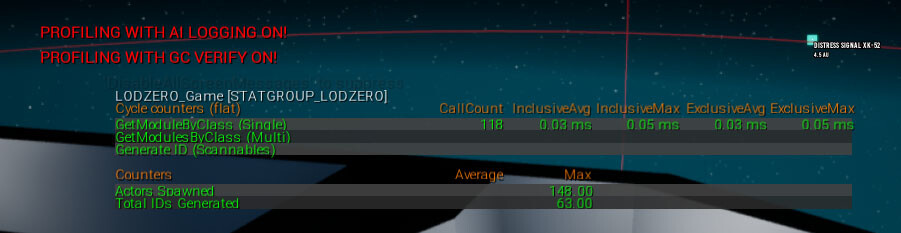
<p>Toggling of these stats can be done per StatGroup and multiple can be on screen at once. To show a stat you open the console window (<code class="language-plaintext highlighter-rouge">~</code> Tilde) and type <code class="language-plaintext highlighter-rouge">stat YourStatGroup</code>. For example, <code class="language-plaintext highlighter-rouge">stat game</code> or <code class="language-plaintext highlighter-rouge">stat scenerendering</code>.</p>

<p><strong>Tip:</strong> To hide all displayed stats you can simply type: <code class="language-plaintext highlighter-rouge">stat none</code>.</p>

<p><img src="/assets/images/ue4_statcommands_example.jpg" alt="" /></p>

<h2 id="adding-new-profiling-metrics-to-your-game">Adding new profiling metrics to your game</h2>

<p>As you can see it only takes a few Macros to set up your own metrics. The one missing piece is how to define your own StatGroup if you want to have a custom view for your stats using the Stats System.</p>

<div class="language-cpp highlighter-rouge"><div class="highlight"><pre class="highlight"><code><span class="n">DECLARE_STATS_GROUP</span><span class="p">(</span><span class="n">TEXT</span><span class="p">(</span><span class="s">"LODZERO_Game"</span><span class="p">),</span> <span class="n">STATGROUP_LODZERO</span><span class="p">,</span> <span class="n">STATCAT_Advanced</span><span class="p">);</span> 
<span class="c1">// DisplayName, GroupName (ends up as: "LODZERO"), Third param is always Advanced.</span>
</code></pre></div></div>

<p>Add the stat group to your game header so it can be easily included across your project. (eg. <code class="language-plaintext highlighter-rouge">MyProject.h</code> or in my case I have a single header for things like this called <code class="language-plaintext highlighter-rouge">RogueGameTypes.h</code>)</p>

<p>Finally, it’s important to note you can also measure just a small part of a function by using curly braces.</p>

<div class="language-cpp highlighter-rouge"><div class="highlight"><pre class="highlight"><code><span class="kt">void</span> <span class="nf">MyFunction</span><span class="p">()</span>
<span class="p">{</span>
    <span class="c1">// This part isn't counted</span>
   
    <span class="p">{</span>
         <span class="n">SCOPE_CYCLE_COUNTER</span><span class="p">(</span><span class="n">STAT_GetSingleModuleByClass</span><span class="p">);</span>
         <span class="c1">// .. Only measures the code inside the curly braces.</span>
    <span class="p">}</span>

    <span class="c1">// This part isn't counted either, it stops at the bracket above.</span>
<span class="p">}</span>
</code></pre></div></div>

<h2 id="named-events">Named Events</h2>

<p>Named Events are a special option for tracing with additional detail, and add relatively significantly more overhead (I have heard numbers as high as 20%). They should not be used to gauge overall frame performance and instead are a powerful insight into your game code by including details such as which specific Actor or Class was running the traced logic. Where normally you might only know that some object in the frame was ticking <code class="language-plaintext highlighter-rouge">CharacterMovementComponent</code>, using Named Events you can find out exactly which class, such as <code class="language-plaintext highlighter-rouge">BP_PlayerCharacter</code> was who ticked the component.</p>

<p>To enable this level of detail either specify <code class="language-plaintext highlighter-rouge">-statnamedevents</code> on the command line or type <code class="language-plaintext highlighter-rouge">stat namedevents</code> while running the game. Add the following macro to your game code <code class="language-plaintext highlighter-rouge">SCOPED_NAMED_EVENT</code>, see below for examples.</p>

<div class="language-cpp highlighter-rouge"><div class="highlight"><pre class="highlight"><code><span class="n">SCOPED_NAMED_EVENT</span><span class="p">(</span><span class="n">StartActionName</span><span class="p">,</span> <span class="n">FColor</span><span class="o">::</span><span class="n">Green</span><span class="p">);</span>
<span class="n">SCOPED_NAMED_EVENT_FSTRING</span><span class="p">(</span><span class="n">GetClass</span><span class="p">()</span><span class="o">-&gt;</span><span class="n">GetName</span><span class="p">(),</span> <span class="n">FColor</span><span class="o">::</span><span class="n">White</span><span class="p">);</span>
</code></pre></div></div>

<p>First parameter is the name as it shows up in Unreal Insights or the Stats System, the second is the color for display, however by default Insights does not use this color.</p>

<p>The example below has two examples, one tracing the entire function while the second variation is placed within curly braces which limits the trace scope to within the curly braces. The <code class="language-plaintext highlighter-rouge">_FSTRING</code> variant lets us specify runtime names, but does add additional overhead so it should be used with consideration.</p>

<div class="language-cpp highlighter-rouge"><div class="highlight"><pre class="highlight"><code><span class="kt">bool</span> <span class="n">URogueActionComponent</span><span class="o">::</span><span class="n">StartActionByName</span><span class="p">(</span><span class="n">AActor</span><span class="o">*</span> <span class="n">Instigator</span><span class="p">,</span> <span class="n">FName</span> <span class="n">ActionName</span><span class="p">)</span>
<span class="p">{</span>
  <span class="c1">// Trace the entire function below</span>
  <span class="n">SCOPED_NAMED_EVENT</span><span class="p">(</span><span class="n">StartActionName</span><span class="p">,</span> <span class="n">FColor</span><span class="o">::</span><span class="n">Green</span><span class="p">);</span>

  <span class="k">for</span> <span class="p">(</span><span class="n">URogueAction</span><span class="o">*</span> <span class="n">Action</span> <span class="o">:</span> <span class="n">Actions</span><span class="p">)</span>
  <span class="p">{</span>
    <span class="k">if</span> <span class="p">(</span><span class="n">Action</span> <span class="o">&amp;&amp;</span> <span class="n">Action</span><span class="o">-&gt;</span><span class="n">ActionName</span> <span class="o">==</span> <span class="n">ActionName</span><span class="p">)</span>
    <span class="p">{</span>

    <span class="c1">// Bookmark for Unreal Insights</span>
    <span class="n">TRACE_BOOKMARK</span><span class="p">(</span><span class="n">TEXT</span><span class="p">(</span><span class="s">"StartAction::%s"</span><span class="p">),</span> <span class="o">*</span><span class="n">GetNameSafe</span><span class="p">(</span><span class="n">Action</span><span class="p">));</span>
			
    <span class="p">{</span>
      <span class="c1">// Scoped within the curly braces. the _FSTRING variant adds additional tracing overhead due to grabbing the class name every time</span>
      <span class="n">SCOPED_NAMED_EVENT_FSTRING</span><span class="p">(</span><span class="n">Action</span><span class="o">-&gt;</span><span class="n">GetClass</span><span class="p">()</span><span class="o">-&gt;</span><span class="n">GetName</span><span class="p">(),</span> <span class="n">FColor</span><span class="o">::</span><span class="n">White</span><span class="p">);</span>

      <span class="n">Action</span><span class="o">-&gt;</span><span class="n">StartAction</span><span class="p">(</span><span class="n">Instigator</span><span class="p">);</span>

      <span class="c1">// ... running more code, all captured by the named event</span>
    <span class="p">}</span>

    <span class="c1">// ... this code is not included in the _FSTRING trace since its outside the curly braces</span>
    <span class="p">}</span>
  <span class="p">}</span>
<span class="p">}</span>
</code></pre></div></div>

<h2 id="closing">Closing</h2>

<p>(Cycle) Counters for both Unreal Insights and the Stats System are incredibly useful if used pragmatically and provide a quick insight in your game’s performance. Make sure you add stats conservatively, as they are only valuable if you get actionable statistics to potentially optimize. They add a small performance overhead themselves (in non-shipping builds only) and any stat that is useless just adds to your code base and pollutes your stats view.</p>

<p><strong>You might be interested in my</strong> <a href="/unreal-engine-cpp-tutorials"><strong>other C++ Content</strong></a> or <a href="https://twitter.com/t_looman"><strong>follow me on Twitter!</strong></a></p>

<h2 id="references">References</h2>

<ul>
  <li><a href="https://dev.epicgames.com/documentation/en-us/unreal-engine/stat-commands-in-unreal-engine">Stat Commands - Unreal Docs</a></li>
  <li><a href="https://dev.epicgames.com/documentation/en-us/unreal-engine/unreal-engine-stats-system-overview">Stats System Overview - Unreal Docs</a></li>
  <li><a href="https://dev.epicgames.com/documentation/en-us/unreal-engine/developer-guide-to-tracing-in-unreal-engine">Trace Developer Guide (Insights) - Unreal Docs</a></li>
</ul>]]></content><author><name>Tom Looman</name></author><category term="Performance &amp; Optimization" /><category term="Performance" /><category term="Profiling" /><category term="C++" /><category term="Unreal Insights" /><summary type="html"><![CDATA[The only sane way to optimize your game is by having good profiling metrics in game code. Unreal Engine comes packed with several good profiling tools and the Stats System (controlled by Stat Commands) along with Unreal Insights is what I will be covering today. It allows us to measure pieces of our game in different ways. I will demonstrate how you can use these metrics to your advantage, the macros are slightly different for the Stats System vs. Unreal Insights and we will cover both.]]></summary></entry><entry><title type="html">Setting up Rider for C++ and Unreal Engine</title><link href="https://tomlooman.com/setup-unreal-engine-cpp-rider/" rel="alternate" type="text/html" title="Setting up Rider for C++ and Unreal Engine" /><published>2026-02-13T00:00:00+00:00</published><updated>2026-02-13T00:00:00+00:00</updated><id>https://tomlooman.com/setup-unreal-engine-cpp-rider</id><content type="html" xml:base="https://tomlooman.com/setup-unreal-engine-cpp-rider/"><![CDATA[<p>In this article we will install <strong>JetBrains Rider</strong> for use with <strong>Unreal Engine 5</strong> to setup your <strong>C++ development environment</strong>. These steps are for a fresh machine, with Unreal Engine 5.6 installed. It should work with older and newer versions too, at certain moments Epic will bump the required versions of dependencies that we install today.</p>

<p class="notice--info"><strong>Note:</strong> The steps demonstrated are for Windows &amp; JetBrains Rider. <strong>Please read this article carefully</strong> as each component requires specific versions depending on the Unreal Engine version you are using. Any wrong version or missing component and the code will fail to compile.</p>

<p><img src="/assets/images/studio_logos/Rider_440.png" alt="" class="align-right" /></p>

<h2 id="required-software">Required Software</h2>

<ul>
  <li><a href="https://www.jetbrains.com/rider/download/?section=windows">JetBrains Rider</a></li>
  <li><a href="https://www.unrealengine.com/en-US/download">Epic Games Launcher</a> and Unreal Engine 5.0+ installed</li>
  <li><a href="https://visualstudio.microsoft.com/downloads/">Visual Studio Build Tools (MSBuild)</a> or <a href="https://aka.ms/vs/17/release/vs_BuildTools.exe">direct link to VS_BuildTools.exe</a></li>
</ul>

<h2 id="installing-jetbrains-rider">Installing JetBrains Rider</h2>

<p>Get the latest version of <a href="https://www.jetbrains.com/rider/download/?section=windows">Rider for Windows</a> on JetBrains website. You can use the <strong>default settings</strong> during installation. The most important steps are during the <strong>Visual Studio Build Tools</strong> installation below.</p>

<p>After installing the Epic Games Launcher, I recommend <strong>running Unreal Engine</strong> from the Launcher <strong>at least once so it can install any prerequisites</strong> before moving on. Simply click “Launch” on your installed version and let it do its thing. You don’t need to keep it open afterwards.</p>

<p class="notice--info">If you are installing JetBrains Rider to follow along with my <a href="https://courses.tomlooman.com/p/unrealengine-cpp?coupon_code=INDIESALE">Unreal Engine C++ Course</a>, you can select the Free license (“Rider Non-commercial”) as you are a student using it for educational purposes.</p>

<h2 id="installing-visual-studio-build-tools">Installing Visual Studio Build Tools</h2>

<p>To compile C++ projects for Unreal Engine you need the build tools from Microsoft even when not using Visual Studio.</p>

<p>You can either install full Visual Studio IDE, but since you want to use Rider for your source code editing you can install the <strong>Visual Studio Build Tools</strong> instead which include the minimum set of components required for compilation.</p>

<p>You can use this <a href="https://aka.ms/vs/17/release/vs_BuildTools.exe">direct link to download Visual Studio Build Tools</a> or scroll down on the page to look for <a href="https://visualstudio.microsoft.com/downloads/">Visual Studio Build Tools</a> under “Tools for Visual Studio” (scroll down quite a bit).</p>

<h3 id="required-individual-components">Required Individual Components</h3>

<p>Unreal Engine C++ build pipeline <strong>requires a very specific set of components to be installed.</strong> Please follow the instructions below carefully. I have also listed some possible errors you may encounter if you did not select the correct components. Selecting the wrong version of a component can cause your project to fail compilation.</p>

<p>For a list of recommended components to install, Epic maintains a list <a href="https://dev.epicgames.com/documentation/en-us/unreal-engine/setting-up-visual-studio-development-environment-for-cplusplus-projects-in-unreal-engine">here</a>. I will list all the versions below for Unreal Engine 5.6. Every few releases of Unreal these are bumped to a more recent component version.</p>

<p><img src="/assets/images/visualstudioinstaller_individualcomponents.png" alt="" />
<em>A very specific set of components in their correct version must be selected for Unreal Engine to compile correctly.</em></p>

<p>Go to “Individual Components” tab in the Visual Studio Installer and select the following components:</p>

<ul>
  <li><strong>Windows 11 SDK (10.0.26100.3916)</strong> or higher</li>
  <li><strong>.NET Framework 4.8.1 SDK</strong> or higher</li>
  <li><strong>MSVC v143 - VS 2022 C++ x64/x86 build tools (v14.38-17.8)</strong></li>
</ul>

<p>The above versions are for UE 5.6, if you are using a different version check the <a href="https://dev.epicgames.com/documentation/en-us/unreal-engine/setting-up-visual-studio-development-environment-for-cplusplus-projects-in-unreal-engine">current list</a> on the official docs.</p>

<h2 id="creating-a-c-unreal-engine-project">Creating a C++ Unreal Engine Project</h2>

<p>If you do not have an Unreal Engine C++ project yet, you can create one via the <strong>Unreal Project Browser</strong>. A blank C++ project is enough to validate your installation.</p>

<ul>
  <li><strong>Games &gt; Blank &gt; C++ (right panel)</strong></li>
</ul>

<p><img src="/assets/images/cpp_setup_unrealengine-projectwizard.jpg" alt="" /></p>

<h2 id="opening-your-c-project-in-rider">Opening your C++ Project in Rider</h2>

<p>You can open your unreal engine <code class="language-plaintext highlighter-rouge">MyProject.uproject</code> file directly into Rider. Either drag-drop the <code class="language-plaintext highlighter-rouge">.uproject</code> file into the Rider App or Browse directly to the file from inside rider by clicking “Open” in the main window of Rider.</p>

<p class="notice--info"><strong>Note:</strong> You don’t need to use any generated solution files (<code class="language-plaintext highlighter-rouge">.sln</code>) as with Visual Studio. It is recommended to only use the <code class="language-plaintext highlighter-rouge">.uproject</code> file for Rider as this causes fewer issues and automatically syncs any changes made to project structure.</p>

<p>After opening the project, Rider will generate the  “Unreal Engine Project Model” in the background. You should give Rider some time to process and index the engine files. This may take a while and the indexing will help the autocompletion and navigation of the source files.</p>

<h2 id="compile-your-project">Compile your project</h2>

<p>Try to compile your project to ensure all components are installed correctly. In any error occurs, check the <strong>Troubleshooting section</strong> below.</p>

<ul>
  <li><strong>Main menu &gt; Build &gt; Build Startup Project</strong></li>
</ul>

<p><img src="/assets/images/jetbrains_hamburger_mainmenu.png" alt="" />
<em>Access the main menu in the top-left</em></p>

<p><img src="/assets/images/jetbrainsrider_mainmenu_buildproject.png" alt="" />
<em>Select Build Startup Project (which should be your game project) to verify the installation has succeeded.</em></p>

<h2 id="configuring-rider-as-the-source-code-editor-in-unreal-editor">Configuring Rider as the “Source code editor” in Unreal Editor</h2>

<p>You should set Rider as the <strong>Source Code Editor</strong> in Unreal Editor so that your Blueprint can immediately jump to C++ code when you double click the nodes or when you right-click “Go to Definition”.</p>

<p>In the <strong>Editor Preferences &gt; General &gt; Source Code &gt; Source Code Editor</strong> set it to <strong>“Rider uproject”</strong></p>

<h2 id="installing-riderlink">Installing RiderLink</h2>

<p>You will be prompted when launching Rider with an Unreal Engine project to install RiderLink.</p>

<p>I recommend Installing RiderLink plugin to the Engine. This is a super powerful tool to view information on how your project and Blueprint is using your C++ code such as knowing which Blueprint has changed a variable default or overrides a function.</p>

<p>Find the Notifications tab on the top-right to install RiderLink to Engine (recommended)</p>

<h2 id="windows-defender-exclusions">Windows Defender Exclusions</h2>

<p>Ensure windows defender exclusion are used. The pop-up will appear in bottom-right on first launch. This avoids overhead from Defender constantly scanning your files. Do so at your own risk, but you should have clear control over your own build output.</p>

<p><img src="/assets/images/jetbrainsrider_exclusionrules.jpg" alt="" />
<em>If you previously ignored the pop-up, you can still find it inside the Notifications Tab in the top-right.</em></p>

<h2 id="errors--troubleshooting">Errors &amp; Troubleshooting</h2>

<p>The following errors all require the <strong>Visual Studio Installer</strong> and selecting the specified components under “Modify”. These errors will not happen if you selected the correct component versions during the initial installation steps.</p>

<p><img src="/assets/images/visualstudioinstaller.png" alt="" />
<em>Even when installing JetBrains Rider, the Visual Studio installer is still an important part of the overall setup.</em></p>

<h3 id="error-no-valid-visual-c-toolchain-was-found">Error: No valid Visual C++ toolchain was found</h3>

<p>Error message: <em>“No valid Visual C++ toolchain was found (minimum version 14.38.33130, preferred version 14.38.33130). Please download and install Visual Studio 2022 17.8 or later and verify that the “MSVC v143 - VS 2022 C++ x64/x86 build tools (v14.38-17.8)” component is selected in the Visual Studio 2022 installation options.”</em></p>

<p><strong>Steps:</strong></p>

<ul>
  <li>Go back into your Visual Studio Installer (same name if you have installed Build Tools instead of full Visual Studio).</li>
  <li>Click “Modify” in the Visual Studio Installer, see screenshot above.</li>
  <li>Go to Individual Components</li>
  <li>Search for “MSVC v143 - VS 2022 C++ x64/x86 build tools (v14.38-17.8)”.
    <ul>
      <li>Read your error message, earlier or later versions of Unreal Engine might require a different version.</li>
    </ul>
  </li>
</ul>

<h3 id="error-no-available-windows-sdks-found">Error: No available Windows SDKs found</h3>

<p>Another error you may receive if you try to run the project is “No available Windows SDKs found”, “Windows SDK must be installed in order to build this target.”.</p>

<p><strong>Steps:</strong></p>

<ul>
  <li>Go back into your Visual Studio Installer (same name if you have installed Build Tools instead of full Visual Studio).</li>
  <li>Click “Modify” in the Visual Studio Installer, see screenshot above.</li>
  <li>Go to ‘Individual Components’</li>
  <li>Search for: Windows 10 or 11 SDK (10.0.18362 or Newer)
    <ul>
      <li>See the <a href="https://dev.epicgames.com/documentation/en-us/unreal-engine/setting-up-visual-studio-development-environment-for-cplusplus-projects-in-unreal-engine">documentation page on which SDK version</a> is required for your Unreal Engine version.</li>
    </ul>
  </li>
</ul>

<h3 id="error-install-a-version-of-net-framework-sdk-at-460-or-higher">Error: Install a version of .NET Framework SDK at 4.6.0 or higher</h3>

<p>More errors may occur if you once again try to launch already. “Install a version of .NET Framework SDK at 4.6.0 or higher”, Generating Rider project files will fail with several module errors which all mention to install the .NET Framework SDK.</p>

<p><strong>Steps:</strong></p>

<ul>
  <li>Go back into your Visual Studio Installer (same name if you have installed Build Tools instead of full Visual Studio).</li>
  <li>Click “Modify” in the Visual Studio Installer, see screenshot above.</li>
  <li>Go to Individual Components</li>
  <li>Search for “.NET Framework 4.8.1 SDK”</li>
</ul>

<h2 id="installing-editor-symbols-for-debugging-optional">Installing Editor Symbols for debugging (Optional)</h2>

<p>In order to debug and use breakpoints in the <strong>engine source code</strong> (You don’t need this to debug your own game code) you need to install the <strong>Editor Symbols for debugging in the Epic Games Launcher</strong>.</p>

<p>In the Epic Games Launcher, go to <code class="language-plaintext highlighter-rouge">Unreal Engine &gt; Library</code> and click the arrow next to launch to select Options. From there you can enable the “Editor symbols for debugging”. It takes up a large amount of disk space so you may keep this for another time.</p>

<p><img src="/assets/images/epicgameslauncher_installationoptions.png" alt="" />
<em>The options can be used to modify your engine installation.</em></p>

<p><img src="/assets/images/epicgameslauncher_installationoptions_editorsymbols.png" alt="" />
<em>Debugging Symbols can take up to 50GB of disk space (download size is significantly less).</em></p>

<h2 id="recommended-rider-settings">Recommended Rider Settings</h2>

<p>The following settings are recommended personally. They are not required to compile or use Unreal Engine and you should first check to see if you like to keep any of these settings enabled.</p>

<p>Settings can be accessed in the top-left under <strong>File &gt; Settings</strong>.</p>

<h3 id="indexing-plugins">Indexing Plugins</h3>

<p>By default “Plugins” will not be indexed and many common modules of the engine are considered Plugins by Rider including Enhanced Input and Niagara. I would recommend to enable this or they won’t show up in autocompletion and code searches.</p>

<p><img src="/assets/images/jetbrainsrider_indexplugins.png" alt="" />
<em>Enable indexing of Plugins for have better coverage of the engine source code.</em></p>

<p><img src="/assets/images/jetbrainsrider_nonindexplugins.png" alt="" />
<em>Without Plugin indexing, certain parts of the engine won’t have any highlighting and do not show up in searches.</em></p>

<h3 id="preference-reduce-parameter-popup-delay">Preference: Reduce Parameter Popup Delay</h3>

<p>By default the function parameter info popup is delayed by 1000ms. I find this too slow and can actually be changed. Tune this to something that feels more responsive.</p>

<p><img src="/assets/images/jetbrains_functionparameterinfo.png" alt="" />
<em>The parameter info popup is this little window when you start typing function parameters.</em></p>

<p><img src="/assets/images/jetbrainsrider_parameterinfodelay.png" alt="" />
<em>Change it to something less than 1000ms. All the way down to 0ms if you prefer no delay at all.</em></p>

<h3 id="preference-turn-off-reader-mode">Preference: Turn off “Reader Mode”</h3>

<p>Reader Mode enables “rendered comments” which does provide much nicer looking function comments in header files. The problem is they can take a bit of time to actually render as intended, showing the standard comments when first opening the file. I prefer this off, keeping it consistent and not popping halfway through reading a comment. For Unreal Engine this applies only to the engine source, your own code does not apply the reader mode.</p>

<p><img src="/assets/images/jetbrainsrider_readermode_renderedcomments.png" alt="" /></p>

<h3 id="preference-turn-off-code-folding-on-imports">Preference: Turn off “Code Folding” on Imports</h3>

<p>Code folding can automatically <strong>collapse the list of #includes</strong> (“Imports”) at the top of the file. You may like it, but I prefer to see this at all times. Especially to make sure its visible during the course lessons to students, but also to keep an eye on no longer used includes so I can remove them (Rider will render them as Grey when nothing uses the include).</p>

<p><strong>Editor &gt; General &gt; Code Folding &gt; “Imports”</strong></p>

<h3 id="preference-turn-off-full-line-completion-suggestions">Preference: Turn off Full Line completion suggestions</h3>

<p>Full line code completions could be very useful, but personally I prefer not to have added cognitive load of checking the suggestions constantly and reasoning whether that’s what I intended. More so to avoid any distractions for recording tutorial/course content. Try it out and see whether you like it. Otherwise, you can easily disable it in Rider.</p>

<p><strong>Editor &gt; General &gt; Inline Completion &gt; “Enable local Full Line completion suggestions”</strong></p>

<p><img src="/assets/images/jetbrainsrider_inlinecodesuggestions.jpg" alt="" /></p>

<h3 id="preference-turn-off-hard-wrap-visual-guide">Preference: Turn off Hard Wrap Visual Guide</h3>

<p>You can turn off the white line in the text editor that is called the Hard Wrap. This is where code will wrap during formatting and code generation. You can turn off the visual style under <strong>Editor &gt; General &gt; Appearance &gt; “show hard wrap and visual guides”</strong>. To actually disable the hard wrap behavior itself, it can be found in the Code Style as “Hard Wrap”.</p>

<h3 id="preference-removing-buttons-from-the-toolbar">Preference: Removing buttons from the Toolbar</h3>

<p>To keep a clean an minimalist UI I prefer to remove any buttons I won’t be using. In my case that includes things like JetBrains AI and Code with Me. But you may of course wish to keep those and remove some others. You can simply <strong>right-click the toolbar and click “Customize Toolbar”.</strong></p>

<h3 id="setting-your-hotkeys--theme">Setting your HotKeys &amp; Theme</h3>

<p>During my tutorials and courses I use the <strong>Visual Assist keymap</strong> and visual theme. You are of course free to pick whatever you are most comfortable with coming from any particular source code editor prior to using Rider.</p>

<h2 id="closing">Closing</h2>

<p class="notice--danger"><strong>Having Trouble?</strong> If you had any issues during the setup process that were unclear or not covered in this article. Let me know through my <a href="/contact">contact form</a> and I will see if I can update the article.</p>

<p>If you are one of my students, you are now ready to follow along with my <a href="https://courses.tomlooman.com/p/unrealengine-cpp?coupon_code=INDIESALE">Unreal Engine C++ course</a>! You might also be interested in checking out my <a href="/unreal-engine-cpp-guide">Complete Guide to Unreal Engine C++</a> article as a companion reference and introductory guide to many of the important concepts to programming within Unreal Engine 5.</p>]]></content><author><name>Tom Looman</name></author><category term="C++ Programming" /><category term="C++" /><category term="Tutorial" /><category term="JetBrains Rider" /><category term="Courses" /><category term="Getting Started" /><category term="Beginner" /><summary type="html"><![CDATA[Installing and configuring JetBrains Rider for Unreal Engine C++ programming requires a very specific set of components. This guide will help you make this setup process go smoothly.]]></summary></entry><entry><title type="html">C++ Course Completely Rebuilt for Unreal Engine 5 (Early Access)</title><link href="https://tomlooman.com/unreal-engine-cpp-course-early-access/" rel="alternate" type="text/html" title="C++ Course Completely Rebuilt for Unreal Engine 5 (Early Access)" /><published>2026-02-09T00:00:00+00:00</published><updated>2026-02-09T00:00:00+00:00</updated><id>https://tomlooman.com/unreal-engine-cpp-course-early-access</id><content type="html" xml:base="https://tomlooman.com/unreal-engine-cpp-course-early-access/"><![CDATA[<p><strong>The <a href="/courses/unrealengine-cpp">Professional Game Development in C++ and Unreal Engine</a> has received the first 12+ hours of major overhaul content (total course length expected roughly 25 hours) to bring it up to Unreal Engine 5.6 and above!</strong> The course is being completely rebuilt and re-recorded from the ground up. The course includes further streamlining of the curriculum and covering both big and small features of Unreal Engine 5 such as Enhanced Input, Niagara (for gameplay), InstancedStructs, Data-oriented design, and lots more…</p>

<p><img src="/assets/images/Thumb_Course_CPP_BlogAnnounce_narrow.jpg" alt="" /></p>

<h2 id="free-upgrade">Free Upgrade</h2>

<p>This <strong>Unreal Engine 5 version is a FREE upgrade for all current students</strong>. It has taken many months of work and it is far more than a re-recording of the original. Instead every single line of code has been reviewed and considered with some content getting cut and replaced. This resulted in streamlined lesson plan and a chance to swap out some repetitive bits of the original with more exciting concepts either new to UE5 or that simply did not make it into the original curriculum for any number of reasons.</p>

<p class="notice--info">You are automatically enrolled into the Early Access Refresh when purchasing the original course. The landing pages will be swapped out once the refresh hits the full “v2.0” launch.</p>

<h2 id="whats-changed">What’s Changed?</h2>

<p>Every lesson is re-recorded and redesigned. The overall structure of the lessons has improved. Certain (gameplay) mechanics have been swapped out to allow more interesting programming concepts to be covered instead.</p>

<p>Not only does it refresh the content for Unreal Engine 5, it will include additional programming concepts such as Data Oriented Programming, which is an alternative to the usual OOP (Object Oriented Programming) using objects such as Actors and instead focusing on data first. This allows for significantly higher performance in certain scenarios and can often keep code simpler at the same time!</p>

<p>The general design of the game you will build during the course remains largely the same. A third-person action RPG/Roguelike with a custom GAS-like system, enemy AI and full multiplayer support.</p>

<p><strong>Available lesson plan at the time of writing:</strong></p>

<ul>
  <li>Project Setup - configuring a character for third-person and using Enhanced Input.</li>
  <li>Creating a projectile based attack including Animations, Niagara, MetaSounds, delegates, damage, etc.</li>
  <li>Assignment 1: Jumping and building an Explosive Barrel</li>
  <li>Interaction System, collision queries, interfaces.</li>
  <li>Blueprint scripting on top of our C++ to build out mechanics</li>
  <li>Assignment 2: Blackhole &amp; Teleport Projectiles</li>
  <li>Player Attributes - setting up Health, death, delegates and UI</li>
  <li>Debugging tools, including CVARs, asserts</li>
  <li>Applying polish into the systems</li>
  <li>Assignment 3: Health Pickup</li>
  <li>Enemy Monsters: building out AI using Behavior Trees (StateTrees used elsewhere)</li>
  <li>Assignment 4: Flee &amp; Heal behaviors for enemies</li>
  <li>Action System: building our own <a href="https://dev.epicgames.com/documentation/en-us/unreal-engine/gameplay-ability-system-for-unreal-engine">GAS</a>-like including Actions, Buffs/debuffs, Attribute handling.</li>
  <li>Using GameplayTags in-depth.</li>
  <li><em>…remaining lessons uploaded on a weekly schedule</em></li>
</ul>

<h2 id="ue4-course-access">UE4 Course Access</h2>

<p><strong>The original “Unreal Engine 4” version will remain available for new and existing students.</strong> If you are currently following that version of the course, you can continue to do so without interruption. The course refresh exists as its own course product on the platform.</p>

<h2 id="price-adjustment">Price Adjustment</h2>

<p>As a reminder, once the full refresh is completed, the price of the course will be adjusted. The projected price is $395,- for the Indie and $795,- bringing it in line with the <a href="/courses/unrealengine-optimization">Complete Game Optimization for Unreal Engine 5</a> Course and still sits well <strong>below</strong> the inflation rate over the past 4 years since the original course launched.</p>

<h2 id="early-impressions-from-students">Early Impressions from Students</h2>

<p>Feedback from students with early access have been overwhelmingly positive! This gave me the confidence I am on the right track for the remainder of the content. A few snippets below to give you an impression:</p>

<p><em>“This has so far been the best course I have ever taken that is better than anything else I’ve seen. I have been working with UE since 4.26 and I was doubtful coming to this course that ‘What if I already know this stuff’ but oh my god. Since the first lecture I am learning bits and shortcuts for things I have used so much of my time on. From switching to Rider, to different implementation methods of BPs and callbacks, to debugging, with actual usage of assets rather than some UE_LOG with some numbers.”</em> - Pouya N.</p>

<p><em>“This is the best Unreal Engine 5 Course hands down. I now feel like I am comfortable enough to start a new project and just start working on a small concept to keep learning and running into problems. I like that you purposely leave things simple until you run into an issue where you need to change something or add to it. Running into those problems is what reinforces learning, at least for me. I love the links you post with each video they are super helpful when something works but I don’t really have a good understanding of it. It really shows you how you build a system for a game from scratch. Other courses just do too much at once often leaving the student asking why something was done this way.”</em> - Adrian L.</p>

<p><em>“…This new course refresh looks incredible, thanks so much for all your hard work!”</em> - Joe P.</p>

<h2 id="whats-next">What’s Next?</h2>

<p>In the next few weeks or months the remainder of the lessons will be completed. You can check back regularly as every week new lessons are published. This refresh has been a long time coming, and I am excited to finally be so close to finishing and making it available to all students! You can support me by telling your friends and colleagues about the course and the new update!</p>]]></content><author><name>Tom Looman</name></author><category term="C++ Programming" /><category term="Courses" /><category term="C++" /><category term="Courses" /><category term="Action Roguelike" /><summary type="html"><![CDATA[The Unreal Engine 5 refresh of the Professional Game Development in C++ and Unreal Engine course has entered early access. Completely re-recording the entire course and improving every aspect of the code, best practices and curriculum.]]></summary></entry><entry><title type="html">Unreal Engine 5.7 Performance Highlights</title><link href="https://tomlooman.com/unreal-engine-5-7-performance-highlights/" rel="alternate" type="text/html" title="Unreal Engine 5.7 Performance Highlights" /><published>2025-11-12T00:00:00+00:00</published><updated>2025-11-12T00:00:00+00:00</updated><id>https://tomlooman.com/unreal-engine-5-7-performance-highlights</id><content type="html" xml:base="https://tomlooman.com/unreal-engine-5-7-performance-highlights/"><![CDATA[<p>It is time for another Unreal Engine 5.7 Performance Highlights post! I have compiled a list of most impactful changes which make it worthwhile to upgrade to 5.7. I trimmed the list more substantially this time around to make it more digestible and really highlight the most interesting areas while keeping the more minor changes out. <strong>I have included annotations and clarifications not found in the original release notes.</strong></p>

<p>As usual I approached this list from the game development perspective. Focusing on runtime performance of the game, profiling capabilities, bugs that affected performance, new CVARs for quality/performance tuning and some of the editor iteration performance as those have some notable changes.</p>

<p>There are some major improvements like a new <strong>Nanite Foliage</strong> system using voxels which is a game changer and a much desired improvement for foliage rendering. Lumen continues moving away from Software ray-tracing (SWRT) by deprecating their “SWRT detail traces” render path and focusing on getting hardware raytracing to run at 60hz. <strong>MegaLights</strong> is moving into Beta, we can now inject <strong>Custom HLODs</strong> to give us greater control for distant geometry and more unusual changes such as optimizations to Windows high-precision mouse handling. Read the original full release notes <a href="https://dev.epicgames.com/documentation/en-us/unreal-engine/unreal-engine-5-7-release-notes">here</a></p>

<p class="notice--info">This article is part of my efforts of keeping Unreal Engine developers informed about Game Optimization! For that I have a in-depth <a href="https://courses.tomlooman.com/p/unrealperformance?coupon_code=INDIESALE">Game Optimization Course for Unreal Engine 5</a> to train engineers and tech artists everything they need for profiling, optimizations and understanding performance in UE5.</p>

<h2 id="nanite">Nanite</h2>

<p>Added a new culling check that can improve Nanite culling speed and reduce the amount of memory needed for candidate clusters (<code class="language-plaintext highlighter-rouge">r.Nanite.Culling.MinLOD</code> enabled by default, turn off for testing only).
My understanding of this culling is that it can skip child clusters during culling, simply put, we get faster culling that’s enabled by default.</p>

<p>Added experimental and optional passes to <strong>prime the HZB</strong> before VisBuffer rendering if the HZB is missing (e.g., due to a camera cut), see cvar <code class="language-plaintext highlighter-rouge">r.Nanite.PrimeHZB</code> et al.</p>
<ul>
  <li>The main idea is to draw a lower resolution (HZB or lower) and lower detail (by using LOD bias and/or drawing only ray tracing far field scene geometry).</li>
  <li>This new render is then used to build a HZB with some depth bias that is then used to render the full scene, greatly improving the cost in many cases.</li>
</ul>

<p>Epic has talked about priming the HZB for culling during camera cuts in <a href="https://youtu.be/ji0Hfiswcjo?si=IwZEI_b9tJChoJSk&amp;t=2692">The Witcher 4 Unreal Fest talk</a>, that will best explain this optimization.</p>

<p>Exposed <code class="language-plaintext highlighter-rouge">NanitePixelProgrammableDistance</code> for Nanite skinned meshes to enable forcibly disabling pixel programmable rasterization of Nanite when the mesh is further than a given distance from the camera.</p>

<h2 id="nanite-foliage-and-skinning-experimental">Nanite Foliage and Skinning (Experimental)</h2>

<p>Nanite Foliage is a huge step forward for performant foliage rendering with Nanite. You will now build foliage from building blocks (like a variety of branch meshes to build a tree) instead of importing a single tree or chunk of grass.</p>

<p>Nanite foliage is now animated using Skinning rather than WPO (world position offset) which has poor Nanite support (WPO is generally not suitable for Nanite due to its increased rendering cost).</p>

<p>This primarily added the following features:</p>

<ul>
  <li><strong>Nanite Assemblies</strong>, for building foliage assets using instanced parts to keep asset sizes small.</li>
  <li><strong>Skeletal Mesh-driven dynamic wind</strong>, trees are skeletal meshes and the new Dynamic Wind plugin enables procedural wind to affect their bones.</li>
  <li><strong>Nanite Voxels</strong>, for efficiently rendering foliage geometry in the distance.</li>
  <li><strong>TSR Thin Geometry</strong> detection to better handle foliage.</li>
</ul>

<p>Again Epic demo’d this during <a href="https://youtu.be/ji0Hfiswcjo?si=4TYyZ4ZbUXO70FVl&amp;t=1371">The Witcher 4 talk here</a>.</p>

<h2 id="lumen">Lumen</h2>

<p>Lumen Continues to move toward a single rendering path with HWRT (Hardware raytracing) at 60hz. Epic already deprecated the SWRT detail tracing in 5.6 and continues their efforts on the HWRT side. The good thing about this is a unified lighting solution that we can work against rather than having to pick one and hoping for the best or spending the extra time supporting both. Their continued performance improvements to Lumen Hardware Raytracing (HWRT) should allow higher quality and more stable lighting that no longer relies on any simplified Distance Field representations</p>

<p>Enabled half res integration on High scalability (<code class="language-plaintext highlighter-rouge">r.Lumen.ScreenProbeGather.StochasticInterpolation 2</code>).</p>
<ul>
  <li>This can soften normals in indirect lighting, and make GI a bit more noisy.</li>
  <li>On the other hand it saves ~0.5ms on console at 1080p, which feels like a right tradeoff for High scalability intended for 60hz on console.</li>
</ul>

<p><code class="language-plaintext highlighter-rouge">r.LumenScene.DumpStats 3</code> will now dump primitive culling information. This is useful, as it merges instances into a single entry making it easier to read the log.</p>

<p>Tweaked default settings:</p>
<ul>
  <li><code class="language-plaintext highlighter-rouge">r.Lumen.TraceMeshSDFs 0</code> - SWRT detail traces (mesh SDF tracing) is now a deprecated path (Note: deprecated since 5.6), which won’t be worked on much. For scaling quality beyond SWRT global traces it is recommended to use HWRT path instead.</li>
  <li><code class="language-plaintext highlighter-rouge">r.Lumen.ScreenProbeGather.MaxRayIntensity 10</code> - firefly filtering is now more aggressive by default. This removes some interesting GI features, but also reduces noise, especially from things like small bright emissives</li>
</ul>

<p>Moved GBuffer tile classification out into a single pass, which is also storing opaque history for the next frame. This pass is reused across Lumen and MegaLights for better performance.</p>

<p>Screen tile marking optimizations, which speed up reflections, GI, and water reflections.</p>

<h2 id="megalights">MegaLights</h2>

<p>MegaLights has now entered Beta, instead of Experimental. From the release notes this appears to mostly mean reduction in noise and overall performance improvements.</p>

<p>Implemented MegaLights-driven Virtual Shadow Mapping marking to only mark VSM pages that MegaLights has selected samples for.</p>

<p>Added the <code class="language-plaintext highlighter-rouge">r.MegaLights.DownsampleCheckerboard</code>, which can run sampling/tracing at half res (every other pixel). It’s a good middle ground between default quarter res sampling and option full resolution sampling.</p>

<p>Merged downsample factor / checkerboard CVars into a single <code class="language-plaintext highlighter-rouge">r.MegaLights.DownsampleMode</code> CVar.</p>

<p>Exposed <code class="language-plaintext highlighter-rouge">r.MegaLights.HardwareRayTracing.ForceTwoSided</code>, which allows to flip between matching raster behavior and forcing two-sided on all geometries in order to speedup tracing.</p>

<p>Now always vectorize shading samples. This saves on average 0.1-0.2ms in complex content on current gen consoles.</p>

<p>Now uses downsampled neighborhood for temporal accumulation. Interpolated pixels don’t add much to neighborhood stats, so we can skip them, improving quality by effectively using a wider neighborhood filter. This also improves performance of the temporal accumulation pass, as it now can load less data into LDS.</p>

<p>Now merge identical rays in order to avoid overhead of duplicated traces. Duplicated rays happen with strong point lights, where we may send a few identical rays to the same light doing unnecessary work.</p>

<p>Now require ray tracing platform support, in order to skip compiling and cooking MegaLights shaders on certain platforms.</p>

<h2 id="custom-hlods">Custom HLODs</h2>

<p>When using the provided automatic HLOD generation methods, the output may not always meet the project’s requirements and is bound to mesh components. Custom HLODs support addresses this limitation by giving you the ability to provide your own custom HLOD representations for individual actors or groups of actors.</p>

<p>You can use the new World Partition Custom HLOD actor class in two ways:</p>

<ul>
  <li><strong>Inject custom representation directly:</strong> You can inject the custom representation as-is into the HLOD runtime partition and optionally use it as input for parent HLOD Layers.</li>
  <li><strong>Provide a custom source only:</strong> You can use the custom representation as input to the HLOD generation process without adding it to the world itself.</li>
</ul>

<p>Custom HLOD support:</p>

<ul>
  <li>Added <code class="language-plaintext highlighter-rouge">WorldPartitionCustomHLODActor</code>, an actor you can place in the world to provide a custom HLOD representation (using static mesh component).</li>
  <li>Added a new HLOD Layer type: “Custom HLOD Actor”.</li>
  <li>Custom HLOD actors assigned to “Custom HLOD Actor” layer are injected as-is into the HLOD runtime partition.</li>
  <li>The “Custom HLOD Actor” layer can specify a parent layer. In that case custom HLOD actors are also used to generate parent layer’s HLOD representation.</li>
  <li>Custom HLOD actors can also be assigned to other (non-Custom) HLOD Layers. In that case they are used only during HLOD generation and are not pulled into the HLOD partition themselves.</li>
  <li>Adds a new LinkedLayer property to UHLODLayer, visible only when LayerType is set to Custom HLOD Actor</li>
  <li>LinkedLayer is used to control the visibility of Custom HLOD Actors. They become visible when actors from the LinkedLayer are unloaded.</li>
  <li>If LinkedLayer is not specified, Main Partition is used to control the visibility.</li>
</ul>

<h2 id="windows-mousecursor">Windows (Mouse/Cursor)</h2>

<p>This release fixed some issues with mouse/cursor handling on high poll-rate mice which is scattered across the release notes. It boils down to removing some cpu stalls and moving it onto a workerthread.</p>

<ul>
  <li>Updated mouse capture and high precision mode handling on Windows to save up to .5ms on redundant API calls</li>
  <li>Reduced mouse input overhead on Windows by processing raw mouse moves on a separate FRunnable thread in the WindowsApplication.</li>
  <li>Moved Win32 calls for mouse cursors off of the game thread and onto the task graph to reduce stalls on the game thread from internal lock contention that occasionally occurs.</li>
  <li>Moved processing of mouse inputs to a dedicated thread to reduce overhead on the game thread for Windows. This is useful for mice with high polling rates, e.g. 8000 Hz.</li>
</ul>

<p>This behavior is enabled by default, but you can go back to processing only on the main game thread with this console variable:</p>

<p><code class="language-plaintext highlighter-rouge">[ConsoleVariables]</code> 
<code class="language-plaintext highlighter-rouge">WindowsApplication.UseWorkerThreadForRawInput=false</code></p>

<h2 id="smaa-experimental">SMAA (Experimental)</h2>

<p>Mobile and desktop renderers now support Subpixel Morphological Anti-Aliasing (SMAA). You can enable it with the mobile renderer using the CVar <code class="language-plaintext highlighter-rouge">r.Mobile.AntiAliasing=5</code>, and with the desktop renderer using the CVar <code class="language-plaintext highlighter-rouge">r.AntiAliasingMethod=5</code>.</p>

<p>This feature improves visual fidelity by providing high-quality edge smoothing with minimal performance impact, it is an efficient technique for mobile games.</p>

<ul>
  <li>SMAA anti-aliasing is enabled on all platforms.</li>
  <li>Adjust quality settings using <code class="language-plaintext highlighter-rouge">r.SMAA.Quality</code></li>
  <li>Adjust edge detection between color or luminance using <code class="language-plaintext highlighter-rouge">r.SMAA.EdgeMode</code></li>
  <li>Improve edge smoothness without heavy GPU cost.</li>
</ul>

<p>Currently an experimental feature. The quality settings provide for tuning tradeoffs between performance or visual fidelity.</p>

<h2 id="chaos-physics">Chaos Physics</h2>

<ul>
  <li>Simulation performance improvements:
    <ul>
      <li>More parallel simulation stages.</li>
      <li>We added the Experimental Partial Sleeping feature for improved performance of large unstructured piles.
Note: there are a variety of CVARs available to tune this, check the full release notes for a list and explanation.</li>
    </ul>
  </li>
  <li>Query performance improvements:
    <ul>
      <li>Improvements to sphere and capsule narrow-phase.</li>
      <li>Improvements to the general query layer transform and scale handling.</li>
    </ul>
  </li>
</ul>

<p>Added a new <code class="language-plaintext highlighter-rouge">p.Chaos.MinParallelTaskSize</code> cvar and <code class="language-plaintext highlighter-rouge">CVarMinParallelTaskSize</code> function to set a threshold of tasks to run in parallel, which can improve performance on low-core platforms.</p>

<p>Enabled some <code class="language-plaintext highlighter-rouge">p.Chaos</code> cvars (like <code class="language-plaintext highlighter-rouge">p.Chaos.MaxNumWorkers</code>) in Shipping so they can be used to tweak game-specific performance.</p>

<h2 id="chaos-cloth">Chaos Cloth</h2>

<p>Optimizations: Epic implemented optimizations to the cloth game thread and interactor tick.</p>

<h2 id="chaos-visual-debugger">Chaos Visual Debugger</h2>

<p>They improved the editor performance of this tool, I wanted to highlight it here because it is a powerful tool to inspect your collision and physics configuration on the map. You can inspect where and how often you are performing queries and you might be surprised how much unnecessary collision data you have loaded in your maps!</p>

<p>Performance improvements: In this release, we continued working on improving CVD’s performance. CVD files with a large amount of data (specifically over 2 GB of collision geometry data) now loads up to 30% faster.</p>

<p>Improved batching of TEDS operations performed when new physics body data is loaded in the scene. This change, combined with some other improvements made in TEDS itself, resulted in ~75% reduction in the processing time when the first frame of a large CVD recording (+90.000 objects) is loaded. The stall in this particular case went down from ~12 seconds to ~3 seconds.</p>

<p>Improved tracing performance by removing the need for locks (and reduced the contention of ones we could not remove) in some heavily multi threaded paths. Mostly in collision geometry and physics body metadata serialization paths.</p>
<ul>
  <li>I assume the mean “profile tracing” performance here and not any kind of collision traces…</li>
</ul>

<h2 id="slate-ui">Slate UI</h2>

<p>Slate drawing optimization: fixed float comparison of the alpha that could send an invisible element to the renderer, for negative or small alpha values.</p>

<p>CommonUI:</p>
<ul>
  <li>Updated CommonWidgetCarousel to be more consistent in its widget caching.</li>
  <li>Added an option to determine whether or not to cache widgets at all</li>
  <li>Old behavior was to cache widgets in the carousel’s RebuildWidget, but widgets added at runtime via AddChild would never be cached.</li>
  <li>Currently caching is enabled by default to match the behavior when children were added at design-time, though this could result in increased memory usage in use cases where all widgets were added dynamically.</li>
</ul>

<p>Optimized the font shaping process when using complex shaping (typically for Arabic).</p>

<p>Added a CVar <code class="language-plaintext highlighter-rouge">Slate.UseSharedBreakIterator</code> to support shared ICU Break Iterators to reduce CPU usage. False by default.</p>
<ul>
  <li>Note: These iterators are used to find line ends, sentences etc. in text.</li>
</ul>

<h2 id="garbage-collection">Garbage Collection</h2>

<p>Improved accuracy of GC time limit by setting object destroy granularity to 10 (instead of 100) and provide a way for it to be tweaked per project with <code class="language-plaintext highlighter-rouge">gc.IncrementalBeginDestroyGranularity</code>.</p>

<p>Fixed a bug in GC timing where if it destroyed exactly 100 objects in a frame it could cause a large stall.</p>

<p>Extended <code class="language-plaintext highlighter-rouge">gc.PerformGCWhileAsyncLoading</code> to provide the option to garbage collect while async loading, only when low memory is detected (based on <code class="language-plaintext highlighter-rouge">gc.LowMemory.MemoryThresholdMB</code>).</p>

<p>Made <code class="language-plaintext highlighter-rouge">-VerifyGC</code> and <code class="language-plaintext highlighter-rouge">-NoVerifyGC</code> take all verification cvars into account.</p>
<ul>
  <li>Note: Previously we needed to still specify several CVARs to fully disable all verification in certain GC passes. These included: <code class="language-plaintext highlighter-rouge">gc.VerifyAssumptionsOnFullPurge</code>, <code class="language-plaintext highlighter-rouge">s.VerifyUnreachableObjects</code>, <code class="language-plaintext highlighter-rouge">s.VerifyObjectLoadFlags</code></li>
</ul>

<h2 id="multi-threading">Multi-threading</h2>

<p>Epic made many improvements for multi-threading concepts such as mutexes. I have compiled a few here that may be of interest, but there are more in the full release notes. You can find them under the “Core” sections.</p>

<ul>
  <li>Added <code class="language-plaintext highlighter-rouge">Async.ParallelFor.DisableOversubscription</code> which if enabled will only use existing threads which can be faster when cores are saturated.</li>
  <li>Fix potential deadlock in the scheduler if a foreground task is scheduling a background one.</li>
  <li>Fix potential deadlock in object annotations because of 2 different locks used in different order.</li>
  <li>Use Yield() instead of YieldThread() when spinning in mutexes to improve performance under heavy system load.</li>
</ul>

<h2 id="gameplay">Gameplay</h2>

<p>Added <code class="language-plaintext highlighter-rouge">QueueWorkFunction</code> and <code class="language-plaintext highlighter-rouge">SendQueuedWork</code> to the <code class="language-plaintext highlighter-rouge">TaskSyncManager</code> which can be used to queue a batch of function pointers to execute as a simple tick task. This can be used with <code class="language-plaintext highlighter-rouge">RegisterTickGroupWorkHandle</code> to safely schedule batched gameplay thread work from any worker thread.</p>
<ul>
  <li>This system was added in 5.6: “Added a new (experimental) TaskSyncManager to the engine which allows registration of globally accessible tick functions that can be used to synchronize different runtime systems and efficiently batch per-frame updates.”</li>
</ul>

<p>Implemented <code class="language-plaintext highlighter-rouge">SlideAlongNavMesh</code> option for Character Movement Component NavWalking mode. This means pawns in NavWalking mode can move along a navigation mesh rather than just moving towards a projected point on the navmesh.</p>

<h2 id="core">Core</h2>

<p>Upgraded to <strong>Oodle 2.9.14</strong> (Compression)
some interesting changes I found include:</p>
<ul>
  <li>Bugfix: Detect Intel 13th/14th gen Core CPUs and work around instruction sequences implicated in high crash rates w/o microcode patches. Can be up to 20% slower on affected machines for certain rare inputs, but typical decoder slow-downs are around 0.5%. No perf impact on other machines.
    <ul>
      <li>Note: This fix may be significant for your game as even when not explicitly using this for compressing your packages it may affect shader compression and be causing crashes if you have a live game with UE5.</li>
    </ul>
  </li>
  <li>Substantially improved <strong>Kraken</strong> “Fast” compression for large input blocks (much faster for binary data and typically smaller), slightly faster Kraken “Normal” compression (~5% higher throughput is common).</li>
  <li><strong>Leviathan</strong> “Fast” compression for large input blocks is typically faster and higher ratio.</li>
</ul>

<p>Added <code class="language-plaintext highlighter-rouge">UE_REWRITE</code>, a replacement for <code class="language-plaintext highlighter-rouge">FORCEINLINE</code> intended to be used on macro-like functions (rather than for optimization) by ‘rewriting’ a function call as a different expression.</p>

<p>Introduced a mechanism for render asset updates to be abandoned by owning <code class="language-plaintext highlighter-rouge">UStreamableRenderAssets</code> so <code class="language-plaintext highlighter-rouge">UStreamableRenderAssets</code> can be garbage collected independently (See <code class="language-plaintext highlighter-rouge">r.Streaming.EnableAssetUpdateAbandons</code>). Abandoned render assets are ticked during GC or every streaming update if <code class="language-plaintext highlighter-rouge">r.Streaming.TickAbandonedRenderAssetUpdatesOnStreamingUpdate</code> is true (defaults to true).</p>

<p>Developers can change the default behavior of TArray&lt;&gt; and related containers to behave more like traditional C++ containers, so that they will only compact when Shrink() is explicitly called. Use the <code class="language-plaintext highlighter-rouge">FNonshrinkingAllocator</code> as your array allocator to request this behavior. This can also be passed as the secondary allocator for TInlineAllocator.</p>

<h2 id="world-building">World Building</h2>

<p>FastGeo: Moved FastGeoContainer PSO Precaching from PostLoad (GameThread) to be asynchronous.</p>
<ul>
  <li>FastGeo is Epic’s new 5.6+ static geometry streaming solution by avoiding actor/components altogether in an effort to greatly improve streaming performance.</li>
</ul>

<h2 id="windows">Windows</h2>

<p>Changed thread priorities for Game, Render, and RHI threads from Normal to AboveNormal on Windows.</p>

<h2 id="lighting">Lighting</h2>

<p>Enabled VSM receiver masks for directional lights by default.</p>
<ul>
  <li>~10MB memory overhead (depending on settings/scalability).</li>
  <li>Often fairly significant performance improvements in uncached cases with lots of dynamic geometry.</li>
</ul>

<p>Epic showcases these VSM improvements in their <a href="https://youtu.be/ji0Hfiswcjo?si=JkSCTm4libT-JnPe&amp;t=2240">Witcher 4 talk at Unreal Fest</a>.</p>

<p>Scale the light fade range by <code class="language-plaintext highlighter-rouge">GLightMaxDrawDistanceScale</code> to avoid lights becoming too dim at lower scales. (previously Epic only scaled the <code class="language-plaintext highlighter-rouge">MaxDrawDistance</code>, not the <code class="language-plaintext highlighter-rouge">MaxDrawFadeRange</code>)</p>

<p>Added and immediately deprecated <code class="language-plaintext highlighter-rouge">r.LightMaxDrawDistanceScale.UseLegacyFadeBehavior_WillBeRemoved</code> to temporarily restore previous behavior. 
This CVAR relates back to the change with light fade range above to keep/compare original fading behavior.</p>

<p>Exposed <code class="language-plaintext highlighter-rouge">Max Draw Distance</code> and <code class="language-plaintext highlighter-rouge">Max Distance Fade Range</code> to Blueprint.</p>
<ul>
  <li>These properties exist to blend out lights at a distance as a way of culling. Now you can more easily configure them in Blueprint such as during Construct scripts which is potentially very helpful</li>
</ul>

<p>Added TexCreate_3DTiling flag to volume textures in TranslucentLighting to reduce memory and boost performance on some platforms.</p>

<p>Marked <code class="language-plaintext highlighter-rouge">r.UseClusteredDeferredShading</code> and <code class="language-plaintext highlighter-rouge">r.Mobile.UseClusteredDeferredShading</code> as deprecated and added notification about future removal. Clustered deferred shading will be removed in a future release due to lack of utility to reduce maintenance burden.</p>

<h2 id="materials-and-shaders">Materials and Shaders</h2>

<p>Added an asset registry tag to <strong>find material instances causing shader permutations</strong>.</p>
<ul>
  <li>
    <table>
      <tbody>
        <tr>
          <td>This one is best explained by the Unreal Fest talk which discusses changes to Materials in 5.7 named: [Unreal Materials: New Features &amp; Productivity Enhancements</td>
          <td>Unreal Fest Stockholm 2025](https://youtu.be/KYmd_LNlw2c?si=qmCh89qkrIU3mcOI&amp;t=1470)</td>
        </tr>
      </tbody>
    </table>
  </li>
</ul>

<p>Added platform cached ini value to determine whether to compile 128 bit base pass pixel shader variations on platforms which require them. These are infrequently needed and <strong>turning them off can save 50k shaders / 15 MiB</strong> at runtime <code class="language-plaintext highlighter-rouge">r.128BitBPPSCompilation.Allow</code> <strong>(default is true, for backwards compatibility)</strong>.
Note:</p>
<ul>
  <li>Worthwhile to check if you can disable this in your project.</li>
  <li>Used for Pixel Formats on RenderTargets that require: <code class="language-plaintext highlighter-rouge">PF_A32B32G32R32F</code> (32-bit per channel, 4 channels)</li>
  <li>Check for water rendering, scene capture targets, or search for functions such as <code class="language-plaintext highlighter-rouge">PlatformRequires128bitRT</code> in source.</li>
</ul>

<p>All the notes below regarding Temporal responsiveness and TSR are best explained through the <a href="https://youtu.be/KYmd_LNlw2c?si=zQ7osFNxh0WVP8CZ&amp;t=877">Unreal Fest Material Enhancements talk</a> which discusses these changes.</p>

<p>Material Editor: Added two experimental custom output nodes <code class="language-plaintext highlighter-rouge">Motion Vector World Offset (Per-Pixel)</code> and <code class="language-plaintext highlighter-rouge">Temporal Responsiveness</code> to give users a way to modify per pixel motion vectors and set how responsive the temporal history is.</p>
<ul>
  <li>Temporal Responsiveness: Describes how temporal history will be rejected for different velocity mismatch levels.
    <ul>
      <li>Default :0</li>
      <li>Medium [0,0.5]</li>
      <li>Full [0.5, 1.0].</li>
      <li>Now, it will be used by TSR to change rejection heuristics. Translucency material can also use it to request higher responsiveness if depth is written (r.Velocity.TemporalResponsiveness.Supported=1) or clipped away (r.Velocity.OutputTranslucentClippedDepth.Supported=1).</li>
      <li>The translucency mask generated improves TSR thin geometry quality.</li>
    </ul>
  </li>
  <li>Motion Vector World Offset (Per-Pixel): Works similar to the <code class="language-plaintext highlighter-rouge">Previous Frame</code> input of <code class="language-plaintext highlighter-rouge">Previous Frame Switch</code> but in the pixel shader. Regions with invalid velocity will be approximated with the current frame’s offset.
    <ul>
      <li>This function currently supports non-nanite meshes only in non-basepass velocity write and is implemented in two passes. Use r.Velocity.PixelShaderMotionVectorWorldOffset.Supported to enable it.</li>
    </ul>
  </li>
</ul>

<p>TSR:</p>
<ul>
  <li>Added an option to allow all shading models to use TSR thin geometry detection when r.TSR.ThinGeometryDetection.Coverage.ShadingRange=2.</li>
  <li>Added exposure offset (r.TSR.ShadingRejection.ExposureOffset) back so global darkening ghosting can be improved. The value behaves a little differently and is now used to adjust the exposure offset for the reject shading moire luma and guide history. Any legacy project before UE5.5 using the old CVar should consider adjusting the value.</li>
</ul>

<p>Added a new debug artifact (<code class="language-plaintext highlighter-rouge">ShaderTypeStats.csv</code>), dumped by default for all cooks to the ShaderDebugInfo folder for each shader format.</p>
<ul>
  <li>This CSV file contains permutation counts/code sizes for all shaders in the shader library, grouped by shader type.</li>
  <li>Note that this is not directly representative of final shader memory usage since it doesn’t account for potential duplication of bytecode introduced by the pak chunking step (where shaders used in multiple pakfiles will have a copy in each).</li>
  <li>This is only intended to be used as a tool for tracking and comparing shader growth over time or between cooks.</li>
</ul>

<h2 id="niagara">Niagara</h2>

<p>Removed UNiagaraEmitter from stateless emitter on cook. (Also known as Lightweight Emitters)</p>
<ul>
  <li>The cooked build does not require them, various parts of the UI still make assumptions and will be cleaned up.</li>
  <li>This saves ~4k per stateless emitter.</li>
</ul>

<p>Use the component transform for local space vs the simulation one - When disabling requires current frame data (for performance) these could be out of sync, which mismatches other renderers on the RT (i.e. sprites &amp; meshes)</p>
<ul>
  <li>Disabling RequiresCurrentFrameData is an optimization checkbox that allows for better scheduling of the Niagara emitter ticks.</li>
</ul>

<h2 id="pcg---fastgeometry">PCG - FastGeometry</h2>

<p>PCG GPU now leverages FastGeometry components to further improve on game thread performances when using the framework to generate and spawn a high density of static meshes, such as ground scatter and grass. It removes the need for any partition actors and creates local PCG components on the fly.</p>

<p>To benefit from the improvement, enable the <strong>PCG FastGeo Interop plugin</strong> in your project and set the CVAR <code class="language-plaintext highlighter-rouge">pcg.RuntimeGeneration.ISM.ComponentlessPrimitives</code> to 1.</p>

<h2 id="mass-runtime">Mass Runtime</h2>

<p>This update includes a series of low-level optimizations and architectural refinements to the Mass framework, aimed at improving overall performance, memory efficiency, and system stability in real-time scenarios.</p>

<p>The most notable addition is Processor Time-Slicing, which means long-running processors can be split across multiple frames. This helps reduce performance spikes and enables better distribution of heavy workloads, particularly useful in large-scale or simulation-heavy environments.</p>

<h2 id="rendering">Rendering</h2>

<p>Release/Recycle Virtual Texture spaces after they are unused for some time.</p>
<ul>
  <li>We don’t release immediately to avoid cases during loading where this might trigger unnecessary Recreate/Resize work.</li>
  <li>The old behavior was to never Release/Recycle unless we ran out of space slots.</li>
  <li>Added <code class="language-plaintext highlighter-rouge">r.VT.SpaceReleaseFrames</code> to control this. The default is to release after 150 frames. Setting to -1 will return to the old behavior.</li>
</ul>

<h2 id="fbik-and-retargeting-performance">FBIK and Retargeting Performance</h2>

<p>We added performance improvements and control in Full Body IK and IK Retargeter. This provides a way for you to have performant retargeting at runtime.</p>

<ul>
  <li>Improve posing with FBIK without a heavy performance cost (~20% speed increase).</li>
  <li>Use the stretch limb solver in IK Rig for performant runtime retargets.</li>
  <li>Use the FK rotation mode Copy Local for faster rotation transfer per chain.</li>
  <li>Enable performance profiling on the retarget stack.</li>
  <li>Add a LOD threshold per retarget operator.</li>
</ul>

<h2 id="state-tree-runtime">State Tree Runtime</h2>

<p>Memory Optimization for Static Bindings: Delegate dispatchers, listeners, and property references are now stored outside of instance data, reducing per-node memory overhead.</p>

<h2 id="ai-navigation">AI Navigation</h2>

<p>AsyncNavWalkingMode can use navmesh normal instead of physics hit normal.</p>
<ul>
  <li>Now always take the highest hit location in z when searching for ground location.</li>
  <li>Note: AsyncNavWalkingMode is a movement mode part of the new Mover 2.0 component and not available in the Character Movement Component.</li>
</ul>

<p>NavMesh: Added a navmesh tile building optimization when using CompositeNavModifiers with lots of data.</p>

<h2 id="audio">Audio</h2>

<p>Made memory improvements for MetaSounds in the Operator Cache.</p>

<p>Added a new Virtualization Mode: Seek Restart. This mode will virtualize, but keep track of playback time and, when realized, seek to that time as if it was playing the whole time. It’s a less accurate, but more performant alternative to Play When Silent.</p>

<p>Added an option to only support Vorbis decoding, not encoding, for memory-constrained targets.</p>

<h2 id="blueprint-runtime">Blueprint Runtime</h2>

<p>Fixed a memory leak when using containers with types that allocate memory by default.</p>

<h2 id="mass">Mass</h2>

<p>Added time-slicing with FMassEntityQuery::FExecutionLimiter to limit execution to a set entity count.</p>

<p>Added observers locking to commands flushing. This change results in batching observers calls, significantly reducing the number of individual observers executions (~20 times in CitySample).</p>

<h2 id="iris-networking">Iris Networking</h2>

<p>Iris will eventually replace Epic’s current Replication system. For those already using it in their projects, they made some more improvements.</p>

<p>Cleaner API Boundaries: We removed the Iris UReplicationBridge base class to reduce virtual call overhead and simplify code navigation. Most Iris systems already depend on UObjectReplicationBridge directly, so this change streamlines the inheritance model and avoids unnecessary indirection.</p>

<p>Implemented seamless travel support. If seamless travel support is not needed for a project the cvar net.Iris.AlwaysCreateLevelFilteringGroupsForPersistentLevels can be set to false to avoid unnecessary overhead of filtering objects in the persistent level.</p>

<p>Optimized polling to only poll objects/properties that are marked dirty.</p>

<p>NetEmulation:</p>

<ul>
  <li>Added netEmulation setting to simulate buffer bloat on game traffic.</li>
  <li>Set PktBufferBloatInMS for outgoing packets and PktIncomingBufferBloatInMS for incoming packets.
    <ul>
      <li>Ex: ‘netEmulation.PktBufferBloatInMS 1000’ will apply 1sec of buffer bloat on outgoing traffic.</li>
    </ul>
  </li>
  <li>netEmulation.BufferBloatCooldownTimeInMS can also be used to set a cooldown period between each buffer bloat occurrence.
    <ul>
      <li>Ex: ‘netEmulation.BufferBloatCooldownTimeInMS 2000’ means buffer bloat is not applied for 2secs after a buffer flush.</li>
    </ul>
  </li>
  <li>Added a “BufferBloat” emulation profile that enables buffer bloat of 400ms (in and out) over an ‘average’ emulation profile.</li>
</ul>

<p>Added metrics to measure the performance and behavior of the multi-server proxy.</p>

<p>Multithreaded Iris Polling Step:</p>

<ul>
  <li>FObjectPoller can now kick off multiple FReplicationPollTasks, each of which processes a subset of the ObjectsConsideredForPolling array.</li>
  <li>This is set to process cache line sized Chunks in an interleaved pattern so that each task gets a roughly balanced amount of work, and we avoid false sharing the same cache line.</li>
  <li>Added capability for Networking Iris Polling phase to be run in parallel. This can be enabled by adding bAllowParallelTasks=true to the ReplicationSystemConfig</li>
</ul>

<h2 id="procedural">Procedural</h2>

<p>Fixed multiple performance bugs where GPU-resident data is unnecessarily read back when passing through Change Grid Size nodes.</p>

<p>Added LLM tags for tracking memory allocations.</p>

<p>Added a debug feature that repeatedly dispatches the compute graph to enable profiling, compiled out by default (<code class="language-plaintext highlighter-rouge">PCG_GPU_KERNEL_PROFILING</code>).</p>

<p>Added specific graph cache enabled and budget CVars for editor worlds vs game worlds.</p>

<h2 id="platform-android">Platform Android</h2>

<p>Added <code class="language-plaintext highlighter-rouge">-FastIterate</code> flag to Visual Studio/Rider/Quick Launch, to have libUnreal.so outside the APK, and made build iteration faster in general.</p>

<p>Now starts loading libUnreal dependencies early for faster startup time</p>

<h2 id="landscape-editing">Landscape Editing</h2>

<p>Landscape optimization for the editor: No longer inspects materials for finding mobile layer names when generating mobile weightmap allocations while there’s no weightmap allocations in a given landscape component in the first place.</p>

<p>Performance optimization when undoing landscape edits.</p>

<p>Improved <code class="language-plaintext highlighter-rouge">landscape.DumpLODs</code> command: Now it only displays the landscape LOD information by default and -detailed needs to be used to get the verbose mip-to-mip delta information.</p>

<p>Remove redundant and unsafe non-blocking landscape Nanite build from PreSave. No longer builds Nanite at all on auto-saves.</p>

<h2 id="dev-tools">Dev Tools</h2>

<p>Improved the summary outputs of UnrealPak. The units of memory now scale with the number of bytes making it easier to read for both smaller and larger containers.</p>

<h2 id="build">Build</h2>

<p>Prevented Clang builds for Windows from launching multiple link jobs simultaneously to avoid memory exhaustion.</p>

<p>ThinLTO is now enabled by default for Clang based toolchains.</p>
<ul>
  <li>Note: “LTO (Link Time Optimization) achieves better runtime performance through whole-program analysis and cross-module optimization. However, monolithic LTO implements this by merging all input into a single module, which is not scalable in time or memory, and also prevents fast incremental compiles.” - <a href="https://clang.llvm.org/docs/ThinLTO.html">Clang docs</a></li>
</ul>

<p>Added support for AVX10.</p>

<h2 id="interchange-asset-importing">Interchange (Asset Importing)</h2>

<p>Reduced memory usage when importing static meshes &amp; skeletal meshes.</p>

<p>Textures imported with non-power-of-2 dimensions or non-multiple-of-4 dimensions were previously automatically set to NeverStream and Uncompressed. This can now be toggled with a config setting :TextureImportSettings::bDoAutomaticTextureSettingsForNonPow2Textures .</p>

<p>Also when textures initially imported as nonpow2 are re-imported as pow2, they now get their settings automatically fixed to the defaults for pow2 textures.</p>

<p>Implemented a Nanite triangle threshold value on the Interchange generic asset pipeline, in order to enable Nanite only for meshes past a triangle count size.</p>

<h2 id="ui">UI</h2>

<p>Significantly improved the Content Browser column sort performance for large search results.</p>

<h2 id="incremental-cooking">Incremental Cooking</h2>

<p>Incremental Cooking is now beta, but not immediately clear what improvements made it into this release.</p>

<h2 id="build-health-tracking-and-visualization-experimental">Build Health Tracking and Visualization (Experimental)</h2>

<p>https://dev.epicgames.com/community/api/documentation/image/7a3307ca-81a8-42b0-ae1d-2500533774cf</p>

<p>As part of the Horde analytics tooling, we’ve introduced a new Build Health dashboard experimental feature that gives teams a way to monitor and inspect which BuildGraph steps across the projects change lists are completing as expected, and/or reporting errors.</p>

<p>This is part of an ongoing development to provide built-in functionality in Horde to help teams better understand the most common cause of build failures, monitor pressure on agent pools and other useful build performance metrics that impede your iteration times.</p>

<h2 id="closing">Closing</h2>

<p>This time around I omitted a lot more of the smaller performance wins to keep it a bit shorter and focus on the most impactful changes and the changes you should be aware of when upgrading engine versions.</p>

<p>If you are you interesting in learning more about game performance optimization, I have a professional training course used by dozens of AAA studios. Get more information <a href="https://courses.tomlooman.com/p/unrealperformance?coupon_code=INDIESALE">here</a> or <a href="/contact/">reach out directly</a> for more information about team enrollment and studio training.</p>

<p>You may follow me on <a href="https://x.com/t_looman">Twitter/X</a>, or <a href="https://www.linkedin.com/in/tomlooman/">LinkedIn</a> for everything Unreal Engine performance related!</p>]]></content><author><name>Tom Looman</name></author><category term="Performance &amp; Optimization" /><category term="Performance" /><category term="performance-highlights" /><summary type="html"><![CDATA[The release of Unreal Engine 5.7 includes many performance improvements and new optimization opportunities. They are mostly scattered throughout the release notes and can be vague and lacking context. This article highlights the most interesting improvements to the 5.7 release and provides annotations and clarifications to what certain optimizations or changes mean for you as a developer.]]></summary></entry><entry><title type="html">Unreal Engine 5.6 Performance Highlights</title><link href="https://tomlooman.com/unreal-engine-5-6-performance-highlights/" rel="alternate" type="text/html" title="Unreal Engine 5.6 Performance Highlights" /><published>2025-07-16T00:00:00+00:00</published><updated>2025-08-30T00:00:00+00:00</updated><id>https://tomlooman.com/unreal-engine-5-6-performance-highlights</id><content type="html" xml:base="https://tomlooman.com/unreal-engine-5-6-performance-highlights/"><![CDATA[<p>The release of Unreal Engine 5.6 brings a lot of incredible performance improvements to the engine. In this alternative release notes I have filtered the list down to the most interesting optimizations and performance related changes. Where appropriate I have added my own notes, to explain more clearly or give context as these notes can sometimes be rather vague or short.</p>

<p>This is not every single optimization that made it into 5.6, instead primarily those that I think you should be aware, might change previous assumptions or require manual changes or CVAR tuning. You can find the original full release notes <a href="https://dev.epicgames.com/documentation/en-us/unreal-engine/unreal-engine-5-6-release-notes">here</a>.</p>

<h2 id="summary">Summary</h2>

<p>The overall biggest highlights of this release are continued improvements to Unreal 5’s core render features of <strong>Nanite</strong>, <strong>Lumen</strong> (especially <strong>HWRT</strong>) and <strong>Virtual Shadow Mapping</strong> which are valuable to almost everyone. Further major improvements to <strong>renderer parallelization</strong> and other systems going more and more multi-threaded. <strong>World streaming</strong> with a new experimental plugin developed with CDPR and other scattered mentions of removed hitches and stalls from a variety of render related sources. A huge overhaul of the <strong>GPU Profiler</strong> and Insights GPU stats which add major enhancements to how we profile and reason about GPU performance.</p>

<h2 id="unreal-insights">Unreal Insights</h2>

<ul>
  <li>Added “ConsoleCmd” CPU scoped trace event for console input processing (includes the console command execution). The CPU timer has the actual command string as metadata.</li>
  <li>Improved the debug stats/counters for TraceLog:
    <ul>
      <li>Added defines in TraceAuxiliary.cpp to easily enable/disable code for STAT, TRACE, LLM and/or CSV stats/counters.</li>
      <li>Added additional debug counters/stats:
        <ul>
          <li>“Cache Unused”</li>
          <li>“Emitted not Traced”</li>
          <li>“Memory Error” (total - block pool - fixed - shared - cache).</li>
        </ul>
      </li>
      <li>Added also trace counters API stats and made it default (instead of STAT counters).</li>
      <li>Added block pool, fixed buffers, shared buffers, emitted and traced stats also to the output of “trace.status” console command.</li>
      <li>Added initial zero values to all stats/counters (improves graph display in Insights for all the stats).</li>
      <li>Simplified code re registering EndFrame callbacks.</li>
      <li>Added support for registering a callback to be called each time TraceLog updates: added OnUpdateFunc in UE::Trace::FInitializeDesc + added UE::Trace::SetUpdateCallback(func).</li>
      <li>The new trace update callback is now used to emit stats/counters also during engine initialization. Once the engine finishes the initialization, the stats counters will be emitted only once per frame (by resetting the update callback and further emitting stats from end frame updates).</li>
    </ul>
  </li>
  <li>CpuProfilerTrace: (”cpu” trace channel)
    <ul>
      <li>Added support for FName variants of CpuProfilerTrace macros:
        <ul>
          <li>for TRACE_CPUPROFILER_EVENT_SCOPE_STR (when the provided event name does not change)</li>
          <li>for TRACE_CPUPROFILER_EVENT_SCOPE_TEXT (when the provided event name is dynamic).</li>
        </ul>
      </li>
      <li>FEventScope and FDynamicEventScope can also be initialized now with an FName.CpuProfilerTrace:
        <ul>
          <li>Added variations for _STR macros (_STR_ON_CHANNEL_CONDITIONAL vs. _ON_CHANNEL_STR_CONDITIONAL vs _ON_CHANNEL_CONDITIONAL_STR).</li>
        </ul>
      </li>
    </ul>
  </li>
  <li>Add ability to show callstacks for bookmarks in Unreal Insights. Enable <code class="language-plaintext highlighter-rouge">callstack,module,bookmark</code> channels to gather this information from the tracing target.</li>
  <li>Add optional profiler hooks in TraceLog, and instrument common worker thread functions.</li>
  <li>Stats: Support flags in lightweight stats
    <ul>
      <li>This re-uses existing declaration macros (that were previously only utilized when STATS is 1) to define lightweight structs containing information about the stat such as the flags and group.</li>
      <li>This allows us to do things like properly filter out verbose stats when profiling in the Test config (where STATS is 0).</li>
    </ul>
  </li>
  <li>Added tracing for all LLM tag sets (assets and asset classes).</li>
  <li>CounterTrace: Added more options to set value for a trace counter:
    <ul>
      <li>TRACE_COUNTER_SET_IF_DIFFERENT(CounterName, Value)</li>
      <li>TRACE_COUNTER_ADD_IF_NOT_ZERO(CounterName, Value)</li>
      <li>TRACE_COUNTER_SUBTRACT_IF_NOT_ZERO(CounterName, Value)</li>
      <li>TRACE_COUNTER_SET_ALWAYS(CounterName, Value)</li>
      <li>TRACE_COUNTER_ADD_ALWAYS(CounterName, Value)</li>
      <li>TRACE_COUNTER_SUBTRACT_ALWAYS(CounterName, Value)</li>
      <li>These can be used no matter how counter is created (“checked” or “unchecked”).</li>
    </ul>
  </li>
  <li>Allow platforms to filter modules included in callstack tracing.</li>
  <li>Timing Regions now support an optional second parameter to specify a category (Regions macros and <code class="language-plaintext highlighter-rouge">FMiscTrace::OutputBeginRegion</code>). This allows filtering and grouping in the Insights Frontend.</li>
  <li>CsvProfiler - Report explicit event wait names as trace scopes.</li>
  <li>MemoryTrace: Fixed memory tracing to enable tracing of tags and mem scope with “memalloc” channel (and not with “memtag” channel which is used to enable tracing from LLM).</li>
  <li>Remove FName block allocations and TextureManager construction from contributing to the MemQuery/Memtrace asset memory cost readings, increases the precision of per-asset memory consumption reports.</li>
  <li>Marked the Profiler* modules as deprecated. The old Profiler has actually been deprecated since UE 5.0, superseded by Trace/UnrealInsights.</li>
  <li>Deprecate TraceDataFilters plugin because the functionality has been moved to the Trace Control Widget from Session Frontend and the Live Trace Control Widget from Unreal Insights.</li>
  <li>Audio: Added Unreal Insights asset scopes for MetaSound building and rendering memory use.</li>
  <li>Mass: Added Mass trace channel for MassEntity Unreal Insights plugin</li>
  <li>Adds a data stream type for Trace analysis which allows a runtime to connect directly to the analysis session, bypassing UnrealTraceServer. The session is analyzed directly in memory and not stored on disk. The direct socket connection is using a different port than the standard networked trace connection, to avoid collisions with UTS. It is only available for local connections and in the same process.</li>
</ul>

<h3 id="insights-asset-memory-profiling-experimental"><strong>Insights Asset Memory Profiling (Experimental)</strong></h3>

<p><img src="/assets/images/insights_llm.png" alt="" /></p>

<p><a href="https://dev.epicgames.com/community/api/documentation/image/4945efed-91a2-4991-8d56-b0486dc1c947?resizing_type=fit"></a>In Unreal Engine 5.6, Insight Profiling introduces a new (experimental) Low Level Memory (LLM) tracing of assets within your projects. Launch your client with the appropriate arguments to enable asset memory tracing on your game client. The functionality includes:</p>

<ul>
  <li>The ability to define per platform memory budgets per asset type- See the LLM Timeline / TagSet TreeView.</li>
  <li>Switch analysis between TagSets, specifically the System, AssetClass, and Asset TagSets.</li>
  <li>Sort TagSets entries by name and size</li>
  <li>See all the entries and associated budgets per TagSet, anything out of budget is clearly indicated.</li>
  <li>A/B comparison of memory usage from one frame to another.</li>
</ul>

<h2 id="gpu-profiler-20"><strong>GPU Profiler 2.0</strong></h2>

<p><img src="/assets/images/ue56_insightsgpu-1.jpg" alt="" /></p>

<p><a href="https://dev.epicgames.com/community/api/documentation/image/e1507154-55d5-42b4-a6a2-9909970df61d"></a>Unreal Engine 5.6 introduces a re-architected Insights GPU profiler.</p>

<p>The goal is to unify existing profiling systems within the engine (Stats, ProfileGPU, Insights) to use the same data stream increasing its reported accuracy and consistency when profiling a scene.</p>

<p>We overhauled the way timestamps are collected for the GPU timeline and have all the RHI’s produce this information in a common format. The new event stream and Insights API improvements surface more information in the new GPU profiling tools:</p>

<ul>
  <li>async queue, multi GPU, pipeline bubbles (GPU idle/busy states), cross-queue dependencies (fence waits)</li>
</ul>

<p>This overhaul does remove the convenient in-editor ProfileGPU UI pop-up unfortunately. Thankfully, Epic massively improved the detail of the log dump during profileGPU command to compensate.</p>

<p>Within Unreal Insights you’ll find the biggest improvements as you now see t<strong>wo GPU tracks one for Graphics and another for Compute</strong> which is HUGE for understanding your GPU performance. In pre-5.6 you couldn’t properly reason about the GPU stats as things such as Async Compute were not displayed properly. Additionally, <code class="language-plaintext highlighter-rouge">stat GPU</code> would not clearly differentiate what runs as async compute either, making the stats somewhat misleading and difficult to reason about.</p>

<p>I’ve included examples of the new stat GPU and log output from ProfileGPU console command.</p>

<p><img src="/assets/images/ue56_statgpu.jpg" alt="" /></p>

<p><img src="/assets/images/ue56_profilegpulog-1.jpg" alt="" /></p>

<h2 id="renderer-parallelization"><strong>Renderer Parallelization</strong></h2>

<p>Render Thread performance is very often the limiting factor for UE titles. This is because previously some operations were restricted to this particular thread, even though current platforms and graphics API provide methods for them to be done in parallel. <strong>We improved performance by refactoring the Renderer Hardware Interface (RHI) API</strong> to remove these constraints and fully utilize the multithreading capabilities of the target hardware.</p>

<h2 id="virtual-shadow-maps-optimizations"><strong>Virtual Shadow Maps Optimizations</strong></h2>

<p>Virtual Shadow Maps in Unreal Engine 5.6 further improves on shadow performance and memory usage with optimized scene culling while increasing fidelity and artistic control.</p>

<p><strong>Detailed Changes</strong></p>

<ul>
  <li>Implemented VSM per-instance deforming state tracking on GPU such that we can know when an instance switched state on the GPU and trigger invalidation.</li>
  <li>Added <strong>receiver masks that can improve clipmap culling effectiveness significantly for dense scenes</strong>, especially with a dynamic light. Disabled by default and can be enabled using <code class="language-plaintext highlighter-rouge">r.Shadow.Virtual.UseReceiverMask</code>. There’s a potential for artifacts when used with <code class="language-plaintext highlighter-rouge">r.Shadow.Virtual.MaxDOFResolutionBias</code>.</li>
  <li>Added per-chunk aggregate of shadow casting flag and early out in the chunk culling to improve culling efficiency.</li>
  <li>Fixed the pre-cull instance counts for nanitestats virtualshadowmaps and optimized the loop iteration by using bit logic to skip empty bits.</li>
  <li>Set clipmap far culling plane to just beyond the visible range when force invalidate is enabled, greatly reducing rendered geometry in some cases. Can be disabled using <code class="language-plaintext highlighter-rouge">r.Shadow.Virtual.Clipmap.CullDynamicTightly</code> (default true).</li>
  <li>Skip queuing cache invalidations for dynamic geometry when receiver mask is enabled</li>
  <li>Update some VSM options for best current paths:
    <ul>
      <li>Remove ability to turn off <strong>StaticSeparate</strong> as it is fairly integral to how the fast path caching logic works now.</li>
      <li>Ensure <code class="language-plaintext highlighter-rouge">r.shadow.virtual.cache 0</code> also enables the fast “uncached” paths on the nanite view</li>
      <li>Remove mode “1” for VSM nanite and non-nanite HZB. Only two pass occlusion culling on the current frame is supported. Not yet enabling receiver mask by default due to some memory overhead, but that is the intended path moving forward.</li>
      <li><em>I cannot find <code class="language-plaintext highlighter-rouge">r.Shadow.Virtual.Cache.StaticSeparate</code> any longer in 5.6, so this might be forcefully enabled from now. That does impact memory usage as it doubles it compared to having it disabled.</em></li>
    </ul>
  </li>
  <li>Support receiver mask for local lights (disabled by default, see r.shadow.virtual.usereceivermasklocal)
    <ul>
      <li>Requires using non-greedy mip selection when enabled for SMRT and single sample lookups</li>
      <li>Cvar to enable/disable VSM overflow screen messages (enabled by default)</li>
      <li>Add force invalidate local cvar</li>
      <li>Remove greedy selection clipmap cvar; has been off for a while and increasingly clashes with the dynamic geo optimization strategies (receiver mask, etc)</li>
    </ul>
  </li>
  <li>Optimization to skip/simplify VSM light grid pruning when there are no VSM local lights</li>
  <li>VSM: Support receiver mask with caching enabled.
    <ul>
      <li>When enabled via r.Shadow.Virtual.UseReceiverMaskDirectional, receiver mask will be used for all dynamic pages (which will thus become uncached as it is unsafe to cache partial pages), but static pages can remain fully cached.</li>
      <li>This is generally a benefit to most applications as relatively static objects should migrate to the static pages, while dynamic pages are frequently invalidated every frame.</li>
    </ul>
  </li>
  <li>VSM Dynamic Z range tight culling when using receiver mask</li>
  <li>Normalize a few default High scalability VSM settings across platforms.
    <ul>
      <li><em>This ties back in with the new 60Hz Scalability Profiles that got tweaked this release.</em></li>
    </ul>
  </li>
</ul>

<h2 id="lumen">Lumen</h2>

<h3 id="lumen-hardware-ray-tracing-optimizations"><strong>Lumen Hardware Ray Tracing Optimizations</strong></h3>

<p>In Unreal Engine 5.6, Lumen Hardware Ray Tracing (HWRT) mode delivers even greater performance on current-generation hardware. These low-level optimizations ensure faster, more efficient rendering, bringing high-end visual fidelity and scalability that now matches the frame budget of the software ray tracing mode. This frees up valuable CPU resources on your target platform and overall helps achieve a more consistent 60hz frame rate.</p>

<p><strong>Detailed Changes</strong></p>

<ul>
  <li>Lumen Scene Update CPU performance optimizations</li>
  <li>ShortRangeAO is now running at half resolution with a denoiser. This makes it two times faster on console</li>
  <li>Lumen Far Field Optimizations making Far Field 30% faster on console and ~50% when using new occlusion only far field mode (Added r.LumenScene.FarField.OcclusionOnly 1)</li>
  <li>Added Single Layer Water reflection downsampling and denoising. Downsampling allows to scale down water reflections and denoising allows to make them more stable.</li>
  <li>Reworked Lumen Reflection radiance cache. It can now sample sky directly for higher quality (r.Lumen.ScreenProbeGather.RadianceCache.SkyVisibility) and has better controls where it needs to be applied
    <ul>
      <li>Unclear whether this has associated performance gains with it, but it sure sounds good.</li>
    </ul>
  </li>
  <li>Implement basic SER support for HitLighting and ray traced translucency This can improves performance on hardware that supports SER on scenes that use hit lighting and have many materials. This feature is controlled by the cvar: r.Lumen.HardwareRayTracing.ShaderExecutionReordering</li>
  <li>Lumen Surface Cache update is now driven by distance to frustum. This allowed to half number of updated pages making it two times faster without a large impact on the GI update speed on High scalability</li>
  <li>Disable DistanceFieldRepresentation bit when HWRT is used with Lumen. This saves ~0.07ms (1080p, console) on skipping CopyStencilToLightingChannelTexture and skipping reading this bit during ScreenProbeGather and ShortRangeAO tracing.</li>
  <li>Added r.Lumen.ScreenProbeGather.IntegrateDownsampleFactor.
    <ul>
      <li>It allows downsample Screen Probe Gather integration which makes this pass ~3 times faster (~0.3-0.5ms speedup on console 1080p, depending on the content).</li>
      <li>Downsampled integration is pretty stable thanks to jittered and irregular sampling patterns, upsampling based on depth and normal, and full resolution temporal accumulation.</li>
      <li>The downside is that it does remove some of the fine grained normal detail making it blurry, so for now it’s not enabled by default</li>
    </ul>
  </li>
  <li>Wew ray weighting for Lumen Reflections. It improves reflection stability on some features and speeds up reflection pass</li>
  <li>Lumen performance visualization view now uses different color brightness for different roughness ranges</li>
  <li>Lumen Screen Probe Gather fast out optimizations for quickly skipping sky pixels.</li>
  <li>New Lumen Screen Probe Gather adaptive probe placement algorithm. Major GI optimization due to ability to place less adaptive probes while retaining similar visuals</li>
  <li>Lumen Surface Cache Radiosity pass optimizations</li>
  <li>Reduce Lumen Reflections output format to 32 bits. This saves 0.02ms in Lumen Reflections and 0.03ms in Water Rendering on console at 900p</li>
  <li>Changed Lumen default settings.
    <ul>
      <li>SWRT detail traces (mesh SDF tracing) is now a deprecated path, which won’t be worked on much.
        <ul>
          <li>Important note! It’s also really important that Lumen eventually reaches a single path so developers can focus on HWRT entirely and not re-author content for multiple configurations.</li>
        </ul>
      </li>
      <li>For scaling quality beyond SWRT global traces it is recommended to use HWRT path instead Firefly filtering is now more aggressive by default (<code class="language-plaintext highlighter-rouge">r.Lumen.ScreenProbeGather.MaxRayIntensity</code> 10 instead of 40).</li>
      <li>This removes some interesting GI features, but also reduces noise, especially from things like small bright emissives.</li>
    </ul>
  </li>
  <li>Fixed async compute overlap when async Lumen reflections are enabled</li>
  <li>Fixed Lumen Radiance Cache cache update time splicing causing major performance spikes on fast camera movement or disocclusion</li>
</ul>

<h2 id="nanite">Nanite</h2>

<ul>
  <li>Added explicit chunk bounds to instance culling hierarchy and used those to make it possible to store and update only the bounds for the dynamic contents of a cell. This improves performance in CitySample by some 100us (which had regressed when we switched dynamic geometry to be “cullable”).</li>
  <li>Fixed distance culling bug for Nanite rendering into CSM, where it would not set up the culling view overrides correctly leading to issues with e.g., per instance cull distance (foliage).</li>
  <li>Added specialization for single-view case (visbuffer) for the chunk based instance cull shader allowing the compiler to remove the loop and significantly lower register pressure.</li>
  <li>Added specialized instance cull for static geometry to reduce the cost as well as register pressure. Disabled by default due to potential failure modes (<code class="language-plaintext highlighter-rouge">r.Nanite.StaticGeometryInstanceCull</code>).</li>
  <li>Added aggregate instance draw distance and culling to hierarchy cells and chunks. This can be a significant win in scenes with many small instances that use per-instance culling ranges.
    <ul>
      <li>Not entirely clear, but this likely affects foliage rendering the most as normal nanite meshes don’t support max draw distance or similar.</li>
    </ul>
  </li>
  <li>Changed hierarchical instance culling to work on chunks of 64 instances rather than on cells and support culling GPU-updated instances. Significantly improves instance culling in many cases, especially scenes with large amounts of GPU-generated PCG instances.</li>
  <li>Bugfix: Fix regression of LOD generation (when Nanite is enabled) that would allow meshes with low poly counts to simplify too much in generated LODs and destroy their silhouettes.
    <ul>
      <li>Perhaps time to verify all your fallback meshes (used for collision geo, lumen HWRT among other things!) that none have lost their silhouettes.</li>
    </ul>
  </li>
  <li>Updated Nanite Software VRS to respect the per-material “Allow Variable Rate Shading” checkbox.</li>
</ul>

<h2 id="lighting">Lighting</h2>

<ul>
  <li>Ray Tracing: Add debug visualization for flags and masks Add new picker domains to visualize the unique flag and mask settings throughout the scene. This can be used to validate which modes are being used. In particular this is useful to track down materials that require any-hit shading.</li>
</ul>

<h2 id="megalights">MegaLights</h2>

<ul>
  <li>Exposed <code class="language-plaintext highlighter-rouge">r.MegaLights.DownsampleFactor</code>, which allows to change between 1x and 2x donwsampling factor for scaling quality up</li>
</ul>

<h2 id="niagara">Niagara</h2>

<ul>
  <li>Add a mesh LOD option to use the component origin as the source of the LOD calculation
    <ul>
      <li>This is more stable if you have dynamic bounds and allows for a single mesh to be rendered vs per particle LODs</li>
    </ul>
  </li>
  <li>Enable Niagara Editor Performance Stats for new VM
    <ul>
      <li>The new VM doesn’t breakdown per module and will only display information for each stack group</li>
      <li>As far as I know, Niagara has been working on a new Virtual Machine for math calculations (The VM allows the same math/code to run on both CPU and GPU which makes swapping these modes so seamless for us as devs).</li>
    </ul>
  </li>
  <li>When using performance mode disable “compile for edit” to ensure performance measurements is more accurate
    <ul>
      <li>One measurement I made was ~40% delta between edit mode and none edit mode</li>
      <li>There is a separate option to enable edit mode for profiling</li>
    </ul>
  </li>
</ul>

<h3 id="niagara-heterogeneous-volumes"><strong>Niagara Heterogeneous Volumes</strong><a href="https://dev.epicgames.com/community/api/documentation/image/5a167c73-6b76-4b41-a647-50061111cf8e?resizing_type=fit"></a></h3>

<p>Unreal Engine 5.6 is production-ready and brings further optimizations in downsampling and runtime performance on PC and 9th generation consoles.</p>

<ul>
  <li>Bilateral upsampling is now employed when rendering at downsampled resolution.</li>
  <li>Expensive operations such as evaluating fog in-scattering and indirect lighting have been approximated to lower VGPR pressure and tighten the main ray marching loop.</li>
  <li>Calculation of indirect lighting is optionally performed within the lighting cache calculations to reduce ray marching complexity and lower VGPR usage.</li>
  <li>Fog in-scattering is optionally lifted out of the main ray marching loop and interpolated to improve real-time performance.</li>
  <li>Hardening of the Heterogeneous Volume component allows for more robust operation when running in-game.</li>
  <li>Beer Shadow Maps are optionally employed when mixing with translucent rendering; an approximation but more performant for real-time applications</li>
</ul>

<h2 id="rendering--rhi">Rendering / RHI</h2>

<ul>
  <li>Stat unit now displays the current render resolution
    <ul>
      <li>This is actually useful to see reported clearly in viewport.</li>
    </ul>
  </li>
  <li>Changed the shadow fade out to depend on the shadow resolution scale to give greater control over how individual lights fade out their shadow, the old behavior can be enabled by turning off “<code class="language-plaintext highlighter-rouge">r.Shadow.DoesFadeUseResolutionScale</code>”.
    <ul>
      <li>Looking at the code, this is for non-virtual shadow mapping.</li>
    </ul>
  </li>
  <li>Allow light culling to be run on async compute.</li>
  <li>Made the light grid feedback pass also run on the async queue to prevent it from causing a sync.</li>
  <li>Quantized Automatic View Texture Mip Bias to significantly reduce the number of independent sampler states used when Dynamic Resolution is enabled, preventing crashes in long-running applications that hit the sampler limit.
    <ul>
      <li>Number of quantization steps is controlled with <code class="language-plaintext highlighter-rouge">r.ViewTextureMipBias.Quantization</code> (defaults to 1024).</li>
    </ul>
  </li>
  <li>Added support for reserved resources for the GPU-Scene instance data buffer to remove the need to perform copies on grow/shrink, reducing hitches and peak GPU-memory use. Disabled by default, may be enabled using e.g., r.GPUScene.InstanceDataTileSizeLog2 12 on supporting platforms.</li>
  <li>Add per-group auto LOD bias for finer control.</li>
  <li>TSR-  Improve the temporal stability of thin geometry like foliage and hair rendering (controlled by <code class="language-plaintext highlighter-rouge">r.TSR.ThinGeometryDetection</code>, off by default). It should largely reduce patch flickering.
    <ul>
      <li>Use r.TSR.Visualize 15 to visualize edge line (red), partial coverage (green), and others (yellow). Only red and green regions have stability improved.</li>
    </ul>
  </li>
  <li>DX12: Fix a case where a temporary staging texture free wasn’t being traced, which resulted in Memory Insights reporting ever-growing memory usage.</li>
  <li>Fix memory leak due to unreleased ref. count on skeletal mesh LOD data.</li>
  <li>PSO: Fixed a bug in PipelineStateCache::GetAndOrCreateComputePipelineState that would trigger an unnecessary stall on the render thread. Precached PSOs should not be added as a dispatch prerequisite on the RHI command list, since they aren’t used for drawing.
    <ul>
      <li>Additional PSO improvements have been made, but this mentioning fixing potential stalls sounded the most interesting.</li>
    </ul>
  </li>
</ul>

<h2 id="materials--shaders">Materials &amp; Shaders</h2>

<ul>
  <li><code class="language-plaintext highlighter-rouge">ListShaders</code> console command added, similar to <code class="language-plaintext highlighter-rouge">ListTextures</code>, for runtime analysis of shader memory / loads.</li>
  <li>Change default value of <code class="language-plaintext highlighter-rouge">r.VT.PageFreeThreshold</code> from 60 to 15. This has been seen to be a better default setting on a range of internal projects. It reduces pool residency on fast camera movement which can slow down page production causing pop in.</li>
  <li>Change default Virtual Texture behavior in cooked builds to not wait on render thread for root pages to be mapped. Instead we read from an average fallback color generated during texture compilation. <strong>This removes render thread hitches.</strong></li>
  <li>Materials now can opt themselves out of Static Mesh vertex factories. This is an advanced option, defaults to true, and can be used to reduce vertex factory compilations and memory. Useful in UI, Niagara, Skeletal Mesh, and other materials when a material will not ever used on a Static Mesh.</li>
  <li>Added a new cook artifact (shadertypestats.csv) that can be used for more granular tracking of shader/shader type growth over time.
    <ul>
      <li>It contains, for each shader type, both the number and total memory size of all unique shaders, prior to chunking.</li>
      <li>Note that isn’t directly representative of final shader memory/disk size since it doesn’t account for shader library deduplication, or shader library chunk re-duplication (the case where multiple shadermaps which would have shared bytecode end up in different chunks).</li>
      <li>This artifact is saved to both the root of the ShaderDebugInfo folder for each cooked shader format, and also renamed to include the shader format name and saved in the Metadata folder for a cooked build.</li>
    </ul>
  </li>
  <li>Add CPU distance based streaming for virtual textures. Virtual textures can opt into having mip levels streamed using the existing regular texture streaming logic. A budget is configured using r.Streaming.PoolSizeForVirtualTextures.</li>
  <li>Add a VirtualTextureStreamingPriority setting to TextureLODGroup and Texture assets. We use it to prioritize when collecting virtual texture pages to populate.</li>
</ul>

<h2 id="rhi---bindless-resources"><strong>RHI - Bindless Resources</strong></h2>

<p>Bindless resources are a low-level feature related to the management of textures and other types of data buffers in modern Renderer Hardware Interfaces (RHIs) such as DX12, Vulkan, and Metal. We added support for bindless resources to provide the means for more flexible GPU programming paradigms and additional features within the renderer, and as a requirement for full ray tracing support on Vulkan.</p>

<p>While not a direct user-facing feature, support for bindless might be of interest to some users writing C++ plugins and custom engine modifications relevant to rendering.</p>

<h2 id="optimized-device-profiles-for-60hz"><strong>Optimized Device Profiles for 60Hz</strong></h2>

<p>Unreal Engine 5.6 provides out-of-the-box, up-to-date device profiles that reflect Epic Games’ Fortnite-optimized settings to achieve 60fps on all supported platforms.</p>

<h2 id="procedural-content-generation-pcg"><strong>Procedural Content Generation (PCG)</strong></h2>

<p>There is a a lot of optimizations in the release notes that you may want to dive into (<a href="https://dev.epicgames.com/documentation/en-us/unreal-engine/unreal-engine-5-6-release-notes#proceduralcontentgeneration\(pcg\)">See PCG Section</a>) when you heavily use PCG.</p>

<ul>
  <li>Added fine grained time slicing to compute graph dispatch to help stay within execution budget.</li>
  <li>Optimized dispatch of GPU graphs to reduce game thread cost.</li>
  <li>Optimized runtime generation to reduce game thread cost.</li>
  <li>GPU Grass &amp; Micro Scattering: Added support to PCG GPU compute for sampling the Landscape RVT and Grass maps directly on GPU in order to build efficient and customizable runtime grass spawning.</li>
  <li>GPU Compute Performance Improvements</li>
  <li>Reduced overall memory consumption when working with PCG.</li>
  <li>Improved the PCG Framework execution efficiency for both offline in-editor and runtime use cases.</li>
  <li>New Experimental PCG Instanced Actor interop plugin to spawn and take advantage of the instanced actor system.</li>
</ul>

<h2 id="animation">Animation</h2>

<ul>
  <li>Optimize RigLogic for low LOD evaluation (targeting low-power devices), bringing a 30-40% performance improvement</li>
  <li>Optimized RichCurve evaluation</li>
  <li>Optimized skinned mesh proxy creation</li>
  <li>Added memory usage estimate during animated curve compression</li>
  <li>Bugfix: Fix missing fast path icons for blend space nodes</li>
  <li>Added option to disable animation ticking when a skeletal mesh is directly occlusion/frustum culled</li>
  <li>Fix incorrect comparison of VisibilityBasedAnimTickOption in AnimationBudgetAllocator.</li>
  <li>Allowed post process Animation Blueprints to be applied based on a LOD threshold per-component</li>
  <li>Fixed OnlyTickMontagesAndRefreshBonesWhenPlayingMontages option updating the anim instance multiple times</li>
</ul>

<h2 id="world-streaming">World Streaming</h2>

<p>A MAJOR improvement for world streaming called <strong>Fast Geometry Streaming Plugin</strong> is now <strong>Experimental in 5.6</strong>. This is a huge collaboration between Epic and CDPR to fix some long standing issues with streaming in large and complex open worlds. The full notes contain a LOT of detailed settings and CVARs to enable, so I’ll link <a href="https://dev.epicgames.com/documentation/en-us/unreal-engine/unreal-engine-5-6-release-notes#fastgeometrystreamingplugin\(experimental\)">directly here</a>. Instead I’ll list some highlights that you should definitely look into.</p>

<ul>
  <li>Allows tuning of streaming budgets per frame for things such as AddToWorld, RemoveFromworld and mesh streaming. (See full notes on what budgets they used for CitySample)</li>
  <li>Asynchronous physics state creation/destruction.
    <ul>
      <li>This is huge for relieving the GameThread during streaming/spawning of actors.</li>
    </ul>
  </li>
  <li>Improved RemoveFromWorld or “Incremental EndPlay”.</li>
  <li>Unified/Shared Time Budget for ProcessAsyncLoading and UpdateLevelStreaming</li>
</ul>

<p>This is a major step towards excellent (open world) streaming that I am excited to see evolve into Production Ready as soon as possible.</p>

<h2 id="chaos-core"><strong>Chaos Core</strong></h2>

<p>Epic worked on the following Core Solver optimizations:</p>

<ul>
  <li>Partial sleeping islands</li>
  <li>Scene query improvements</li>
  <li>Simulation initialization improvements</li>
  <li>Multithreaded collision detection and solving</li>
  <li>Multithreaded island generation</li>
  <li>Network physics development</li>
</ul>

<p>There wasn’t a lot of specific perf related details on the above improvements. Here are some misc. interesting notes I found:</p>

<ul>
  <li>Added a cvar (<code class="language-plaintext highlighter-rouge">p.Chaos.PreviewWorld.DebugDraw.Enabled</code>) to allow enabling/disabling chaos debug draw on preview worlds</li>
  <li>Added experimental asynchronous execution of Dataflow graphs (It can be toggled on from the Evaluation button options menu)</li>
  <li>Enable some <code class="language-plaintext highlighter-rouge">p.Chaos</code> cvars in Shipping so they can be used to tweak game-specific performance.</li>
  <li>Physics Replication LOD (Experimental)
    <ul>
      <li>Interface that allows for custom LOD solutions.</li>
      <li>A base implementation of an LOD solution, disabled by default. Transitions replicated physics objects between replicated timelines and replication modes (predictive interpolation to resimulation) based on distance from focal points / particles.</li>
      <li>Project Settings and CVars for settings (p.ReplicationLOD)</li>
      <li>API to register focal points / particles in the LOD via AActor, UPrimitiveComponent or directly via the LOD interface on both Game Thread and Physics Thread.</li>
      <li>Option to register autonomous proxy in LOD via the NetworkPhysicsSettingsComponent.</li>
    </ul>
  </li>
</ul>

<h2 id="core">Core</h2>

<ul>
  <li>Add an experimental thread sanitizer that can be run on the Windows platform.
    <ul>
      <li><em>Thread Sanitizers are helpful in debugging data races in multithreaded programming. There is no further info on this at the time…</em></li>
    </ul>
  </li>
  <li>Add <strong>LoadAsync</strong> wrappers to TSoftObjectPtr and TSoftClassPtr to better expose it as an alternative to LoadSynchronous</li>
  <li>Add a local queue in the <strong>scheduler for the game thread to improve its task queuing efficiency</strong>
    <ul>
      <li><em>Expect this to improve TaskGraph code which also runs to handle all Ticks etc. on the GameThread.</em></li>
    </ul>
  </li>
  <li>FileHelper: Add <strong>LoadFileInBlocks</strong> for TryHashFile and other similar performant reading of files.</li>
  <li>WorldPartition::GetStreamingPerformance() now reports streaming performance also for non blocking cells/sources.
    <ul>
      <li>Poor streaming performance caused by blocking cells/sources take preference over poor streaming performance from non blocking cells/sources.</li>
      <li>The thresholds for reporting streaming performance from non-blocking sources can be configured via “wp.Runtime.SlowStreamingRatio” and “wp.Runtime.SlowStreamingWarningFactor”.</li>
      <li>GetStreamingPerformance also reports an additional enum for streaming performance (“Immediate”) that triggers when sources are within unloaded cell content bounds.</li>
    </ul>
  </li>
  <li>Added a CVar: <code class="language-plaintext highlighter-rouge">LevelStreaming.LevelStreamingPriorityBias</code> that can be used to offset level streaming LoadPackageAsync request priorities (added to the levels calculated StreamingPriority).</li>
  <li>Add A<code class="language-plaintext highlighter-rouge">sync.ParallelFor.DisableOversubscription</code> (defaults to false) cvar which specifies if parallel for requests can spawn additional threads when waiting for spawned tasks to finish.</li>
  <li>Fix performance regression for the loader at runtime that might check for file existence on disk even for packaged builds</li>
  <li>Added a way to override the EAllowShrinking defaults. (TArray)</li>
  <li>Added a new define UE_UOBJECT_HASH_USES_ARRAYS that replaces FHashBucket in UObjectHash implementation with a one that uses arrays instead of sets. This reduced memory consumption by ~20%. Please note that this might reduce performance in some corner cases. This will be addressed in a future engine update.</li>
</ul>

<h2 id="mover-plugin-performance-improvements"><strong>Mover Plugin: Performance Improvements</strong><a href="https://dev.epicgames.com/community/api/documentation/image/a1fbc392-fd4f-4472-bc5d-1c208de6e504?resizing_type=fit"></a></h2>

<p>To scale with large crowds and demanding gameplay scenarios, we’ve introduced <strong>threaded simulation</strong> that enables the Mover plugin to run asynchronously off the game thread. Input gathering and simulation are now decoupled, enabling concurrent movement updates across many actors.</p>

<p>While this threading model is currently limited to <strong>single-player contexts</strong>, it lays important groundwork for future support in networked scenarios. The Mover plugin continues to evolve as a flexible, high-performance solution for both player and AI movement.</p>

<ul>
  <li>Mover 2.0: Adding NavWalkingMode to support more efficient walking movement for actors using a navmesh.</li>
</ul>

<p>Mover 2.0 has other performance improvements in this release that I have omitted from the highlights for nav walking, state caching and memory usage. Search for “Mover:” in the original release notes for more.</p>

<h2 id="gameplay">Gameplay</h2>

<ul>
  <li>Improvements to the performance and thread safety of the <code class="language-plaintext highlighter-rouge">tick.AllowBatchedTicks</code> system first added in 5.5.
    <ul>
      <li><em>This system is intended not to batch the same tick functions, but instead batch tick functions inside single TaskGraph tasks to reduce the overhead of that system instead.</em></li>
    </ul>
  </li>
  <li>Change ticking to use ProcessUntilTasksComplete to periodically call an update function while waiting for tasks on other threads. Added tick.IdleTaskWorkMS cvar to control this, if &gt; 0 the game thread will spend that many milliseconds trying to process other work (like worker thread tasks) when the game thread is idle</li>
  <li>Add an <strong>optional deferred component move handler</strong> (<code class="language-plaintext highlighter-rouge">s.GroupedComponentMovement.Enable</code>) on the UWorld to allow scene components to request movement to be propagated later on the frame as a larger group of updates to help improve performance.
    <ul>
      <li>This sound incredibly useful to automatically defer FScopedMovementUpdate calls to be batched together later in the frame.</li>
      <li>Character &amp; Projectile Movement Components do not use this grouped update behavior at this time as it requires specifying the scoped movement with EScopedUpdate::DeferredGroupUpdates instead of the current EScopedUpdate::DeferredUpdates</li>
    </ul>
  </li>
  <li>Add LevelStreaming.VisibilityPrioritySort to change the order that it processes level streaming adds and removes</li>
  <li>Added a new (experimental) TaskSyncManager to the engine which allows registration of globally accessible tick functions that can be used to synchronize different runtime systems and efficiently batch per-frame updates.</li>
  <li>
    <p>Added support for manual task dispatch to FTickFunction so functions can wait to be triggered halfway through a tick group. If <code class="language-plaintext highlighter-rouge">tick.CreateTaskSyncManager</code> is enabled, it will create the manager at startup and register sync points that are defined in the Task Synchronization section of project settings. RegisterWorkHandle can be used to request work at a specific sync point, and RegisterTickGroupWorkHandle can be used to request work to run on the game thread during a tick group. The TickTaskManager was modified to support this system and other methods for improving tick performance</p>
  </li>
  <li><strong>Introduced a shared time budget for ProcessAsyncLoading and UpdateLevelStreaming</strong> that can be enabled with <code class="language-plaintext highlighter-rouge">s.UseUnifiedTimeBudgetForStreaming 1.</code> When this is set, it runs the async asset and level streaming at the end of the frame from HandleUnifiedStreaming which also handles high priority streaming. UpdateLevelStreaming will have less time if there are hitches in ProcessAsyncLoading, and time unused by UpdateLevelStreaming will be used to process more loaded assets.</li>
</ul>

<h2 id="blueprint">Blueprint</h2>

<ul>
  <li>Blueprints will now have their Tick function disabled if it’s empty.
    <ul>
      <li><em>A nice to have automatic optimization that will reduce overall overhead when you have not done this basic clean up yourself.</em></li>
    </ul>
  </li>
</ul>

<h2 id="mass">Mass</h2>

<ul>
  <li>Allow Mass phases to run outside the game thread</li>
  <li>Mass can now optionally auto-balance parallel queries. This comes at a slight scheduling overhead, but can improve performance for processors that don’t have even performance for all their chunks.</li>
  <li>Made instances with settings of MaxActorDistance == 0 never hydrate, including as a response to physics queries. This makes never-hydrating InstancedActors a lot cheaper. The new feature is disabled by default and is controlled by IA.EnableCanHydrateLogic console variable.</li>
  <li>Made FMassProcessingPhase.bRunInParallelMode <code class="language-plaintext highlighter-rouge">true</code> by default.
    <ul>
      <li>Also switched application of changes to <code class="language-plaintext highlighter-rouge">mass.FullyParallel</code> from taking place in FMassProcessingPhaseManager::OnPhaseEnd to FMassProcessingPhaseManager::OnPhaseStart</li>
    </ul>
  </li>
</ul>

<h2 id="game-ai">Game AI</h2>

<ul>
  <li>Activate PathFollowingComponent ticking only when necessary</li>
  <li>The call to OnActorRegistered in NavigationSystem from AActor::PostRegisterAllComponents will now handle registration for the actor and all its components. Component registration to the navigation system will be ignored until all components are registered to the scene to avoid extra work since actor registration will take care of it. The component specific operations are now only used after the initial registration (e.g., component added/removed/updated).
    <ul>
      <li>This change fixes an issue exposed by the new registration flow when the NavigationElement is created and pushed with all the relevant data instead of relying on the callbacks when processing the registration queue. That delay was hiding the dependencies between some components.</li>
    </ul>
  </li>
  <li>Navmesh - Fix: only spawn the navmesh for the world that was loaded.</li>
</ul>

<h2 id="ai-smart-objects">AI Smart Objects</h2>

<ul>
  <li>Added partial multithreading support to be able to update/use/release slots from multiple threads. SmartObject instance lifetime is still single threaded and mainly controlled by components lifetime. The functionality is off by default and can be activated by setting <code class="language-plaintext highlighter-rouge">WITH_SMARTOBJECT_MT</code> to 1
    <ul>
      <li>With it being off by default, you must compile the engine from source to enable this in 5.6.</li>
    </ul>
  </li>
</ul>

<h2 id="state-tree">State Tree</h2>

<ul>
  <li>Multithread access detection. Detect if 2 threads are accessing the same instance data. The validation can be deactivate with the cvar <code class="language-plaintext highlighter-rouge">StateTree.RuntimeValidation.MultithreadAccessDetector</code></li>
  <li>Async RunEnvQuery Task
    <ul>
      <li>Sound like we can now run environment queries asynchronously in the State Trees.</li>
    </ul>
  </li>
</ul>

<h3 id="statetree-scheduled-ticks-and-performance"><strong>StateTree Scheduled Ticks and Performance</strong></h3>

<p>State Trees now support <strong>scheduled ticking</strong>, significantly reducing performance overhead by avoiding unnecessary updates. Instead of ticking every frame, State Trees will now only tick when needed — such as when a task requires it, an event occurs, or a delay completes. <strong>Tasks or states can also request specific tick intervals</strong>, enabling per-state throttling. Sleeping instances will automatically wake when relevant activity resumes.</p>

<p>This optimization can dramatically cut down CPU usage in complex games, especially when many trees are idle. Designers can see which states or tasks will tick through updated visual indicators in the editor and can toggle scheduled ticking per asset if needed.</p>

<h3 id="statetree-asynchronous-task-support"><strong>StateTree: Asynchronous Task Support</strong></h3>

<p>We’ve expanded asynchronous task support through the <strong>WeakExecutionContext</strong>. WeakExecutionContext is lightweight and safe to copy. It provides a simple handle for async logic. When pinned, you have full access to instance data from within the async tasks, making it safe to read or modify task state asynchronously while preventing premature garbage collection. You are responsible for making its access thread safe.</p>

<h2 id="iris-networking-system">Iris Networking System</h2>

<p>Iris is the next-gen networking model of UE5 that is still in active development. This release includes foundational work such as:</p>

<ul>
  <li>More robust <strong>replication of dynamic and nested objects</strong>, with improved support for complex actors and FastArrays.</li>
  <li>Improvements to <strong>network performance</strong> in high-bandwidth and low-latency conditions, with better bandwidth utilization and reduced replication latency for small objects.</li>
</ul>

<p>Additional changes I found:</p>

<ul>
  <li>Added support for recording CSV stats in AActor::ForceNetUpdate and AActor::FlushNetDormancy. Recording is only enabled in Non-Shipping builds and when compiling for Dedicated servers only.
    <ul>
      <li>The new CSV Categories (Actor_FlushNetDormancy and Actor_ForceNetUpdate) are disabled by default.</li>
      <li>By default we record the NativeParentClass name of the Actor.</li>
      <li>The CVar: net.Debug.ActorClassNameTypeCSV, controls which type of class name to record:
        <ul>
          <li>0: Record the Parent native class name of the given Actor</li>
          <li>1: Record the TopMost non-native class name of the given Actor</li>
          <li>2: Record the Actor class name</li>
        </ul>
      </li>
    </ul>
  </li>
  <li>Network Insights - Display all HugeObject packet contents.</li>
</ul>

<h2 id="umg">UMG</h2>

<ul>
  <li><strong>Refactored widget animations</strong> to not use a player object anymore.
    <ul>
      <li>This change removes the use of UUMGSequencePlayer except in places that require backwards compatibility. These player objects, and the IMovieScenePlayer interface, are getting deprecated in favor of more <strong>lightweight “runner” structs that can be easily packed in memory.</strong> A future optimization might even be to move all these runner structures into the UMG Sequence Tick Manager.</li>
    </ul>
  </li>
</ul>

<h2 id="editor--development-iteration">Editor &amp; Development Iteration</h2>

<ul>
  <li>Oodle updated to version 2.9.13
    <ul>
      <li><em>From Oodle Release Notes: “This release focuses on BC7 and BC7-RDO encoding speed.” <strong>Expect 25-30% encoding speed which is an excellent improvement for development iteration.</strong></em></li>
    </ul>
  </li>
  <li>Remove manifest from compiled DLLs as it was causing a delay for each module loaded to query WinSxS with an out-of-process call. <strong>This saved about 10s of boot time for</strong> ~2300 dlls loaded at editor startup.
    <ul>
      <li><em>Just imagine the collective time this will save across all devs using UE5</em></li>
    </ul>
  </li>
  <li>Added non-shipping tracking for ResetAsyncTrace Delegates
    <ul>
      <li>The delegate dispatch step inside ResetAsyncTraces is now Timed, and if it’s above a defined threshold, we dump some key info about those delegates to help diagnose rare performance spikes.</li>
    </ul>
  </li>
  <li>
    <p><strong>Improve Previewing Texture Streaming Pool in Editor</strong> - Get the correct PoolSize value from the DP cvar in Texture Streaming Stats - Exclude Editor Resident Memory from the Runtime Resident Memory in Texture Streaming Stats</p>
  </li>
  <li>Streamable Manager error handling - Add an Error field to FStreamableHandle. - Add FStreamableDelegateWithHandle to more easily find and inspect handles when a load completes.</li>
</ul>

<h3 id="compile-time-improvements"><strong>Compile Time Improvements</strong></h3>

<ul>
  <li>Add support for debugging optimized code with MSVC. Please see <a href="https://aka.ms/vcdd">https://aka.ms/vcdd</a> for more details</li>
  <li>ICX 2025.1 and Microsoft Clang 19 HWPGO integrations</li>
</ul>

<h2 id="desktop">Desktop</h2>

<ul>
  <li>Bugfix: Execute One Command List at a Time on Async Queues with NVIDIA Hardware
    <ul>
      <li>Some NVIDIA drivers may drop barriers at the beginning of command lists executed on async queues. This can result in visual corruption.</li>
      <li>As a work-around, execute each command list individually on async queues when NVIDIA desktop hardware is detected. This can limit the overlap of GPU work in some cases but avoids corruption.</li>
      <li>New cvars were added to control this behavior on all DX12 platforms and per queue type:
        <ul>
          <li>r.D3D12.Submission.MaxExecuteBatchSize.Direct</li>
          <li>r.D3D12.Submission.MaxExecuteBatchSize.Copy</li>
          <li>r.D3D12.Submission.MaxExecuteBatchSize.Async</li>
        </ul>
      </li>
      <li>These are automatically configured during engine startup per the explanation above.</li>
    </ul>
  </li>
</ul>

<h3 id="windows">Windows</h3>

<ul>
  <li>Fixed the underreporting of Windows D3D12 texture data in LLM (<a href="https://dev.epicgames.com/documentation/en-us/unreal-engine/using-the-low-level-memory-tracker-in-unreal-engine">Low-Level Memory Tracker</a>)</li>
</ul>

<p>I ended up stripping quite some optimization and performance related notes as it became a massive list, which is in and of itself amazing to know that 5.6 received so many optimizations! The remaining list is still the most important bits you should know if you don’t have the time to read through the entire thing or if you needed some more context on a few of the often sparsely explained notes.</p>

<p>Additionally, certain features such as Substrate are entirely omitted from the highlights as I am personally waiting for this to be production ready before even bothering to look into this deeply.</p>

<p>Don’t forget to <strong>subscribe to my newsletter</strong> below to stay informed on Unreal Engine Performance &amp; Optimization topics! And follow me on <a href="https://x.com/t_looman">Twitter/X</a>!</p>]]></content><author><name>Tom Looman</name></author><category term="Performance &amp; Optimization" /><category term="Performance" /><category term="performance-highlights" /><summary type="html"><![CDATA[The release of Unreal Engine 5.6 brings a lot of incredible performance improvements to the engine. In this alternative release notes I have filtered the list down to the most interesting optimizations and performance related changes. Where appropriate I have added my own notes, to explain more clearly or give context as these notes can sometimes be rather vague or short.]]></summary></entry><entry><title type="html">Animating in C++: Curves and Easing Functions</title><link href="https://tomlooman.com/unreal-engine-animation-cpp-curves-and-easing-functions/" rel="alternate" type="text/html" title="Animating in C++: Curves and Easing Functions" /><published>2025-01-07T00:00:00+00:00</published><updated>2025-05-20T00:00:00+00:00</updated><id>https://tomlooman.com/unreal-engine-animation-cpp-curves-and-easing-functions</id><content type="html" xml:base="https://tomlooman.com/unreal-engine-animation-cpp-curves-and-easing-functions/"><![CDATA[<p>There are plenty of ways to animate or interpolate things in Unreal Engine. The skeletal animation tools for example are incredibly powerful, but none of the available tools in Unreal are very lightweight or easy to use in C++. Especially for things that are not even skeletal meshes to begin with such as animating the radius of some gameplay ability, opening a treasure chest, or any other kind of value interpolation to use in your game code.</p>

<p>For a simple use case like opening of a treasure chest, we don’t want to use advanced animation tools such as Sequencer, Control Rig, skeletal mesh animations etc. We just want to interpolate between two values, ideally non-linear. For example, with a little bounce and the end or easing in/out of the transition. <em>(The wobble at the end may be a little subtle in the recording, but it does add a nice touch in-game)</em></p>

<p><img src="/assets/images/anim_cpp_treasurechest.gif" alt="" /></p>

<p>In this article I demonstrate a simple animation system implementation that you can expand on with additional features. The source code is available in my <a href="https://github.com/tomlooman/ActionRoguelike">Action Roguelike project</a> on GitHub (<a href="https://github.com/tomlooman/ActionRoguelike/blob/89d1e3c5fd9915c3739f944c6fffd744ffc5758a/Source/ActionRoguelike/World/RogueTreasureChest.cpp#L62">Direct Link to Implementation Example</a>). This project is part of my <a href="https://courses.tomlooman.com/p/unrealengine-cpp?coupon_code=INDIESALE">Unreal Engine C++ Course</a>, however its source code is open to everyone.</p>

<p class="notice--info"><strong>Note:</strong> This is not a step-by-step tutorial to code along. Instead this article explains the difficulties of animating in C++, proposes a solution and provides a walkthrough of the source code which is available on GitHub as part of the Action Roguelike project.</p>

<h2 id="problems-with-animating-in-c">Problems with Animating in C++</h2>

<p>The main issue with animating in C++ is there is no lightweight and simple API to set this up. You will need to do something like tick your Actor or Component every frame. Then apply either some math based animation or a curve asset to sample the next value. There is a lot of boilerplate to set up, especially if you want to disable this tick conditionally (eg. only tick when the animation is active, much like TimelineComponent does).</p>

<h2 id="what-about-timelinecomponent">What about TimelineComponent?</h2>

<p>The TimelineComponent is a pretty cool implementation with a unique Blueprint Node that makes it very easy to setup curve animations in Blueprint. It is not nearly as nice to use in C++, but more importantly it has other issues which we can improve upon. A couple of problems:</p>

<ul>
  <li>ActorComponent based which adds memory overhead, spawn/initialization cost, and additional garbage collection pressure if you use these a lot</li>
  <li>Registers one new tick per component</li>
  <li>Much better UX for Blueprint usage than C++</li>
  <li>Not available in every context, with it being an ActorComponent (eg. if you want to animate something inside an non-Actor class like a gameplay ability)</li>
</ul>

<p><img src="/assets/images/anim_timeline.png" alt="" /></p>

<p>The TimelineComponent also doesn’t support any math-based animations (easing functions) which we could easily add to our own animation system.</p>

<h2 id="writing-our-animation-subsystem">Writing our Animation Subsystem</h2>

<p>Luckily, it is pretty straightforward to create a simple C++ animation system in a Subsystem in Unreal Engine. You could expand the provided sample to include additional easing functions and other math based animations such as spring damping, etc.</p>

<p>All we need to do is have the (tickable) subsystem play the animation for us, pass in some data such as a curve asset or easing function to use along with a callback function (lambda) to call every animation tick. This lambda receives the current animation value that we can apply to whatever we need such as the rotation of the treasure chest lid mesh.</p>

<h2 id="animating-with-curves">Animating with Curves</h2>

<p>Using Curve Assets lets us trigger and control the animation logic in C++ while allowing a designer in the Unreal Editor to fine-tune the animation. Below is an usage example in the <a href="https://github.com/tomlooman/ActionRoguelike/blob/master/Source/ActionRoguelike/World/RogueTreasureChest.cpp">RogueTreasureChest</a> to open the “LidMesh” based on the curve animation.</p>

<div class="language-cpp highlighter-rouge"><div class="highlight"><pre class="highlight"><code><span class="n">URogueCurveAnimSubsystem</span><span class="o">*</span> <span class="n">AnimSubsystem</span> <span class="o">=</span> <span class="n">GetWorld</span><span class="p">()</span><span class="o">-&gt;</span><span class="n">GetSubsystem</span><span class="o">&lt;</span><span class="n">URogueCurveAnimSubsystem</span><span class="o">&gt;</span><span class="p">();</span>

<span class="c1">// Curve Asset, playback rate, lambda to call each animation tick</span>
<span class="n">AnimSubsystem</span><span class="o">-&gt;</span><span class="n">PlayCurveAnim</span><span class="p">(</span><span class="n">LidAnimCurve</span><span class="p">,</span> <span class="mf">1.</span><span class="n">f</span><span class="p">,</span> <span class="p">[</span><span class="o">&amp;</span><span class="p">](</span><span class="kt">float</span> <span class="n">CurrValue</span><span class="p">)</span>
<span class="p">{</span>
    <span class="n">LidMesh</span><span class="o">-&gt;</span><span class="n">SetRelativeRotation</span><span class="p">(</span><span class="n">FRotator</span><span class="p">(</span><span class="n">CurrValue</span><span class="p">,</span> <span class="mi">0</span><span class="p">,</span> <span class="mi">0</span><span class="p">));</span>
<span class="p">});</span>
</code></pre></div></div>

<p>If you are unfamiliar with <a href="https://en.cppreference.com/w/cpp/language/lambda">lambdas</a>, they work a little bit like this:</p>

<ul>
  <li><strong>[&amp;]</strong> captures the values outside the function so they can be accessed inside the lambda. The ampersand capture is the “default capture by reference” for the data used inside the lambda. In our example the LidMesh must be “captured”. We can also specify specific variables, which will capture them as a copy instead of by-reference.</li>
  <li><strong>(float CurrValue)</strong> optional parameter(s), in our case the “CurrValue” is the value we get out of the curve asset. We use this value to drive the animation.</li>
  <li><strong>{ … }</strong> the body, it is the code that runs when calling the lambda inside the animation system.</li>
</ul>

<p>The Curve Asset would look a little something like this to create a slight wobble at the end.</p>

<p><img src="/assets/images/anims_externalcurve.png" alt="" /></p>

<p>You can create a Curve Asset by right-clicking your Content Browser and selecting the Curve under Miscellaneous. You’ll be prompted for the curve type, the system currently supports only float curves.</p>

<p><img src="/assets/images/anims_createcurveasset.png" alt="" /></p>

<p>To edit the curve, use middle mouse click to add new Keys.</p>

<p>The animation subsystem will manage the updates and removes the animation once finished. This alleviates some manual bookkeeping headaches. If you wish to manually Tick the animation anyway, it’s very easy to do so with the following code snippet as an example (taken from <a href="https://github.com/tomlooman/ActionRoguelike/blob/master/Source/ActionRoguelike/World/RogueTreasureChest.cpp">RogueTreasureChest.cpp</a>):</p>

<div class="language-cpp highlighter-rouge"><div class="highlight"><pre class="highlight"><code><span class="c1">// For manual ticking, you create the struct directly and keep it around, in FActiveCurveAnim* CurveAnimInst;</span>
<span class="n">CurveAnimInst</span> <span class="o">=</span> <span class="k">new</span> <span class="nf">FActiveCurveAnim</span><span class="p">(</span><span class="n">LidAnimCurve</span><span class="p">,</span> <span class="p">[</span><span class="o">&amp;</span><span class="p">](</span><span class="kt">float</span> <span class="n">CurrValue</span><span class="p">)</span>
<span class="p">{</span>
   <span class="n">LidMesh</span><span class="o">-&gt;</span><span class="n">SetRelativeRotation</span><span class="p">(</span><span class="n">FRotator</span><span class="p">(</span><span class="n">CurrValue</span><span class="p">,</span> <span class="mi">0</span><span class="p">,</span> <span class="mi">0</span><span class="p">));</span>
<span class="p">},</span> <span class="mf">1.0</span><span class="n">f</span><span class="p">);</span>

<span class="kt">void</span> <span class="n">ARogueTreasureChest</span><span class="o">::</span><span class="n">Tick</span><span class="p">(</span><span class="kt">float</span> <span class="n">DeltaSeconds</span><span class="p">)</span>
<span class="p">{</span>
    <span class="n">Super</span><span class="o">::</span><span class="n">Tick</span><span class="p">(</span><span class="n">DeltaSeconds</span><span class="p">);</span>

    <span class="c1">// Example of manually ticking the animation, may be useful if you need the control and/or manually batch the specific anims</span>
    <span class="k">if</span> <span class="p">(</span><span class="n">CurveAnimInst</span> <span class="o">&amp;&amp;</span> <span class="n">CurveAnimInst</span><span class="o">-&gt;</span><span class="n">IsValid</span><span class="p">())</span>
    <span class="p">{</span>
        <span class="n">CurveAnimInst</span><span class="o">-&gt;</span><span class="n">Tick</span><span class="p">(</span><span class="n">DeltaSeconds</span><span class="p">);</span>
    <span class="p">}</span>
<span class="p">}</span>
</code></pre></div></div>

<h2 id="animating-with-math-easing-functions">Animating with Math (Easing Functions)</h2>

<p>Alternatively to Curves, you can animate using math instead. The most common way to animate this way is with easing functions. This provides an even easier way to set up simple animations as you don’t even need to create or assign a curve asset in the editor.</p>

<p>Check out this excellent <a href="https://easings.net/">Easing Functions Cheat Sheet</a> to help visualize the available easing functions.</p>

<p>Easing functions work simply by modifying how the Alpha value in the linear interpolation evolves over time so that it is no longer a linear function. (eg. if you would simply apply DeltaTime to the Alpha every frame).</p>

<div class="language-cpp highlighter-rouge"><div class="highlight"><pre class="highlight"><code><span class="c1">// Example of linear</span>
<span class="n">Alpha</span> <span class="o">+=</span> <span class="n">DeltaTime</span><span class="p">;</span>
<span class="n">FMath</span><span class="o">::</span><span class="n">Lerp</span><span class="p">(</span><span class="n">A</span><span class="p">,</span> <span class="n">B</span><span class="p">,</span> <span class="n">Alpha</span><span class="p">);</span>
<span class="c1">// Example of Ease Out</span>
<span class="n">Alpha</span> <span class="o">+=</span> <span class="n">DeltaTime</span><span class="p">;</span>
<span class="kt">float</span> <span class="k">const</span> <span class="n">ModifiedAlpha</span> <span class="o">=</span> <span class="mf">1.</span><span class="n">f</span> <span class="o">-</span> <span class="n">Pow</span><span class="p">(</span><span class="mf">1.</span><span class="n">f</span> <span class="o">-</span> <span class="n">Alpha</span><span class="p">,</span> <span class="n">Exp</span><span class="p">);</span>
<span class="n">FMath</span><span class="o">::</span><span class="n">Lerp</span><span class="p">(</span><span class="n">A</span><span class="p">,</span> <span class="n">B</span><span class="p">,</span> <span class="n">ModifiedAlpha</span><span class="p">);</span>
</code></pre></div></div>

<p>There is a lot to say about easing functions, but I’ll instead link to this excellent talk on the subject of animating with math… <a href="https://www.youtube.com/watch?v=mr5xkf6zSzk">Math for Game Programmers: Fast and Funky 1D Nonlinear Transformations</a></p>

<h2 id="additional-tips--tricks">Additional Tips &amp; Tricks</h2>

<h3 id="normalizing-curves">Normalizing Curves</h3>

<p>A quick tip is to <em>consider</em> setting up your Curves as normalized between 0.0-1.0 and apply any multiplication in the lambda/callback instead. This lets you re-use curves more easily and gives you a single value to set/tweak rather than shuffling around keys in the curve asset. Make sure that multiplication is exposed to Blueprint in case it needs to be fine tuned.</p>

<h3 id="math-based-animations">Math-based Animations</h3>

<p>Unreal’s FMath has many more built-in functions to help animate in C++. The implementation example uses <code class="language-plaintext highlighter-rouge">FMath::InterpEaseInOut</code>, so check out that class (<code class="language-plaintext highlighter-rouge">UnrealMathUtility.h</code>) for more options or search for <code class="language-plaintext highlighter-rouge">EEasingFunc</code> as that’s the blueprint enum used to access the available easing functions.</p>

<h3 id="runtime-curves-fruntimefloatcurve">Runtime Curves (FRuntimeFloatCurve)</h3>

<p>There is another great curve type available if you don’t want to have many individual curve assets in your content folders. The <code class="language-plaintext highlighter-rouge">FRuntimeFloatCurve</code> type lets you set up the curve data straight inside the details panel! You still have the flexibility to assign a curve asset if you change your mind later.</p>

<p><img src="/assets/images/anims_runtimefloatcurve.png" alt="" /></p>

<p>Keep in mind that you’ll need to change the animation system slightly as it currently does not accept this type of curve. You could either overload the Play() function on the subsystem to support that type (and may require a new struct to hold its data). Alternatively you could try to store the animations using <code class="language-plaintext highlighter-rouge">FRichCurve*</code> instead as that’s the type inside of these curve classes that actually holds the keyframe data including <code class="language-plaintext highlighter-rouge">FRuntimeFloatCurve</code>, <code class="language-plaintext highlighter-rouge">UCurveFloat</code>, <code class="language-plaintext highlighter-rouge">UCurveVector</code>, <code class="language-plaintext highlighter-rouge">UCurveLinearColor</code>.</p>

<h2 id="closing">Closing</h2>

<p>You now have a strong basis for creating animations in C++, driving a wide variety of systems. There is certainly more to implement such as looping, ping-pong playback, different value types (eg. Vectors and Colors). I will leave that up to you for now, maybe if you see this article in the future the subsystem will have be expanded already! You can find the source and other interesting C++ systems in the <a href="https://github.com/tomlooman/ActionRoguelike">Action Roguelike project on GitHub</a>.</p>

<p>To be notified of more C++ articles like this one, subscribe to the newsletter below.</p>

<h2 id="references">References</h2>

<ul>
  <li><a href="https://github.com/tomlooman/ActionRoguelike/blob/89d1e3c5fd9915c3739f944c6fffd744ffc5758a/Source/ActionRoguelike/World/RogueTreasureChest.cpp#L62">Implementation Example Source Code</a> available on GitHub</li>
  <li><a href="https://www.youtube.com/watch?v=mr5xkf6zSzk">Math for Game Programmers: Fast and Funky 1D Nonlinear Transformations</a> Love talks by Squirrel, this talk gives insight into using curves from math for animating things in-game</li>
  <li><a href="https://easings.net/">Easing Functions Cheat Sheet</a> helps to visualize those easing functions</li>
  <li><a href="https://github.com/Michaelangel007/easing">Huge resource on Easing function implementations</a> if you wish to deep dive easing functions</li>
  <li><a href="https://github.com/jdcook/fresh_cooked_tweens">Fresh Cooked Tweens - GitHub project by Jared Cook</a> excellent resource to look for a more complete implementation</li>
</ul>]]></content><author><name>Tom Looman</name></author><category term="C++ Programming" /><category term="animation" /><category term="C++" /><category term="Action Roguelike" /><summary type="html"><![CDATA[Sometimes you only need a simple "tween" style animation in C++ to interpolate values or animate certain gameplay elements using Curves and Easing Functions.]]></summary></entry><entry><title type="html">Unreal Engine 5.5 Performance Highlights</title><link href="https://tomlooman.com/unreal-engine-5-5-performance-highlights/" rel="alternate" type="text/html" title="Unreal Engine 5.5 Performance Highlights" /><published>2024-11-19T00:00:00+00:00</published><updated>2024-11-19T00:00:00+00:00</updated><id>https://tomlooman.com/unreal-engine-5-5-performance-highlights</id><content type="html" xml:base="https://tomlooman.com/unreal-engine-5-5-performance-highlights/"><![CDATA[<p>The following Highlights are taken from the <a href="https://dev.epicgames.com/documentation/en-us/unreal-engine/unreal-engine-5.5-release-notes">Unreal Engine 5.5 Release Notes</a> and focus primarily on real-time game performance on PC and consoles. My personal highlights have some commentary on them and at the bottom you’ll find a raw list of changes that I found notable. There were so many changes that even at the bottom I choose not to include everything, especially if the release notes were vague on their benefit or actual improvement.</p>

<p>I will include a lot of the amazing new features and improvements in my <a href="https://courses.tomlooman.com/p/unrealperformance">Game Optimization Course</a>!</p>

<p>To kick off I’m starting with some lesser known changes which include some awesome additions like batched ticks and better profiling of input latency!</p>

<h2 id="unreal-insights">Unreal Insights</h2>

<ul>
  <li>Preset for “light” memory tracing. In certain scenarios it can be useful to trace detailed allocations, but without paying the cost of recording callstacks and instead rely on tags for analysis. Enable light memory tracing by starting the process with <code class="language-plaintext highlighter-rouge">-trace=memory_light</code>.
    <ul>
      <li>Memory tracing add a lot of overhead and data, this light mode seems to be the answer for many scenarios where you are not digging too deep but want some high level info about memory.</li>
    </ul>
  </li>
  <li>Added Trace.RegionBegin &amp; Trace.RegionEnd commands
    <ul>
      <li>These commands allow developers to manually tag regions of insights traces with custom names.</li>
      <li>These are now available as Blueprint nodes too which is great to add context to profiling your game code that runs across multiple frames. As an example Garbage Collection start/end is a timing region. Level streaming spread across multiple frames is also added to insights as a timing region.</li>
    </ul>
  </li>
  <li>Add ‘Copy Name To Clipboard’ context menu option.</li>
  <li>Trace Screenshot now has a Blueprint Node</li>
  <li>Introduced <code class="language-plaintext highlighter-rouge">_CONDITIONAL</code> variants to <code class="language-plaintext highlighter-rouge">TRACE_CPUPROFILER</code> and <code class="language-plaintext highlighter-rouge">UE_TRACE</code> macros.</li>
</ul>

<h2 id="corefoundation">Core/Foundation</h2>

<ul>
  <li>Add StaticLoadAsset, LoadAssetAsync, and FSoftObjectPath::LoadAsync functions to make it easier to asynchronously load objects from C++.</li>
  <li>Changes the trace marker used for denoting GameThread async flushes to now clarify if a flush of all in-flight async loads is being performed or if the game thread is flushing only a subset of all loads. The “Flush All Async Loads GT” marker makes it easier to detect and fix bad behavior since, except for a few special cases, we should never wait for all loads and instead should be specifying a subset.</li>
</ul>

<h2 id="gameplay">Gameplay</h2>

<ul>
  <li>Add a new <strong>Tick Batching system</strong> for actors and components which can be enabled by setting the <code class="language-plaintext highlighter-rouge">tick.AllowBatchedTicks</code> cvar. When enabled, this will group together the execution of similar actor and component ticks which improves game thread performance. Also added options like ForEachNestedTick to TickFunction to better support manual tick batching (which can be faster than the new automated batching)
    <ul>
      <li>This is awesome and overdue for years. This can greatly improve GT performance by better using the CPU cache by ticking all actors/components of the same class together.</li>
      <li>The ForEachNestedTick can further reduce individual tick overhead by letting you run through a simple loop and run your tick logic for all objects directly in the single function.</li>
    </ul>
  </li>
</ul>

<h2 id="rendering">Rendering</h2>

<ul>
  <li><strong>Input latency stat computation</strong> enabled for DX11/DX12 using IDXGISwapChain::GetFrameStatistics and correlate the input reading timestamp to when the frame is handed to the display
    <ul>
      <li>New command line option <code class="language-plaintext highlighter-rouge">r.VsyncInformationInsights</code> that will show <strong>bookmark in Unreal Insight</strong> for when the input sampling happen and when the Vsync event happen in the timeline.</li>
      <li>This is excellent to make input latency testing more easy.</li>
    </ul>
  </li>
  <li>Added support for asynchronous pipeline state caching, which is enabled by default. It can be disabled to restore the old behavior with a console variable (<code class="language-plaintext highlighter-rouge">r.pso.EnableAsyncCacheConsolidation</code>).</li>
  <li>D3D12: Add mode to <strong>set stable power state on device creation instead of only during profiling</strong> This can be useful for in-editor benchmarking on PC by reducing the influence of adaptive GPU clock rate on the frame time.</li>
  <li>AlwaysVisible: Return the latest time for components with scene proxies that are marked as always visible rather than updating the component time for each one. Saves multiple ms of CPU time in CitySample. <em>(Not mentioned in Release Notes, but here is the <a href="https://github.com/EpicGames/UnrealEngine/commit/c660d47ed1afbecf764831964fc9220f0b62a340">Commit on GitHub</a>)</em></li>
</ul>

<h2 id="megalights-experimental">MegaLights (Experimental)</h2>

<p><em>“MegaLights is a new Experimental feature that allows artists to add hundreds of dynamic shadow-casting lights to their scenes. Artists can now light scenes playfully without constraints or impact on performance. With MegaLights, lighting artists, for the first time, can use textured area lights with soft shadows, lighting functions, media texture playback, and volumetric shadows on consoles and PC.”</em></p>

<p>This is very exciting and will explore this in detail in a <em>future</em> release since it’s still so early in development. At first glance it *might* be their own implementation of ReSTIR by Nvidia and relies on ray tracing (although HWRT does seem to be optional, but recommended). Check out the <a href="https://dev.epicgames.com/documentation/en-us/unreal-engine/megalights-in-unreal-engine">MegaLights documentation</a> as this already explains a lot more than I could here right now.</p>

<h2 id="more-render-parallelization">More Render Parallelization</h2>

<p>In 5.4 we already saw major improvements to render threads, 5.5 continues this trend with further improvements described as follows:</p>

<p><em>“For 5.5 there are improvements to parallel translation, which issues RHI (Render Hardware Interface) tasks to translate RHI command lists into platform command lists. The impact of this change is a dramatic performance increase of up to 2x (dropping by 7ms on some platforms), reducing the number of stalls, and offering a minor reduction in drawcalls as well as small improvements to platform dynamic res and render thread time.”</em></p>

<p><em>“Release 5.5 also includes improvements to asynchronous RDG (Render Dependency Graph) execute tasks which benefits both critical path rendering thread time on the order of 0.4ms, as well as allowing asynchronous execution of approximately half of slate rendering.”</em></p>

<p>This is a very welcome improvement as RenderThread and RHI Thread optimizations were historically quite difficult compared to GameThread optimizations. We don’t need to do anything to get these enabled which is even better. Previously we often saw many stalls and idle waits on these threads, I hope we will see meaningful improvements here but I have yet to try this out in production.</p>

<h2 id="lumen-improvements">Lumen Improvements</h2>

<p>As with nearly every release, we see further Lumen performance improvements. Their target appears (60hz) <strong>hardware ray tracing</strong> on consoles, which previously wasn’t viable unless you were targeting 30hz. So most games often opted for software ray tracing on consoles. Allowing HWRT is especially great for visual quality as software ray tracing is notoriously unstable visually in my experience.</p>

<h2 id="hardware-raytracing">Hardware Raytracing</h2>

<p>HWRT in general has seen major improvements. Besides better translucency rendering, we can see performance improvements thanks to better caching and use of acceleration structures. All these improvements will affect a variety of rendering features including Lumen, MegaLights and even light baking.</p>

<h2 id="light-function-atlas">Light Function Atlas</h2>

<p>Light Function Atlas is an improvement over the traditional light functions which were relatively costly (See below as to why), with this baked ‘light function atlas’ should see significant rendering improvements. There is some extensive documentation on this which is worth a read if you’re intending on using <a href="https://dev.epicgames.com/documentation/en-us/unreal-engine/using-light-functions-in-unreal-engine">light functions</a> in your project.</p>

<p><em>“Light functions can only be applied to lights with their mobility set to Movable or Stationary and cannot be baked into lightmaps. Light functions follow the same expensive rendering passes as lights that cast dynamic shadows, because the light function contribution needs to be accumulated in screen space first. The light function’s second pass then evaluates the lighting in screen space. This is a sequential operation that happens on the GPU, and it takes more time due to resource synchronizations and cache flushes that happen.”</em> - The Docs.</p>

<h2 id="niagara-lightweight-emitters-beta">Niagara Lightweight Emitters (Beta)</h2>

<p><a href="https://dev.epicgames.com/documentation/en-us/unreal-engine/niagara-lightweight-emitters">Niagara Lightweight Emitters</a>. A more limited particle (stateless) emitter which should significantly reduce overhead when running many simple emitters. These should be very interesting for simple VFX such as light flares or other ambient effects such as dust or sparks. I will absolutely cover these in my Optimization course in the future, for now they are still in Beta.</p>

<p>Check out the docs as they explain some of their limitations including which modules can be used.</p>

<h2 id="niagara-data-channels">Niagara Data Channels</h2>

<p><a href="https://dev.epicgames.com/documentation/en-us/unreal-engine/niagara-data-channels">Niagara Data Channels</a> allow for events to run Niagara logic which can be great for improving impact FX. This can easily instance impact decals and spawn multiple impact sparks at multiple places using a single Niagara system. These are now production ready in 5.5 and well worth a try if you are looking to manage more short lived FX, meshes or decals.</p>

<p>Some immediate benefits include much cheaper to spawn/destroy these impacts and it lets us more easily instance certain meshes such as (Mesh) Decals. We’ll create far fewer short lived components to reduce cost of instantiation and eventual Garbage Collection.</p>

<p>If you’re looking for an example, Lyra has an example of this where they manage one Niagara System per weapon to handle impact VFX through these Data Channels. You can see how they easily instance their (Mesh) decals.</p>

<h2 id="world-partition---static-lighting-experimental">World Partition - Static Lighting (Experimental)</h2>

<p>Seems like light baking isn’t dead yet! Lumen is still expensive and not always viable. Allowing baked lighting into world partition levels is a very interesting improvement. It requires <code class="language-plaintext highlighter-rouge">r.AllowStaticLightingInWorldPartitionMaps=1</code> to be enabled in <code class="language-plaintext highlighter-rouge">DefaultEngine.ini</code></p>

<h2 id="instanced-actors">Instanced Actors</h2>

<p><em>“Instanced Actors is a new feature designed to reduce the overhead of having too many actors in your game world. It does so by replacing actors with Mass entities and converts on-the-fly between actors and entities (called hydration/dehydration), providing a lot more performance out of densely populated open world environments. The conversion is controlled by the Mass LOD system using distance to viewer logic, and physics traces can be used to trigger hydration as well.”</em></p>

<p><em>“This works best when you have many actors using the same mesh, for example rocks and trees in large environments.”</em></p>

<p>Instanced Actors feature is potentially huge for many as high Actor counts in your level has all sorts of bad side effects (including the infamous traversal stutters during level streaming - I *hope* this can help reduce those but have yet to try this in production).</p>

<p>In my understanding, this will (eventually) replace the <a href="https://x.com/t_looman/status/1814216353374490895">LightWeightActor</a> which never got much attention since it was introduced in 5.0.</p>

<h2 id="mutable---customizable-characters-and-meshes-beta">Mutable - Customizable Characters and Meshes (Beta)</h2>

<p>Another excellent new feature is the merging of skeletal meshes at runtime in a significantly better way than what was previously possible. <strong>Mutable</strong> generates dynamic skeletal meshes, materials and textures at runtime for creating character customization systems and dynamic content.</p>

<ul>
  <li>Mesh and texture merging to reduce draw calls.</li>
  <li>Morph baking to reduce GPU load.</li>
  <li>Baked texture effects such as layering and decal projection to reduce GPU load.</li>
</ul>

<h2 id="nanite-mesh-texture-color-painting">Nanite Mesh Texture Color Painting</h2>

<p>We are finally getting an alternative to <strong>Vertex Painting for Nanite</strong>! It’s not directly a performance improvement, but a potentially significant workflow improvement that will affect rendering optimization possibilities.</p>

<p>Where previously you needed to rely on Decals to get variation back into your levels after moving to a Nanite workflow, you can now opt for painting into textures (rather than direct into vertices as was how we used to add variation through Vertex Painting) to get this traditional workflow back with Nanite!</p>

<h2 id="misc-changes">Misc. Changes</h2>

<p>There are so many more improvements and optimizations that I can’t all be commenting on. Some of these are still very exciting improvements such as the improvements to task system, removing the random spikes or the improved async load flushing which I’ve seen is so often an issue with projects.</p>

<h3 id="corefoundation-1">Core/Foundation</h3>

<ul>
  <li><strong>Fix potential deadlock and reduce latency spikes in the task system</strong></li>
  <li>Changed <code class="language-plaintext highlighter-rouge">UWorld::BlockTillLevelStreamingCompleted</code> implementation to <strong>no longer flush all in-flight async loads globally and instead only flush outstanding streaming level async requests.</strong> In large projects this can save significant amounts of time entering PIE. Specifically,
    <ul>
      <li>ULevelStreaming now provides a protected member AsyncRequestIDs to keep track of async loads issues when loading a level. During OnLoadingFinished AsyncRequestIDs will be cleared.</li>
      <li>If a child class of <code class="language-plaintext highlighter-rouge">ULevelStreaming</code> has not recorded any async loads in AsyncRequestIDs, we fallback to flushing all async loads as before since we can’t know if implementers are relying on the past behaviour of a forced flush of all async loads.</li>
      <li>CVar <code class="language-plaintext highlighter-rouge">s.World.ForceFlushAllAsyncLoadsDuringLevelStreaming</code> has been added allowing one to revert back to old flushing behavior temporarily while work to track necessary loads can be done.</li>
    </ul>
  </li>
  <li>Add a RunCommandlet console command. Allows for faster iteration when debugging commandlets in the editor (e.g via hot reload)</li>
  <li>Add a thread-safe ref-counting mechanism to UObjects. Make TStrongObjectPtr more light-weight and usable on any thread by using ref-count instead of FGCObject. Add a pinning API to WeakObjectPtr so they can be converted safely to StrongObjectPtr from any thread. Make delegate broadcast thread-safe when used with UObjects by pinning during broadcast for non game-thread.</li>
  <li>The old task graph API now uses the new task system under the hood to improve scheduling behavior.</li>
  <li>Provide better API for AssetManager and StreamableManager to allow additional performance optimizations. Let the user pass TArray instead of the TSet into GetPrimaryAssetLoadList which let them avoid creating of unnecessary array copy when passing the list to AsyncLoading.</li>
  <li>Replaced persistent auxilary memory with a new Persistent Linear Allocator. Some persistent UObject allocations were moved to it to save memory.</li>
  <li>Expose GC time interval parameters inside UEngine. Allow override GC frame budget.</li>
  <li>Replace busy wait APIs with oversubscription to fix common deadlocks and reduce CPU usage.</li>
  <li>UnrealMathSSE cleanups enabled by having SSE4.2 min spec; also some UnrealMathNEON cleanups.</li>
  <li>Improved performance of FMallocBinned2 and FMallocBinned3</li>
  <li>Optimized memory footprint of FMallocBinned2 and FMallocBinned3</li>
  <li>Fix -execcmd parsing to allow multiple instances</li>
  <li>Added a -setby= option to DumpCVars, to filter on how they were set, like “DumpCVars r. -setby=DeviceProfile” will show all rendering (r. prefix) that were last set by a DeviceProfile</li>
  <li>Add cvars VeryLargePageAllocator.MaxCommittedPageCountDefault and VeryLargePageAllocator.MaxCommittedPageCountSmallPool to limit the number of large pages committed for each pool. Since VLPA very rarely releases pages, this avoids the situation where VLPA permanently holds too much memory, leaving less for other large allocations or rendering etc.</li>
  <li>Added optimized single element TArray Remove* overloads which don’t take a count.</li>
  <li>Improves DoesPackageExistEx by enabling it to use the AssetRegistry when available, avoiding costly OS call</li>
  <li>Compilation: Add support for the OptimizationLevel param for Clang-CL (so -Oz is used for OptimizeForSize etc). This includes optimal flags for PGO, since -Os tends to be the fastest option there (in addition to being smaller)</li>
</ul>

<h3 id="gameplay-1">Gameplay</h3>

<p>A variety of tick related improvements, including the Batched ticking mentioned earlier in this post which are fantastic additions.</p>
<ul>
  <li>Deprecated <code class="language-plaintext highlighter-rouge">FTickableObjectBase::IsAllowedToTick</code> because it was slow and redundant with the existing IsTickable function. The new SetTickableTickType function is a more efficient and safer way to dynamically disable tick</li>
  <li>As part of the performance improvements to world ticking, static level collections will no longer be created by default. These were only used by the disabled client world duplication feature (but they can be created by setting s.World.CreateStaticLevelCollection)</li>
  <li>Several performance improvements to world ticking, especially when using world partition</li>
</ul>

<h3 id="rendering-1">Rendering</h3>

<ul>
  <li>Added ECVF_Scalability flag to r.Shadow.NaniteLODBias</li>
  <li>Add the EVCF_Scalability flag to foliage.LODDistanceScale</li>
  <li>DirectionalLight : Add a setter for AtmosphereSunDiskColorScale on the proxy so we don’t need to fully recreate the renderstate each time it changes. This avoids 20ms spikes on the render thread</li>
  <li>Cleaned up and reduced tonemap shader permutations for faster compilation.</li>
  <li>Added DumpMaterialInfo commandlet, which writes a CSV with properties of all matching materials to disk.</li>
  <li>Added a project setting, r.GPUSkin.AlwaysUseDeformerForUnlimitedBoneInfluences, that allows you to enable Unlimited Bone Influences in a project without compiling extra shader permutations for GPU skinning. This saves runtime memory, disk space and shader compilation time. When the setting is enabled, any mesh LODs using Unlimited Bone Influences that don’t have a deformer assigned will use the DeformerGraph plugin’s default deformer. This ensures that UBI meshes are always rendered with a deformer, and therefore the GPU skinning permutations for UBI aren’t needed. Also added a per-LOD setting that allows users to disable mesh deformers on a specific LOD, which could be useful for controlling performance, e.g. disabling an expensive deformer on lower LODs. Some changes to functions on USkinnedMeshComponent lay the foundations for having different deformers on different LODs as well.</li>
  <li>Cleanup r.MinScreenRadiusForCSMDepth which is not used anymore, r.Shadow.RadiusThreshold is now used for culling shadow casters.</li>
  <li>Add basic DX12 Work Graph support. For this first pass there is no exposed RHI functionality for directly dispatching a work graph. Instead shader bundles have been extended to support a work graph based implementation. Nanite compute materials now can use work graph shader bundles on D3D12 when r.Nanite.AllowWorkGraphMaterials and r.Nanite.Bundle.Shading are both set. Both of these default to off at the moment.</li>
  <li>Add instance culling for decal passes so that HISM decals now work instead of only the first decal instance being visible.</li>
  <li>Implement a faster batched path for translucency lighting volume injection. Added a more accurate RectLight integration for translucency light volume (to both paths).</li>
</ul>

<h3 id="shadows">Shadows</h3>

<ul>
  <li>[VSM] Added counters to Unreal Insights tracing. Requires both VSM stats and Insights counters to be enabled. (r.Shadow.Virtual.ShowStats 1 and trace.enable counters)</li>
  <li>Perform PresizeSubjectPrimitiveArrays of whole scene shadows once per task instead of redundantly per packet for improved performance. Thanks to CDPR for this contribution.</li>
  <li>Add a separate cvar to control how long unreferenced VSM lights live - r.Shadow.Virtual.Cache.MaxLightAgeSinceLastRequest - separate from the per-page ages. Keeping VSM lights around too long can cause too much bloat in the page table sizes and processing, reducing performance in various page-table-related passes (clearing, etc).</li>
  <li>[VSM] Adapted debug viewmodes to better show local lights. Visualization modes now show a composite of all lights by default, and change to showing individual lights when one is selected in editor or by name. With r.shadow.virtual.visualize.nextlight, you can select the next light for visualization. When VSM visualization is enabled, one pass projection is now turned off, as it is incompatible with the debug output in the projection shader.</li>
  <li>Refactor virtual shadow map invalidations to improve instance culling performance.</li>
  <li>Changes to how WPO distance disable is handled in the virtual shadow map pass.
    <ul>
      <li>See r.Shadow.Virtual.Clipmap.WPODisableDistance.LodBias and associated notes for the difference in WPO handling in shadow passes.</li>
    </ul>
  </li>
</ul>

<h3 id="lumen">Lumen</h3>

<p>Lumen received a lot of performance changes, they are pretty technical and mostly automatic. But I’ve included them here as they do mention specific passes you should see improvements for.</p>

<ul>
  <li>Added foliage specific cutoff for screen probe importance sampled specular. This can improve perf on consoles depending on the settings, scene and resolution.</li>
  <li>Move hit velocity calculations a bit further in the shader in order to optimize number of VGPR. This improves shader occupancy % in the LumenScreenProbeHardwareRaytracing pass.</li>
  <li>New Lumen Refection denoiser. It’s sharper, faster, has less noise and has less ghosting.</li>
  <li>Don’t build the ray tracing light grid if it’s not used by Lumen. Saves performance when HWRT is used with Lumen.</li>
  <li>Implement inline AHS support for Lumen on certain platforms. This speeds up AHS handling in Lumen.</li>
  <li>Run AHS only for meshes with some sections casting shadows. Fully disabled shadows can be filtered out at an instance level, but GI and reflection passes still need to run AHS on those sections.</li>
  <li>Overlap Radiance Cache updates (opaque and translucent). Those two passes have low GPU utilization, so it’s a pretty good optimization where translucent cache traces become almost free.</li>
  <li>Optimize ray tracing performance by pulling out Surface Cache Alpha Masking code to a permutation, which saves some VGPRs in tracing passes.</li>
</ul>

<h3 id="materials">Materials</h3>

<ul>
  <li>Added the “Automatically set Material usage flags in editor default” project setting to enable/disable making new Materials automatically set usage flags.</li>
  <li>The various recent improvements to the shader compilation pipeline means that there are a number of transformations that shader code undergoes before making it to the runtime (deduplication, deadstripping, comment stripping, removal of line directives, etc.). As such it’s not always obvious when looking at a shader in a capture (RenderDoc or similar) what it is and how it was generated. To improve this a DebugHash_ comment is now added to the top of the final shader code passed to the compiler, as well as exporting a DebugHash_.txt file alongside ShaderDebugInfo for any compiled permutation. With both of these changes it’s now possible to quickly find the dumped debug info for whatever shader you are looking at in a capture by pasting the contents of the above comment into Everything (or whatever other file search mechanism you prefer). Note that this requires both symbol and debug info export to be enabled</li>
  <li>Updated DirectXShaderCompiler (DXC) to version release-1.8.2403.</li>
</ul>

<h3 id="nanite">Nanite</h3>

<ul>
  <li>The Nanite streaming pool is now allocated as a reserved resources (r.Nanite.Streaming.ReservedResources) on RHIs that support it. This allows it to resize without a large memory spike from temporarily having two version of the buffer in memory.</li>
  <li>Added the ability for the streaming pool size (r.Nanite.Streaming.StreamingPoolSize) to be adjusted at runtime, for instance in game graphics settings.</li>
  <li>The Nanite streamer now adjusts the global quality target dynamically when the streaming pool is being overcommitted. This makes it converge to more uniform quality across the screen in those scenarios.</li>
  <li>Disable async rasterization for Lumen Mesh Card pass and Nanite custom depth pass as it was causing large stalls while waiting for previously scheduled work in the async queue to finish.</li>
  <li>Improved performance of Nanite tessellation patch splitter and rasterization shaders on console platforms.</li>
  <li>Optimization: Added sorting of Nanite rasterizers (r.Nanite.RasterSort) to increase depth rejection rates for masked and PDO materials.</li>
</ul>

<h3 id="niagara">Niagara</h3>

<ul>
  <li>Some improvements to the HWRT async traces within Niagara. Adds support for inline HW traces, where supported, through a compute shader (in some artificial tests it results in 50% performance improvement, but results will vary). Also fixes up collision group masking.</li>
  <li>Don’t forget to check out the Niagara lightweight emitters &amp; Data Channels!</li>
</ul>

<h3 id="post-processing">Post Processing</h3>

<ul>
  <li>Adding ECVF_Scalability to r.LUT.Size. Default remains the same = 32.</li>
  <li>Add Medium-High TAA mode (3) Equivalent filtering quality to Medium, adds anti-ghosting Slightly slower than Medium (1), much faster than High (2)</li>
  <li>[Engine Content] Set bloom kernel to default to 512 px. This comes up often as a opportunity for optimization.</li>
</ul>

<h3 id="animation">Animation</h3>

<ul>
  <li>Small performance improvements for motion matching</li>
</ul>

<h3 id="landscape">Landscape</h3>

<ul>
  <li>Added system to invalidate VSM pages when using (non-Nanite) landscape, to hide shadow artifacts induced by the vertex morphing system of standard landscape : Relies on pre-computing max height delas from mip-to-mip for every landscape component Invalidation occurs when the evaluated max delta between the heights at the LOD value that was active when VSM was last cached is different enough from the heights at the current LOD value (for a given persistent view), based on a height threshold that is tweakable per landscape and overridable per landscape proxy Invalidation doesn’t occur when Nanite landscape is used The invalidation rate is decreased as the LOD value goes up, controlled by a screen size parameter in the landscape actor (overridable per proxy), under which no invalidation will occur. This avoids over-invalidating VSM on higher LOD values, since they tend to occupy less real estate and therefore don’t need to have perfect shadows</li>
  <li>Added per landscape (overridable per-proxy) shadow map bias to help with this problem too</li>
  <li>Added 3 non-shipping CVars to help tweak those 3 parameters in-game (landscape.OverrideNonNaniteVirtualShadowMapConstantDepthBiasOverride, landscape.OverrideNonNaniteVirtualShadowMapInvalidationHeightErrorThreshold, landscape.OverrideNonNaniteVirtualShadowMapInvalidationScreenSizeLimit)
    <ul>
      <li>The whole invalidation system can be enabled/disabled via CVar landscape.AllowNonNaniteVirtualShadowMapInvalidation</li>
      <li>Added another CVar (landscape.NonNaniteVirtualShadowMapInvalidationLODAttenuationExponent) to tweak the screen-size-dependent invalidation rate curve shape</li>
    </ul>
  </li>
  <li>Fixed landscape.DumpLODs command : now works without parameter and can be used several times</li>
  <li>Removed redundant calls to SupportsLandscapeEditing when ticking landscape proxies for grass. This is to avoid O(N^2) complexity when iterating on landscape proxies for ticking grass.</li>
  <li>Made landscape collision settings overridable per-proxy</li>
</ul>

<h3 id="networking">Networking</h3>

<ul>
  <li>Added CSV Profiling Stat tracking for
    <ul>
      <li>Average Jitter (milliseconds)</li>
      <li>Packet Loss Percentage (In/Out)</li>
    </ul>
  </li>
  <li>Added CSV profiling markers to Oodle
    <ul>
      <li>when processing incoming &amp; outgoing packets</li>
    </ul>
  </li>
</ul>

<h3 id="navinvokers">NavInvokers</h3>

<ul>
  <li>Avoid reserving local containers every frame.</li>
  <li>Now using a map instead of an array to avoid high cost as invoker usage scale up.</li>
</ul>

<h3 id="chaos">Chaos</h3>

<ul>
  <li>Chaos::add CVar for joint simd in scene simulation. Use “p.Chaos.Solver.Joint.UseSimd” to control if joint solver uses SimD. It might improve performance of the solver up to 15%.</li>
  <li>Implemented Quality Level Min Lod for Chaos Cloth Assets, which can be enabled via the Engine.ini file. This matches how Quality Level Min Lod works for Static Meshes and Skeletal Meshes. The cvar p.ClothAsset.MinLodQualityLevel can be set in per platform ini files to manage MinLodQualityLevel on a per-platform basis.</li>
  <li>Reduced Geometry Collection physics proxy runtime memory footprint by better packing data structures.</li>
</ul>

<p><strong>Note</strong>: There are even more release notes available that would fall under the performance or optimization umbrella but that lacked proper context and/or are too niche to be notable.</p>

<p>And finally, be sure to check out my <a href="https://courses.tomlooman.com/p/unrealperformance">Game Optimization Course</a> for a huge list of lessons on optimization tricks while guiding you through the process of profiling and optimizing your game projects! There I will have a change to go into much greater detail on all these improvements and features in video lessons and detailed text explanations…</p>]]></content><author><name>Tom Looman</name></author><category term="Performance &amp; Optimization" /><category term="Performance" /><category term="performance-highlights" /><summary type="html"><![CDATA[The following Highlights are taken from the Unreal Engine 5.5 Release Notes and focus primarily on real-time game performance on PC and consoles. My personal highlights have some commentary on them and at the bottom you’ll find a raw list of changes that I found notable. There were so many changes that even at the bottom I choose not to include everything, especially if the release notes were vague on their benefit or actual improvement.]]></summary></entry><entry><title type="html">Setting up PSO Precaching &amp;amp; Bundled PSOs for Unreal Engine</title><link href="https://tomlooman.com/unreal-engine-psocaching/" rel="alternate" type="text/html" title="Setting up PSO Precaching &amp;amp; Bundled PSOs for Unreal Engine" /><published>2023-10-18T00:00:00+00:00</published><updated>2023-10-18T00:00:00+00:00</updated><id>https://tomlooman.com/unreal-engine-psocaching</id><content type="html" xml:base="https://tomlooman.com/unreal-engine-psocaching/"><![CDATA[<p><strong>In recent years DirectX 12 games have gotten a bad rep for shader stutters. The most common issue we see discussed at launch is due to a lack of pre-compiling <em>Pipeline State Objects</em>. These PSOs (required by the GPU) need to be compiled on the CPU if not already cached on the local machine and will cause hitches as they may cost anywhere from a few milliseconds to several hundreds of milliseconds to compile before we may continue execution.</strong></p>

<p class="notice--info"><strong>Update:</strong> A detailed video section on PSO gathering and project configuration is available in my <a href="https://courses.tomlooman.com/p/unrealperformance"><strong>Complete Game Optimization for Unreal Engine 5 Course</strong></a>! Feel free to use the written article below or check out the course which covers PSOs and MANY more essential topics for good game performance.</p>

<p>In short, a “PSO” tells the GPU exactly what state is must set itself to before executing certain operations such as drawcalls. This PSO needs to be <em>compiled</em> and is GPU dependent and therefore can’t be done ahead of time on certain platforms such as PC. For platforms like Xbox and PlayStation this can be done during Cooking of the project as the hardware is known ahead of time. This explains why certain game releases only suffer from hitch related issues on PC and not consoles.</p>

<p><em>“Earlier graphics APIs, such as Direct3D 11, needed to make dozens of separate calls to configure GPU parameters on the fly before issuing draw calls. More recent graphics APIs, such as Direct3D 12 (D3D12), Vulkan, and Metal, support using packages of pre-configured GPU state information, called Pipeline State Objects (PSOs), to change GPU states more quickly.</em></p>

<p><em>Although this greatly improves rendering efficiency, generating a new PSO on-demand can take 100 or more milliseconds, as the application has to configure every possible parameter. This makes it necessary to generate PSOs long before they are needed for them to be efficient.”</em> - <a href="https://docs.unrealengine.com/en-US/optimizing-rendering-with-pso-caches-in-unreal-engine/">Source: Docs</a></p>

<h2 id="pso-caching-in-unreal-engine">PSO Caching in Unreal Engine</h2>

<p><strong>Since UE 5.1, the engine ships with two systems trying to solve the same problem. <a href="https://docs.unrealengine.com/en-US/pso-precaching-for-unreal-engine/">PSO Precaching</a> (5.1+) and <a href="https://docs.unrealengine.com/en-US/manually-creating-bundled-pso-caches-in-unreal-engine/">Bundled PSOs</a> (Since early UE4).</strong> In this article I’ll explain both systems and how they currently work together.</p>

<p>The intent as stated by Epic Games is for the new <strong>PSO Precaching</strong> solution to replace the manual PSO gathering (or “bundled PSOs”) pipeline entirely. I did not find that coverage is sufficient as of right now (UE 5.3) for a hitchless experience even in a relatively simple test project.</p>

<p><strong>Update:</strong> Coverage has since improved as we are now in UE 5.6 and issues that I had previously such as Decal Components now have added support for Precached PSOs.</p>

<p>This article will cover an <a href="https://github.com/tomlooman/ActionRoguelike">implementation using <strong>Action Roguelike on GitHub</strong></a> to give you the best starting position for your own project. I’ll mostly skip what is already covered by the docs including things like the background information on PSOs and how other APIs and platforms handle this. So I’ll be focusing on Windows DirectX 12. <em>You *really* should read the available documentation along with this article as it provides additional details on these systems.</em></p>

<p>This screenshot (Unreal Insights) shows a game running without any handling of PSOs. The result is enormous frame spikes when objects are first seen on screen as the PSO compilation steps stalls the game until the PSO is ready to be sent to the GPU. Here that PSO took 54.1ms to compile, meanwhile the game cannot continue rendering.</p>

<p><img src="/assets/images/psocaching_hitches.jpg" alt="" />
<em>Unreal Insights without caching, major frame spikes (top) and compilation tasks stalling the game (bottom). Insights bookmarks display when a new PSO is discovered (and its type graphics/compute)</em></p>

<h2 id="pso-precaching-vs-bundled-pso-cache">PSO Precaching vs. Bundled PSO Cache</h2>

<p>The naming of the two systems can be a bit confusing as it goes by a few names in the engine code. The “PSO Precaching” is used for the new automatic runtime “just-in-time” compilation of the PSOs. This system was introduced in 5.1 and is production ready with 5.3 and later.</p>

<p>The original system that shipped for years with UE4 requires manual collection of PSOs by the developer and are <em>bundled</em> with the game executable. These bundled PSOs are then compiled when the game first launches, for example in the main menu. You can call these <em>Bundled PSOs</em> or <em>Recorded PSOs</em>. In C++ you may often see it referenced as <em>ShaderPipelineCache</em> in the engine source.</p>

<p>I’ll cover the configuration settings and my discoveries for both systems below.</p>

<p>Note: Epic is no longer performing the manual recording step for their PSOs and rely entirely on Precaching. That said, their game has a lot of user generated content which can’t use the bundled PSOs. They *might* still have their old recorded PSOs included with the installation (unconfirmed).</p>

<p>Fornite’s load screen is said to be about 15 seconds longer on first load due to Precaching. Keep in mind that otherwise you would have to compile the bundled PSOs in your main menu. So the moment of compilation has simply moved with Precaching. Precaching also only compiles the PSOs used by the level being loaded where bundled PSOs just compile the entire game unless you apply <em><a href="https://docs.unrealengine.com/en-US/manually-creating-bundled-pso-caches-in-unreal-engine/#partitioningthecache">Masking</a></em>.</p>

<h2 id="how-does-pso-precaching-work">How does PSO Precaching work?</h2>

<p><a href="https://docs.unrealengine.com/en-US/pso-precaching-for-unreal-engine/">PSO Precaching</a> attempts to compile the PSOs ahead of time during the PostLoad() of the object that supports it. This works well for loading screens where the objects won’t be rendered yet. For in-game spawning and streaming this may be too late and compilation may not be finished when the object should be rendered on screen. There is a new feature for exactly this issue which can skip the draw call until the PSO is ready.</p>

<div class="language-plaintext highlighter-rouge"><div class="highlight"><pre class="highlight"><code>// Skips the draw command which is at a different stage from the Proxy Creation skip below. This may cause artifacts as part of the object could be rendered if split among different commands.
r.SkipDrawOnPSOPrecaching=0 (keep this off, it's no longer recommended by Epic)

// Primary CVAR to enable for precaching (its on component level for "best results")
r.PSOPrecache.ProxyCreationWhenPSOReady=1 (on by default)
</code></pre></div></div>

<p>There are <a href="https://docs.unrealengine.com/en-US/pso-precaching-for-unreal-engine/#proxycreationdelaystrategy">two modes available</a> for late PSOs. The first is to skip rendering the mesh entirely, the second renders the mesh with the DefaultMaterial instead. It’s up to the developer to decide which mode has the least visual popping.</p>

<p>The skip draw is my current best understanding of the system and commands (This article will be updated as I uncover this feature). Here is a quote I could find that may help clarify them.</p>

<p><em>“There is an option to skip the draw at command list building as well (r.SkipDrawOnPSOPrecaching) but it still needs to know if the PSO is still compiling or missing. The problem is that if the low level skips the draw that this could lead to visual artifacts (for example certain passes for a geometry have their PSOs compiles while other passes don’t). That’s why the skip proxy creation is pushed all the way to component level because there we know the PSOs are available for all the passes it needs to correctly render the object.”</em> - Epic</p>

<p>Make sure you <a href="https://docs.unrealengine.com/en-US/pso-precaching-for-unreal-engine/">read the documentation</a> as this does a good job of covering a lot of concepts new with PSO Precaching.</p>

<h2 id="optional-get-a-baseline-insights-trace">Optional: Get a baseline Insights trace</h2>

<p>It’s good practice to have a baseline when doing performance testing or other forms of optimization.</p>

<p>Without any changes applied, run the <strong>packaged</strong> game with <code class="language-plaintext highlighter-rouge">-trace=default -clearPSODriverCache</code> and the Unreal Insights session browser open (<em>InstallFolder/Engine/Binaries/Win64/UnrealInsights.exe</em>).</p>

<p>Clearing the PSOs with the specified command is essential because otherwise, the game may load compiled PSOs from a previous session stored by the GPU driver.</p>

<p>If your stalls are severe enough then you may not need Insights for rough comparison testing…I still recommend it either way.</p>

<h2 id="enabling-pso-precache">Enabling PSO Precache</h2>

<p>PSO Precaching is very easy to use, you simply add the following to your <code class="language-plaintext highlighter-rouge">DefaultEngine.ini</code></p>

<div class="language-plaintext highlighter-rouge"><div class="highlight"><pre class="highlight"><code>[/Script/Engine.RendererSettings]
r.PSOPrecaching=1
</code></pre></div></div>

<p>No further preparation is required. When the packaged game loads a level for the first time, you’ll notice an increase in load time where it will compile the known PSOs. A second time loading the same level should not see this same increase in load times.</p>

<h3 id="stat-psoprecache">Stat PSOPrecache</h3>

<p>You can get some in-viewport stats if you have validation enabled. You have two CVARs for this:</p>

<div class="language-plaintext highlighter-rouge"><div class="highlight"><pre class="highlight"><code>r.PSOPrecache.Validation=2
r.PSOPrecache.Validation.TrackMinimalPSOs=1
</code></pre></div></div>

<p>Display the following stats using the <code class="language-plaintext highlighter-rouge">stat psoprecache</code> console command.</p>

<p>This stat command is only available in builds without <code class="language-plaintext highlighter-rouge">WITH_EDITOR</code> compile flag, such as packaged builds. In-editor this command is not available.</p>

<p><img src="/assets/images/psocaching_statpsocache.jpg" alt="" /></p>

<h3 id="precaching-in-unreal-insights">Precaching in Unreal Insights</h3>

<p>You can best see the compilation steps in the game’s load screen using Unreal Insights. It adds a large number of tasks on worker threads during map loading and may increase the total time it takes when its first loaded by the player. These compiled PSOs do get stored by the GPU drivers meaning the next time you load this level, you won’t suffer the same penalty.</p>

<p>To get proper stats here you do need to enable PSO Validation mentioned earlier. Don’t forget about <code class="language-plaintext highlighter-rouge">-clearPSODriverCache</code> to have a clean cache every run.</p>

<p><img src="/assets/images/psocaching_insights.jpg" alt="" /></p>

<p>“<em>PSOPrecache: Untracked</em>” in stats and Insights are most likely global shaders and not missed material shaders. You should be able to catch these using Bundled PSOs.</p>

<h3 id="combining-with-bundled-psos">Combining with Bundled PSOs</h3>

<p>While the new system is a great improvement for games running on DX12, it will not catch everything just yet (tested in 5.4, more recent versions continue to improve on the system). If you have this enabled and still notice stutters and have confirmed this is due to PSOs (using Unreal Insights - simply look for the PSO bookmarks) then you can still manually gather the PSOs to fix these particular stutters.</p>

<p>Combining both systems is what I am currently doing in the <a href="https://github.com/tomlooman/ActionRoguelike">Action Roguelike</a> sample project for the best coverage. Without bundled PSOs I could not get a hitch free experience as of 5.3 since even basic components like DecalComponent are not supported at this time. In UE 5.6 (and possibly earlier versions) they have included additional coverage including UDecalComponent. You can find out by looking in code for things such as <code class="language-plaintext highlighter-rouge">UDecalComponent::PrecachePSOs()</code>.</p>

<h2 id="how-to-setup-bundled-psos">How to setup Bundled PSOs?</h2>

<p>For <a href="https://docs.unrealengine.com/en-US/manually-creating-bundled-pso-caches-in-unreal-engine/">bundled PSOs the official documentation</a> does a pretty decent job to get you started. I won’t be repeating many of the things they already cover there and instead just elaborate on the CVARs I discovered, suggestions for capturing PSOs manually and my findings when trying out this system. I am using the same initial set up as the official docs, and modified from there. I’m keeping it brief as I don’t want too much overlap.</p>

<p>The configuration steps assume Precaching is <strong>Enabled</strong>. We’ll run both systems together.</p>

<p>However, if you just want to confirm Bundled PSOs working properly, it may be easier to first follow along with Precaching <strong>Disabled</strong> as it ensures consistent stutters which is easier to confirm as “fixed” after recording PSOs.</p>

<h3 id="setting-up-the-cvars">Setting up the CVARs</h3>

<p>Add the following to <code class="language-plaintext highlighter-rouge">DefaultEngine.ini</code></p>

<div class="language-plaintext highlighter-rouge"><div class="highlight"><pre class="highlight"><code>[DevOptions.Shaders]
NeedsShaderStableKeys=true

[/Script/Engine.RendererSettings]
r.ShaderPipelineCache.Enabled=1
// essentially a light mode to only capture non precachable PSOs (3 CMDs below CAN be skipped for now if you want to run purely on bundled PSOs!)
r.ShaderPipelineCache.ExcludePrecachePSO=1
// Required for ExcludePrecachePSO to know which PSOs can be skipped during recording (-logPSO)
r.PSOPrecache.Validation=2
// Above two only relevant if we want precaching enabled
r.PSOPrecaching=1
r.PSOPrecache.ProxyCreationWhenPSOReady=1
</code></pre></div></div>

<p>And <code class="language-plaintext highlighter-rouge">DefaultGame.ini</code> (may already be set)</p>

<div class="language-plaintext highlighter-rouge"><div class="highlight"><pre class="highlight"><code>[/Script/UnrealEd.ProjectPackagingSettings]
bShareMaterialShaderCode=True
bSharedMaterialNativeLibraries=True
</code></pre></div></div>

<h3 id="cook-content-to-generate-shaderstableinfo">Cook content to generate ShaderStableInfo</h3>

<p>After enabling the system, you’ll need to cook the game at least once to generate the <code class="language-plaintext highlighter-rouge">.shk</code> files. They will be added in <code class="language-plaintext highlighter-rouge">ActionRoguelike\Saved\Cooked\Windows\ActionRoguelike\Metadata\PipelineCaches</code></p>

<p>Copy the following two <code class="language-plaintext highlighter-rouge">_SM6</code>.shk files (if supporting SM6, we do in this example) to a folder somewhere on your PC, in the example: <a href="https://github.com/tomlooman/ActionRoguelike/tree/master/CollectedPSOs">ActionRoguelike/CollectionPSOs/</a></p>

<div class="language-plaintext highlighter-rouge"><div class="highlight"><pre class="highlight"><code>ShaderStableInfo-ActionRoguelike-PCD3D_SM6.shk
ShaderStableInfo-Global-PCD3D_SM6.shk
</code></pre></div></div>

<p><em>(copying both _SM5 and _SM6 .shk files did crash for me when converting the recorded PSOs later in this process. Luckily we’re just interested in setting up SM6 for this example)</em></p>

<p>You may need to copy the shader stable files again if you make adjustments to the project’s enabled shader permutations. Keep this in mind if you recording conversion step fails at some point in development.</p>

<h3 id="record-some-psos">Record (Some) PSOs</h3>

<p>Now we will record some PSOs to file which we can later inject back into our next build. For the example, don’t worry about covering every possible material or shader. This process is cumulative and multiple recordings can be merged by the next step in this process.</p>

<p>To verify this process is working for you, remember what you did when “recording” so that you can repeat it at the end and confirm that section no longer stutters.</p>

<p>Launch the packaged game with <code class="language-plaintext highlighter-rouge">-logPSO</code> as a launch parameter. simplest way is to make a shortcut and add this as in the Target field. I run all my executables with <code class="language-plaintext highlighter-rouge">-clearPSODriverCache</code> so that I can consistently see stutters and not accidentally use the GPU’s driver cache which may contain compiled PSOs from an earlier run.</p>

<p>Quit the game and find the <code class="language-plaintext highlighter-rouge">.rec.upipelinecache</code> file(s) in <code class="language-plaintext highlighter-rouge">Build/Windows/PipelineCaches/</code> each run with -logPSO will generate another file that can be copied into our <code class="language-plaintext highlighter-rouge">ActionRoguelike/CollectedPSOs</code> folder. You don’t need to delete old recordings unless you want to start from scratch as they get merged together in the next step using the <code class="language-plaintext highlighter-rouge">ShaderPipelineCacheTools</code> commandlet.</p>

<h3 id="convert-recorded-psos">Convert Recorded PSOs</h3>

<p>The final step in recorded PSOs is to convert the individual recordings into a single <code class="language-plaintext highlighter-rouge">.spc</code> file that will be used by the cooker whenever the game is packaged again.</p>

<p>You can use the following command template to convert the recorded PSOs: (<a href="https://github.com/tomlooman/ActionRoguelike/tree/master/CollectedPSOs">View the latest .bat on GitHub</a>)</p>

<div class="language-plaintext highlighter-rouge"><div class="highlight"><pre class="highlight"><code>E:\Epic\UE_5.3\Engine\Binaries\Win64\UnrealEditor-Cmd.exe -run=ShaderPipelineCacheTools expand E:\GitHub\ActionRoguelike\CollectedPSOs\*.rec.upipelinecache E:\GitHub\ActionRoguelike\CollectedPSOs\*.shk E:\GitHub\ActionRoguelike\CollectedPSOs\PSO_ActionRoguelike_PCD3D_SM6.spc
</code></pre></div></div>

<p>This runs the commandline version of the editor, executes the ShaderPipelineCacheTools commandlet with <code class="language-plaintext highlighter-rouge">expand</code> command and requires the .shk (shader stable files) copied from a previous step along with all the recordings. Running this commandlet generates <em>PSO_ActionRoguelike_PCD3D_SM6.spc</em> (<a href="https://docs.unrealengine.com/en-US/manually-creating-bundled-pso-caches-in-unreal-engine/#convertingpsocaches">see the docs on naming this file</a>)</p>

<p>Copy the generated <em>PSO_ActionRoguelike_PCD3D_SM6.spc</em> file to <a href="https://github.com/tomlooman/ActionRoguelike/tree/master/Build/Windows/PipelineCaches">/Build/Windows/PipelineCaches/</a> so it can be used by the cooker the next time the game is packaged.</p>

<p>If you followed along with Precaching enabled, we run this system essentially in a “light” mode where it only captures PSOs not handled by precaching using the following CVARs:</p>

<div class="language-plaintext highlighter-rouge"><div class="highlight"><pre class="highlight"><code>r.ShaderPipelineCache.ExcludePrecachePSO=1
// Validation required to know which PSOs can be skipped during -logPSO
r.PSOPrecache.Validation=2
</code></pre></div></div>

<h3 id="testing-the-psos">Testing the PSOs</h3>

<p>Package the game again, the generated .spc will be included in the build.</p>

<p>Can’t stress this enough: When testing PSOs, ALWAYS run with <code class="language-plaintext highlighter-rouge">-clearPSODriverCache</code> as a launch parameter or you’ll believe to have fixed the issue while it simply grabs cached files from the local GPU driver cache.</p>

<p>To confirm caching has worked run the packaged game with Insights using <code class="language-plaintext highlighter-rouge">-trace=default -clearPSODriverCache</code> or “stat unitgraph” to visualize the stutters in-viewport. Within Insights you can check the Bookmarks or Log and see if there is any new PSOs encountered.</p>

<p>If you load the same level and perform the same gameplay actions as the baseline before making any changes, there should no longer be any PSO related stutters.</p>

<p>Keep in mind that the bundled PSOs need to compile once the game first boots. This starts pretty early in the process, but if you load directly into a level from launch it may not be ready by the time the load screen is complete. Best is to boot into the main menu and confirm the log that compilation started and finished. You can verify this is happening in the log:</p>

<div class="language-plaintext highlighter-rouge"><div class="highlight"><pre class="highlight"><code>LogRHI: FShaderPipelineCache::BeginNextPrecompileCacheTask() - ActionRoguelike begining compile.
LogRHI: Display: FShaderPipelineCache starting pipeline cache 'ActionRoguelike' and enqueued 321 tasks for precompile. (cache contains 321, 321 eligible, 0 had missing shaders. 0 already compiled). BatchSize 50 and BatchTime 16.000000.
...
LogRHI: Warning: FShaderPipelineCache ActionRoguelike completed 321 tasks in 0.06s (0.91s wall time since initial open).
</code></pre></div></div>

<h2 id="game-example">Game Example</h2>

<p>The full example is available as the <a href="https://github.com/tomlooman/ActionRoguelike">Action Roguelike Project</a> on GitHub. I’ll list the files included for reference below.</p>

<p><code class="language-plaintext highlighter-rouge">DefaultEngine.ini</code></p>

<div class="language-plaintext highlighter-rouge"><div class="highlight"><pre class="highlight"><code>[DevOptions.Shaders]
NeedsShaderStableKeys=true

[/Script/Engine.RendererSettings]
r.PSOPrecaching=1
; keep this active for validation with 'stat psocache', Insights AND required for ExcludePrecachePSO cvar
r.PSOPrecache.Validation=2
; additional detail in logging for "stat psocache"
r.PSOPrecache.Validation.TrackMinimalPSOs=1
; settings below for bundled PSO steps to combine with PSO Precache
r.ShaderPipelineCache.ExcludePrecachePSO=1
r.ShaderPipelineCache.Enabled=1
; start up background compilation mode so we can run "hitchless" in a main menu (optional)
r.ShaderPipelineCache.StartupMode=2
</code></pre></div></div>

<p><code class="language-plaintext highlighter-rouge">DefaultGame.ini</code></p>

<div class="language-plaintext highlighter-rouge"><div class="highlight"><pre class="highlight"><code>[/Script/UnrealEd.ProjectPackagingSettings]
bShareMaterialShaderCode=True
bSharedMaterialNativeLibraries=True
</code></pre></div></div>

<p>The <code class="language-plaintext highlighter-rouge">/CollectedPSOs/</code> folder in the project root contains the <code class="language-plaintext highlighter-rouge">Cmd_ConvertPSOs.bat</code> file to convert the collected <code class="language-plaintext highlighter-rouge">.rec.upipelinecache</code> files (can be multiple) and needs the .shk files copied from <code class="language-plaintext highlighter-rouge">Saved\Cooked\Windows\ActionRoguelike\Metadata\PipelineCaches</code> (requires at least one cook after enabling PSO CVARs)</p>

<p>The folder will eventually contain many <code class="language-plaintext highlighter-rouge">.rec.upipelinecache</code> files as they can be aggregated together by the commandlet. This makes capturing much easier as you need don’t run the full game every capture.</p>

<p>The generated <code class="language-plaintext highlighter-rouge">PSO_ActionRoguelike_PCD3D_SM6.spc</code> file must be copied to <code class="language-plaintext highlighter-rouge">Build/Windows/PipelineCaches</code> every time it’s generated by the commandlet.</p>

<p>You can of course modify your commands to properly automate this to avoid the mistakes of forgetting to place the updated files in the correct folders. I stuck with the exact workflow as suggested by Epic’s documentation for this example.</p>

<h2 id="automation-suggestions">Automation Suggestions</h2>

<p>Handling Bundled PSOs is a lot of work compared to the new PSO Precaching. Therefore we can only hope that it will eventually be replaced entirely saving everyone a ton of work. Until then I’d like to suggest some ideas for streamlining this process as implementing this falls out of the scope of this article.</p>

<ul>
  <li>
    <p>Have QA or playtesters with the game with -logPSO, this would ideally automatically upload the generated file to a server to avoid manual work. Make sure they run on different scalability settings too as these will create different PSOs.</p>
  </li>
  <li>
    <p>Create a simple spline actor in every level that can do a flythrough to visit all locations. This might not cover everything so keep cinematics and spawnables in mind. Perhaps these cinematics can be triggered as part of the automation after the fly through has completed.</p>
  </li>
  <li>
    <p>Have a custom map for PSO gathering. This can contain all your spawnables from gameplay such as items, weapons.</p>
  </li>
</ul>

<p>Don’t forget to run the game on the low/medium/high/epic Scalability settings for full coverage.</p>

<h2 id="additional-notes">Additional Notes</h2>

<p>The <strong>build configuration does not affect the generated PSOs</strong>. You can use Debug/Development/Shipping build configurations for the cooked game builds to gather the PSOs in your development pipeline.</p>

<p>// Use “Fast” for <strong>loading screens</strong>, “Background” for UI and interactive moments r.ShaderPipelineCache.SetBatchMode pause/fast/background/precompile</p>

<p>You can expose the number of remaining precompiles from Bundled PSOs to display some number or percentage in your main menu:</p>

<div class="language-cpp highlighter-rouge"><div class="highlight"><pre class="highlight"><code><span class="n">FShaderPipelineCache</span><span class="o">::</span><span class="n">NumPrecompilesRemaining</span><span class="p">()</span>
</code></pre></div></div>

<p>There are many <strong>more CVARs available</strong> in the different PSO related code files:</p>

<div class="language-plaintext highlighter-rouge"><div class="highlight"><pre class="highlight"><code>RenderCore/ShaderPipelineCache.cpp
Engine/PSOPrecache.cpp
</code></pre></div></div>

<p><strong>Niagara</strong> has its own logic and control CVARs for PSOs such as <code class="language-plaintext highlighter-rouge">fx.Niagara.Emitter.ComputePSOPrecacheMode</code> but I have not worked with any of those settings at this time.</p>

<p><strong>For UE4.27 Developers:</strong> Niagara lacks some support for proper PSO coverage. I’ve been told some users had to backport several commits to improve this PSO handling for UE4.27. For your info and further investigation here are those commits (must be logged in to view):</p>

<ul>
  <li><a href="https://github.com/EpicGames/UnrealEngine/commit/15ceb1985fe60b6a0260967511223efc0392bbce">https://github.com/EpicGames/UnrealEngine/commit/15ceb1985fe60b6a0260967511223efc0392bbce</a></li>
  <li><a href="https://github.com/EpicGames/UnrealEngine/commit/b6449bb472ed040924b84394d2ffc427cc407b4c">https://github.com/EpicGames/UnrealEngine/commit/b6449bb472ed040924b84394d2ffc427cc407b4c</a></li>
  <li><a href="https://github.com/EpicGames/UnrealEngine/commit/343ba944233d869b11f6df057c5281f9074adf6e">https://github.com/EpicGames/UnrealEngine/commit/343ba944233d869b11f6df057c5281f9074adf6e</a> (non-niagara Compute PSOs)</li>
</ul>

<p>Some further info for those with <a href="https://udn.unrealengine.com/s/question/0D54z00007DWBzvCAH/what-is-the-correct-way-to-configure-the-pso-user-cache">UDN access</a>.</p>

<h2 id="important-note-for-nvidia-gpus">Important Note for Nvidia GPUs</h2>
<p>As of 2 September 2025 - According to Epic, Nvidia driver update will change the PSO file extension which will break the <code class="language-plaintext highlighter-rouge">-clearPSODriverCache</code> command which is used for clearing your local cache to properly test PSO coverage. This is fixed in UE 5.6 but any versions prior to this will have this issue.</p>

<p>A possible workaround I could think of is to disable your Shader Cache in Nvidia Control Panel directly or apply Epic’s fix on your engine build older than 5.6. The patch is available <a href="https://github.com/EpicGames/UnrealEngine/commit/f9338b5a0d9d7275425ad08666351c585a91a154">here</a>. (requires Epic connected GitHub account to view)</p>

<h2 id="closing">Closing</h2>

<p>This article aims to fill some of the knowledge gaps left by the docs and release notes. As Precaching was announced it took me longer than I care to admit before I had it fully working. Partially as its claims are bigger than what it delivers, as the simple project can’t seem to reach full coverage with Precaching and *needs* the old system for a solid 100% experience. I’m confident this will be addressed and improved in future versions, until then combining both old and new seems like the way to go.</p>

<p><em>All feedback on this post is most welcome! I’m sure I’ve still missed something or might confuse people with certain steps. I want this article to save the time I had to spend figuring this all out.</em> <em>(Thankfully 5.3 added more info to help get us started!)</em></p>

<p><strong>Follow me on <a href="https://twitter.com/t_looman">Twitter</a> and subscribe below for new content!</strong></p>

<h2 id="references">References</h2>

<ul>
  <li><a href="https://docs.unrealengine.com/en-US/pso-precaching-for-unreal-engine/">PSO Precaching</a></li>
  <li><a href="https://docs.unrealengine.com/en-US/manually-creating-bundled-pso-caches-in-unreal-engine/">Bundled PSO Docs</a></li>
  <li><a href="https://github.com/tomlooman/ActionRoguelike">Example Project (GitHub)</a></li>
  <li><a href="https://udn.unrealengine.com/s/question/0D74z00000DxOfSCAV/detail">UDN Post “PSO Precache Hitches”</a></li>
  <li><a href="https://udn.unrealengine.com/s/question/0D54z00009L4IZjCAN/enabling-pso-precaching-automated-pso-caching">UDN Post “Enabling PSO Precaching (Automated PSO caching)”</a></li>
</ul>]]></content><author><name>Tom Looman</name></author><category term="Rendering" /><category term="Performance" /><category term="Rendering" /><category term="Action Roguelike" /><summary type="html"><![CDATA[In recent years DirectX 12 games have gotten a bad rep for shader stutters. The most common issue we see discussed at launch is due to a lack of pre-compiling Pipeline State Objects. These PSOs (required by the GPU) need to be compiled on the CPU if not already cached on the local machine and will cause hitches as they may cost anywhere from a few milliseconds to several hundreds of milliseconds to compile before we may continue execution.]]></summary></entry><entry><title type="html">Unreal Engine 5 C++ Guide: Pointers, Macros, Delegates &amp;amp; More</title><link href="https://tomlooman.com/unreal-engine-cpp-guide/" rel="alternate" type="text/html" title="Unreal Engine 5 C++ Guide: Pointers, Macros, Delegates &amp;amp; More" /><published>2023-02-14T00:00:00+00:00</published><updated>2026-04-03T00:00:00+00:00</updated><id>https://tomlooman.com/unreal-engine-cpp-guide</id><content type="html" xml:base="https://tomlooman.com/unreal-engine-cpp-guide/"><![CDATA[<p>Getting started with Unreal Engine C++ can be a bit of a struggle. The resources online have no clear path to follow or fail to explain the <em>Unrealisms</em> you’ll encounter. In this article, I’ll attempt to give you an overview of many unique aspects of Unreal’s C++ (TObjectPtr, Delegates, etc.) and briefly go over some of the native C++ features (pointers, macros, interfaces) and how they are used in the context of Unreal Engine. It’s a compilation of the many different concepts that you will face when working in C++ and Unreal Engine on a daily basis.</p>

<p>Throughout the article, I will be using code snippets from <a href="/unreal-engine-sample-game-action-roguelike">“Project Orion” a Co-op Action Roguelike Sample Game</a>. You can browse the source code on <a href="https://github.com/tomlooman/ActionRoguelike">GitHub</a>.</p>

<p class="notice--info"><strong>Note</strong>: This guide should help you understand the specifics of C++ within Unreal Engine. To have a starting point and reference guide while diving into the hands-on tutorials that demonstrate the practical use of C++ for your game. <strong>This guide is extensive, don’t forget to bookmark it!</strong></p>

<h2 id="c-vs-blueprints">C++ vs. Blueprints</h2>

<p>Before we begin, a quick word on C++ vs. Blueprint. It’s the most common discussion in the community. I love C++ and Blueprint and heavily use both. Building a solid foundation in C++ (your <em>framework</em>) and creating small game-specific ‘scripts’ on top using Blueprint is an extremely powerful combination.</p>

<p>While Blueprint in Unreal Engine is a powerful scripting tool for anyone looking to build games, learning C++ unlocks the full potential of the engine. Not every feature is exposed to Blueprint, for certain things you still need C++. Certain game features may just be easier to build and maintain in C++ in the first place. Not to mention the potential performance gain of using code over Blueprint for the core systems of your game.</p>

<p>“In the early days, I went deep into C++ and tried to do pretty much everything with it, disregarding the power of Blueprint. In hindsight, this made my code more rigid than it needed to be and removed some flexibility for others to make adjustments without C++ knowledge. I later focused more on a healthy balance to great effect.”</p>

<p>Building the foundational systems (ability systems, inventories, world interaction, etc.) in C++ and expanding these systems in Blueprint to tie it all together to actual gameplay. This is something we dive into during my <a href="https://courses.tomlooman.com/p/unrealengine-cpp?coupon_code=INDIESALE">C+ course</a> as well, where we build the game framework and ability system to enable small but powerful Blueprints to be created on top to define specific abilities, items, interactions, etc.</p>

<p><strong>Alex Forsythe has a great video explaining <a href="https://www.youtube.com/watch?v=VMZftEVDuCE">how C++ and Blueprint fit together</a></strong> and why you should use both instead of evangelizing one and dismissing the other.</p>

<h2 id="c-syntax--symbols">C++ Syntax &amp; Symbols</h2>

<p>While looking at C++ tutorials, you may be wondering about a few common symbols. I will explain their meaning and use cases without going too deep into their technical details. I’ll explain how they are most commonly used <em>within</em> Unreal Engine gameplay programming, not C++ programming in general.</p>

<h3 id="asterisk--pointers">Asterisk ‘*’ (Pointers)</h3>

<p>Commonly known as “pointers”, they may sound scarier than they actually are within Unreal Engine, as <em>most</em> memory management is being taken care of while we’re dealing with gameplay programming. Most commonly used to <strong>access objects like Actors in your level</strong> and <strong>references to assets</strong> in your content folders such as sound effects or particle systems.</p>

<h3 id="pointers-to-objects">Pointers to Objects</h3>

<p>The first way you’ll be using pointers is to access and track instances of your objects. In order to access your player, you’ll keep a <em>pointer to the player class</em>. For example, <code class="language-plaintext highlighter-rouge">AMyCharacter* MyPlayer;</code></p>

<div class="language-cpp highlighter-rouge"><div class="highlight"><pre class="highlight"><code><span class="c1">// Get pointer to player controller, points to somewhere in memory containing all data about the object.</span>
<span class="n">APlayerController</span><span class="o">*</span> <span class="n">PC</span> <span class="o">=</span> <span class="n">GetWorld</span><span class="p">()</span><span class="o">-&gt;</span><span class="n">GetPlayerController</span><span class="p">();</span>
</code></pre></div></div>

<p>After running this code, the “PC” variable is now pointing to the same place in memory as the player controller we retrieved from World. We didn’t duplicate anything or create anything new, we just looked up where to find the object we need, and can now use it to do stuff for us such as calling functions on it or accessing its variables.</p>

<div class="language-cpp highlighter-rouge"><div class="highlight"><pre class="highlight"><code><span class="c1">// Example function that tries to get the Actor underneath the player crosshair if there is any</span>
<span class="n">AActor</span><span class="o">*</span> <span class="n">FocusedActor</span> <span class="o">=</span> <span class="n">GetFocusedInteractionActor</span><span class="p">();</span>
<span class="k">if</span> <span class="p">(</span><span class="n">FocusedActor</span> <span class="o">!=</span> <span class="nb">nullptr</span><span class="p">)</span>
<span class="p">{</span>
  <span class="n">FocusedActor</span><span class="o">-&gt;</span><span class="n">Interact</span><span class="p">();</span>
<span class="p">}</span>
<span class="c1">// alternative shorthand to check if pointer is valid is simply</span>
<span class="k">if</span> <span class="p">(</span><span class="n">FocusedActor</span><span class="p">)</span>
<span class="p">{</span>
  <span class="n">FocusedActor</span><span class="o">-&gt;</span><span class="n">Interact</span><span class="p">();</span>
<span class="p">}</span>
</code></pre></div></div>

<h4 id="defensive-programming">Defensive Programming</h4>

<p>It’s important to check if pointers are not “null” (also written as <code class="language-plaintext highlighter-rouge">nullptr</code> in code, meaning not pointing to anything in memory) before attempting to call functions or change its variables, or the engine will crash when executing that piece of code. So you will use the above if-statement often.</p>

<p class="notice--info"><strong>Perhaps even more important than knowing when to check for nullptr, is when NOT to include nullptr checks.</strong></p>

<p>You should generally only check for <code class="language-plaintext highlighter-rouge">nullptr</code> if it’s likely and expected that a pointer is null and continue execution of the game regardless. In the above code example, <code class="language-plaintext highlighter-rouge">FocusedActor</code> is going to be <code class="language-plaintext highlighter-rouge">nullptr</code> any time there is no interactable Actor under the player’s crosshair.</p>

<p>Now imagine in the example below we return a <code class="language-plaintext highlighter-rouge">nullptr</code> from <code class="language-plaintext highlighter-rouge">GetPlayerController()</code> and (quietly) skip the if-statement where we would otherwise add an item to inventory. You will scratch your head while playing wondering why you did not receive this item. Having no player controller during gameplay is unexpected and not a valid state of the game, we should not allow to (silently) continue. We either crash the game entirely or at the very least include an <a href="#asserts-debugging">Assert</a> to be immediately informed about this corrupt/broken state of the code.</p>

<div class="language-cpp highlighter-rouge"><div class="highlight"><pre class="highlight"><code><span class="n">APlayerController</span><span class="o">*</span> <span class="n">PC</span> <span class="o">=</span> <span class="n">GetWorld</span><span class="p">()</span><span class="o">-&gt;</span><span class="n">GetPlayerController</span><span class="p">();</span>
<span class="k">if</span> <span class="p">(</span><span class="n">PC</span><span class="p">)</span>
<span class="p">{</span>
    <span class="n">PC</span><span class="o">-&gt;</span><span class="n">AddToInventory</span><span class="p">(</span><span class="n">NewItem</span><span class="p">);</span>
<span class="p">}</span>
</code></pre></div></div>

<p>For more info on this concept, I recommend <a href="https://www.youtube.com/watch?v=U0RCO0id1kI&amp;t=1364s">Ari Arnbjörnsson’s talk (at 22:48)</a>.</p>

<p>When creating components to be used in your Actor classes we use similar syntax. In the header file, we define a pointer to a component, this will be a <code class="language-plaintext highlighter-rouge">nullptr</code> until we assign it an instance of the component. Here is an example from the header of <a href="https://github.com/tomlooman/ActionRoguelike/blob/master/Source/ActionRoguelike/Player/RoguePlayerCharacter.h">RogueCharacter.h</a> where we define a <code class="language-plaintext highlighter-rouge">CameraComponent</code>. (See <code class="language-plaintext highlighter-rouge">ObjectPtr&lt;T&gt;</code> further down in this article which has replaced raw pointers in headers for Unreal Engine 5)</p>

<div class="language-cpp highlighter-rouge"><div class="highlight"><pre class="highlight"><code><span class="n">UPROPERTY</span><span class="p">(</span><span class="n">VisibleAnywhere</span><span class="p">)</span>
<span class="n">UCameraComponent</span><span class="o">*</span> <span class="n">CameraComp</span><span class="p">;</span>
</code></pre></div></div>

<p>Now in the <a href="https://github.com/tomlooman/ActionRoguelike/blob/master/Source/ActionRoguelike/Player/RoguePlayerCharacter.cpp">RogueCharacter.cpp</a> constructor (called during spawning/instantiation of the Character class), we create an instance of the CameraComponent.</p>

<div class="language-cpp highlighter-rouge"><div class="highlight"><pre class="highlight"><code><span class="c1">// This function is only used within constructors to create new instances of our components. Outside of the constructor we use NewObject&lt;T&gt;();</span>
<span class="n">CameraComp</span> <span class="o">=</span> <span class="n">CreateDefaultSubobject</span><span class="o">&lt;</span><span class="n">UCameraComponent</span><span class="o">&gt;</span><span class="p">(</span><span class="s">"CameraComp"</span><span class="p">);</span>
<span class="c1">// We can now safely call functions on the component</span>
<span class="n">CameraComp</span><span class="o">-&gt;</span><span class="n">SetupAttachment</span><span class="p">(</span><span class="n">SpringArmComp</span><span class="p">);</span>
</code></pre></div></div>

<p>We have now created and assigned an instance to the <code class="language-plaintext highlighter-rouge">CameraComp</code> variable.</p>

<p>If you want to create a new object outside the constructor, you instead use <a href="https://dev.epicgames.com/documentation/en-us/unreal-engine/uobject-instance-creation">NewObject&lt;T&gt;()</a>, and for creating and spawning Actors use <code class="language-plaintext highlighter-rouge">GetWorld()-&gt;SpawnActor&lt;T&gt;()</code> where T is the class you want to spawn such as <code class="language-plaintext highlighter-rouge">ARogueCharacter</code>.</p>

<h3 id="tobjectptrt">TObjectPtr&lt;T&gt;</h3>

<p>In Unreal Engine 5 a new concept was introduced called <code class="language-plaintext highlighter-rouge">TObjectPtr&lt;T&gt;</code> to replace raw pointers (eg. <code class="language-plaintext highlighter-rouge">UCameraComponent*</code>) in header files with UProperties. This benefits the new systems such as virtualized assets among other things which is why it’s the new standard moving forward. The example above will now look as follows.</p>

<div class="language-cpp highlighter-rouge"><div class="highlight"><pre class="highlight"><code><span class="n">UPROPERTY</span><span class="p">(</span><span class="n">VisibleAnywhere</span><span class="p">)</span>
<span class="n">TObjectPtr</span><span class="o">&lt;</span><span class="n">UCameraComponent</span><span class="o">&gt;</span> <span class="n">CameraComp</span><span class="p">;</span>
</code></pre></div></div>

<p>These benefits are for the editor only and in shipped builds it will function identically to raw pointers. You may continue to use raw pointers, but it’s advised by Epic to move over to using TObjectPtr whenever possible.</p>

<p><code class="language-plaintext highlighter-rouge">TObjectPtr&lt;T&gt;</code> is only for the member properties in the headers, your C++ code in .cpp files continues to use raw pointers as there is no benefit to using <code class="language-plaintext highlighter-rouge">TObjectPtr&lt;T&gt;</code> in functions and short-lived scope.</p>

<h3 id="pointers-to-assets">Pointers to Assets</h3>

<p>The other common way to use pointers is to reference assets. These don’t represent instances in your world/level, but instead point to loaded content in memory such as textures, sound effects, meshes, etc. (it’s still pointing to an object, which in this case is the class representing a piece of content or an “in-memory representation of an asset on disk”).</p>

<p>Much like the previous example of the Camera Component, in Unreal Engine 5 you will use <code class="language-plaintext highlighter-rouge">TObjectPtr&lt;UNiagaraSystem&gt;</code> instead of <code class="language-plaintext highlighter-rouge">UNiagaraSystem*</code> (<em>raw pointer</em>) to reference assets. Raw pointers continue to work and shipped builds will effectively use raw pointers again automatically.</p>

<p>We can take a <a href="https://github.com/tomlooman/ActionRoguelike/blob/master/Source/ActionRoguelike/ActionSystem/RogueAction_ProjectileAttack.h">projectile attack</a> ability as an example that references a particle system. The header defines the <code class="language-plaintext highlighter-rouge">NiagaraSystem</code> pointer:</p>

<div class="language-cpp highlighter-rouge"><div class="highlight"><pre class="highlight"><code><span class="cm">/* Particle System played during attack animation */</span>
<span class="n">UPROPERTY</span><span class="p">(</span><span class="n">EditAnywhere</span><span class="p">,</span> <span class="n">Category</span> <span class="o">=</span> <span class="s">"Attack"</span><span class="p">)</span>
<span class="n">TObjectPtr</span><span class="o">&lt;</span><span class="n">UNiagaraSystem</span><span class="o">&gt;</span> <span class="n">CastingEffect</span><span class="p">;</span>
<span class="c1">// Can point to an asset in our content folder, will be assigned something via the editor, not in the constructor as we did with components</span>
</code></pre></div></div>

<p>Note that this pointer is going to be empty (<code class="language-plaintext highlighter-rouge">nullptr</code>) unless we assigned it to a specific Niagara particle system via the Unreal Editor. That’s why we add <code class="language-plaintext highlighter-rouge">UPROPERTY(EditAnywhere)</code> to expose the variable to be assigned with an asset.</p>

<p><img src="/assets/images/ue_cppguide_subclassof-1.jpg" alt="" /></p>

<p>Now in the <a href="https://github.com/tomlooman/ActionRoguelike/blob/master/Source/ActionRoguelike/ActionSystem/RogueAction_ProjectileAttack.cpp">class file of the projectile attack</a> (line 25), we can use this asset pointer to spawn the specified particle system:</p>

<div class="language-cpp highlighter-rouge"><div class="highlight"><pre class="highlight"><code><span class="n">UNiagaraFunctionLibrary</span><span class="o">::</span><span class="n">SpawnSystemAttached</span><span class="p">(</span><span class="n">CastingEffect</span><span class="p">,</span> <span class="n">Character</span><span class="o">-&gt;</span><span class="n">GetMesh</span><span class="p">(),</span> <span class="n">HandSocketName</span><span class="p">,</span> <span class="n">FVector</span><span class="o">::</span><span class="n">ZeroVector</span><span class="p">,</span> <span class="n">FRotator</span><span class="o">::</span><span class="n">ZeroRotator</span><span class="p">,</span> <span class="n">EAttachLocation</span><span class="o">::</span><span class="n">SnapToTarget</span><span class="p">,</span> <span class="nb">true</span><span class="p">);</span>
</code></pre></div></div>

<p>Note: In this example, we didn’t check whether <em>CastingEffect</em> is a nullptr before attempting to use it, the SpawnEmitterAttached function already does that and won’t crash if it wasn’t assigned a valid particle system.</p>

<h2 id="period--and-arrow-operator---accessing-variablesfunctions">Period ‘.’ and Arrow operator ‘-&gt;’ (Accessing Variables/Functions)</h2>

<p>Used to <strong>access Variables or call Functions</strong> of objects. You can type in the period ‘.’ and it automatically converts to ‘-&gt;’ in source editors like Visual Studio when used on a pointer. While they are similar in use, the ‘.’ is used on Value-types such as <em>structs</em> (like FVector, FRotator, and FHitResult) and ‘-&gt;’ is generally used on <em>classes</em> that you access using <em>Pointers</em>, like Actor, GameMode, NiagaraSystem, etc.</p>

<p>Examples:</p>

<div class="language-cpp highlighter-rouge"><div class="highlight"><pre class="highlight"><code><span class="c1">// pointer to Actor class called AMyCar ('A' prefix explained later)</span>
<span class="n">AMyCar</span><span class="o">*</span> <span class="n">MyCar</span> <span class="o">=</span> <span class="n">SpawnActor</span><span class="o">&lt;</span><span class="n">AMyCar</span><span class="o">&gt;</span><span class="p">(...);</span> 
<span class="c1">// Calling function on class instance (pointer)</span>
<span class="n">MyCar</span><span class="o">-&gt;</span><span class="n">StartEngine</span><span class="p">();</span> 
<span class="c1">// Getting variable from class instance (pointer)</span>
<span class="kt">float</span> <span class="n">Variable</span> <span class="o">=</span> <span class="n">MyCar</span><span class="o">-&gt;</span><span class="n">EngineTorque</span><span class="p">;</span> 

<span class="c1">// struct containing line trace info</span>
<span class="n">FHitResult</span> <span class="n">HitResult</span><span class="p">;</span>
<span class="c1">// FHitResult is a struct, meaning we use it as a value type and not a class instance.</span>
<span class="n">FVector</span> <span class="n">HitLocation</span> <span class="o">=</span> <span class="n">HitResult</span><span class="p">.</span><span class="n">ImpactLocation</span><span class="p">;</span>
</code></pre></div></div>

<p>Note: You <em>can</em> use pointers with value types like struct, float, etc. You often don’t use pointers on these types in <em>game code</em>, hence why I used this as the differentiator.</p>

<h2 id="double-colon-">Double Colon ‘::’</h2>

<p>Used to <strong>access ‘static functions’ (and variables) on classes.</strong> A good example is <a href="https://dev.epicgames.com/documentation/en-us/unreal-engine/API/Runtime/Engine/Kismet/UGameplayStatics">UGameplayStatics</a>, which only consists of <em>static functions</em>, eg. to spawn particles and sounds. Generally, you’ll have very few static variables, so its main use is for easy-to-access functions. Static functions cannot be called on a class instance and only on the class type itself (see below).</p>

<p>Example of calling a static function on a class:</p>

<div class="language-cpp highlighter-rouge"><div class="highlight"><pre class="highlight"><code><span class="n">UGameplayStatics</span><span class="o">::</span><span class="n">PlaySoundAtLocation</span><span class="p">(</span><span class="k">this</span><span class="p">,</span> <span class="n">SoundOnStagger</span><span class="p">,</span> <span class="n">GetActorLocation</span><span class="p">());</span>
</code></pre></div></div>

<p>Since these functions are static, they don’t belong to a specific ‘<code class="language-plaintext highlighter-rouge">UWorld</code>’. <code class="language-plaintext highlighter-rouge">UWorld</code> is generally the level/world you play in, but within the editor, it could be many other things (the static mesh editor has its own <code class="language-plaintext highlighter-rouge">UWorld</code> for example). Many things need <code class="language-plaintext highlighter-rouge">UWorld</code>, and so you will often see the first parameter of static functions look like this:</p>

<div class="language-cpp highlighter-rouge"><div class="highlight"><pre class="highlight"><code><span class="k">static</span> <span class="kt">void</span> <span class="n">PlaySoundAtLocation</span><span class="p">(</span><span class="k">const</span> <span class="n">UObject</span><span class="o">*</span> <span class="n">WorldContextObject</span><span class="p">,</span> <span class="n">USoundBase</span><span class="o">*</span> <span class="n">Sound</span><span class="p">,</span> <span class="n">FVector</span> <span class="n">Location</span><span class="p">,</span> <span class="p">...)</span>
</code></pre></div></div>

<p><code class="language-plaintext highlighter-rouge">UObject* WorldContextObject</code> can be anything that lives in the relevant world, such as the character that calls this function. And so most of the time you can pass ‘<code class="language-plaintext highlighter-rouge">this</code>’ keyword as the first parameter. The <code class="language-plaintext highlighter-rouge">const</code> keyword in front of the parameter means you cannot make changes to that <code class="language-plaintext highlighter-rouge">WorldContextObject</code> within the context of the function.</p>

<p>You will also see a double colon when declaring the body of a function itself (regardless of it being <code class="language-plaintext highlighter-rouge">static</code> or not)</p>

<div class="language-cpp highlighter-rouge"><div class="highlight"><pre class="highlight"><code><span class="kt">void</span> <span class="n">ARogueAICharacter</span><span class="o">::</span><span class="n">Stagger</span><span class="p">(</span><span class="n">UAnimMontage</span><span class="o">*</span> <span class="n">AnimMontage</span><span class="p">,</span> <span class="n">FName</span> <span class="n">SectionName</span> <span class="cm">/* = NAME_None*/</span><span class="p">)</span>
<span class="p">{</span>
  <span class="c1">// ... code in the function (this is in the .cpp file)</span>
<span class="p">}</span>
</code></pre></div></div>

<h2 id="ampersand--references--address-operator">Ampersand ‘&amp;’ (References &amp; Address operator)</h2>

<p>Also known as the reference symbol and address operator. I find that I don’t use this as often as the others within gameplay code specifically, but important to know how to use it nonetheless as you will need it to pass around functions when setting timers or binding input.</p>

<h3 id="pass-by-reference">Pass by Reference</h3>

<p>A common concept is to ‘<em>pass by reference</em>’ a value type like a struct, or a big Array filled with thousands of objects. If you were to pass these variables into a function, without the reference symbol, two things happen:</p>

<ul>
  <li>The code creates a copy of the parameter value, in the case of a big array this can be costly and unnecessary.</li>
  <li>More importantly, because a copy is created, you can’t simply change that variable and have it change in the ‘original’ variable too, you basically cloned it and left the original variable unchanged. If you want to change the original variable inside the function, you need to pass it in as a reference (<strong>this is specific to value types</strong> like <code class="language-plaintext highlighter-rouge">float</code>, <code class="language-plaintext highlighter-rouge">bool</code>, structs such as <code class="language-plaintext highlighter-rouge">FVector</code>, etc.) Let me give you an example.</li>
</ul>

<div class="language-cpp highlighter-rouge"><div class="highlight"><pre class="highlight"><code><span class="kt">void</span> <span class="nf">ChangeTime</span><span class="p">(</span><span class="kt">float</span> <span class="n">TimeToUpdate</span><span class="p">)</span>
<span class="p">{</span>
    <span class="c1">// add 1 second to the total time</span>
    <span class="n">TimeToUpdate</span> <span class="o">+=</span> <span class="mf">1.0</span><span class="n">f</span><span class="p">;</span>
<span class="p">}</span>
</code></pre></div></div>

<p>Now calling this function as seen in the example below will print out 0.0f at the end since the original <em>TimeVar</em> was never actually changed.</p>

<div class="language-cpp highlighter-rouge"><div class="highlight"><pre class="highlight"><code><span class="kt">float</span> <span class="n">TimeVar</span> <span class="o">=</span> <span class="mf">0.0</span><span class="n">f</span><span class="p">;</span>

<span class="n">ChangeTime</span><span class="p">(</span><span class="n">TimeVar</span><span class="p">);</span>

<span class="n">print</span><span class="p">(</span><span class="n">TimeVar</span><span class="p">);</span> <span class="c1">// This would print out: 0.0f  - because we cloned the original variable, and didn't pass in the original into the function. So any change made to that value inside the function is lost.</span>
</code></pre></div></div>

<p>Now we change the function to:</p>

<div class="language-cpp highlighter-rouge"><div class="highlight"><pre class="highlight"><code><span class="kt">void</span> <span class="nf">ChangeTime</span><span class="p">(</span><span class="kt">float</span><span class="o">&amp;</span> <span class="n">TimeToUpdate</span><span class="p">)</span>
<span class="p">{</span>
    <span class="c1">// add 1 second to the total time</span>
    <span class="n">TimeToUpdate</span> <span class="o">+=</span> <span class="mf">1.0</span><span class="n">f</span><span class="p">;</span>
<span class="p">}</span>
</code></pre></div></div>

<p>Now if we use the same code as before, we get a different result: The printed value would now be 1.0f.</p>

<div class="language-cpp highlighter-rouge"><div class="highlight"><pre class="highlight"><code><span class="kt">float</span> <span class="n">TimeVar</span> <span class="o">=</span> <span class="mf">0.0</span><span class="n">f</span><span class="p">;</span>

<span class="n">ChangeTime</span><span class="p">(</span><span class="n">TimeVar</span><span class="p">);</span>

<span class="n">print</span><span class="p">(</span><span class="n">TimeVar</span><span class="p">);</span> <span class="c1">// This would print out: 1.0f - because we passed in the original value by reference, let the function add 1.0f and so it updated TimeVar instead of a copy.</span>
</code></pre></div></div>

<h3 id="address-operator">Address Operator</h3>

<p>Another important use is the <em>address operator</em>, which even lets us pass functions as parameters into other functions. This is very useful for binding user input and <a href="/unreal-engine-cpp-timers">setting timers</a> to trigger specific functions.</p>

<p>The <code class="language-plaintext highlighter-rouge">BindAxis()</code> function in the example below needs to know which function to call when the mapped input is triggered. We pass in the function and use the <em>address operator (&amp;)</em>.</p>

<div class="language-cpp highlighter-rouge"><div class="highlight"><pre class="highlight"><code><span class="c1">// Called to bind functionality to input</span>
<span class="kt">void</span> <span class="n">ARogueCharacter</span><span class="o">::</span><span class="n">SetupPlayerInputComponent</span><span class="p">(</span><span class="n">UInputComponent</span><span class="o">*</span> <span class="n">PlayerInputComponent</span><span class="p">)</span>
<span class="p">{</span>
  <span class="n">Super</span><span class="o">::</span><span class="n">SetupPlayerInputComponent</span><span class="p">(</span><span class="n">PlayerInputComponent</span><span class="p">);</span>

  <span class="n">PlayerInputComponent</span><span class="o">-&gt;</span><span class="n">BindAxis</span><span class="p">(</span><span class="s">"MoveForward"</span><span class="p">,</span> <span class="k">this</span><span class="p">,</span> <span class="o">&amp;</span><span class="n">ARogueCharacter</span><span class="o">::</span><span class="n">MoveForward</span><span class="p">);</span>
  <span class="n">PlayerInputComponent</span><span class="o">-&gt;</span><span class="n">BindAxis</span><span class="p">(</span><span class="s">"MoveRight"</span><span class="p">,</span> <span class="k">this</span><span class="p">,</span> <span class="o">&amp;</span><span class="n">ARogueCharacter</span><span class="o">::</span><span class="n">MoveRight</span><span class="p">);</span>
<span class="p">}</span>
</code></pre></div></div>

<p>Another common use case is to pass a function into timers. The third parameter is again the function we pass in to be called when the timer elapses.</p>

<div class="language-cpp highlighter-rouge"><div class="highlight"><pre class="highlight"><code><span class="c1">// Activate the fuze to explode the bomb after several seconds</span>
<span class="n">GetWorldTimerManager</span><span class="p">().</span><span class="n">SetTimer</span><span class="p">(</span><span class="n">FuzeTimerHandle</span><span class="p">,</span> <span class="k">this</span><span class="p">,</span> <span class="o">&amp;</span><span class="n">ARogueBombActor</span><span class="o">::</span><span class="n">Explode</span><span class="p">,</span> <span class="n">MaxFuzeTime</span><span class="p">,</span> <span class="nb">false</span><span class="p">);</span>
</code></pre></div></div>

<h2 id="public-protected-private">Public, Protected, Private</h2>

<p>These keywords can mark variables and functions in the header file to give or limit ‘access rights’ for other classes.</p>

<ul>
  <li><code class="language-plaintext highlighter-rouge">private:</code> can only be accessed inside that class and not other classes or even derived classes.</li>
  <li><code class="language-plaintext highlighter-rouge">protected:</code> it cannot be accessed from other classes but can be accessed in the derived class.</li>
  <li><code class="language-plaintext highlighter-rouge">public:</code> other classes have open access to the variable or function.</li>
</ul>

<p>Generally, you only want to expose what can be safely called/changed from the outside (other classes). You don’t want to make your variables <em>public</em> if they should trigger an event whenever they are changed. Instead, you mark the variable <em>protected</em> or even <em>private</em> and create a <em>public</em> function instead which sets the variable and calls the desired event.</p>

<div class="language-cpp highlighter-rouge"><div class="highlight"><pre class="highlight"><code><span class="nl">private:</span>
  <span class="n">int32</span> <span class="n">MyInt</span><span class="p">;</span>

<span class="k">public</span><span class="o">:</span>
  <span class="kt">void</span> <span class="nf">SetMyInt</span><span class="p">(</span><span class="n">int32</span> <span class="n">NewInt</span><span class="p">);</span>
</code></pre></div></div>

<h2 id="forward-declaring-classes">Forward Declaring Classes</h2>

<p>Forward declaring C++ classes is done in header files and is done instead of including the full files via <code class="language-plaintext highlighter-rouge">#include</code>. The purpose of forward declaring is to reduce compile times and dependencies between classes compared to including the .h file.</p>

<p>Let’s say we wish to use <code class="language-plaintext highlighter-rouge">UNiagaraSystem</code> class in another header named <code class="language-plaintext highlighter-rouge">MyCharacter.h</code>. The header file (and compiler) doesn’t need to know everything about <code class="language-plaintext highlighter-rouge">UNiagaraSystem</code>, just that the word is used as a <em>class</em>.</p>

<div class="language-cpp highlighter-rouge"><div class="highlight"><pre class="highlight"><code><span class="cp">#include</span> <span class="cpf">"CoreMinimal.h"</span><span class="cp">
</span><span class="c1">//#include "NiagaraSystem.h" // &lt;&lt; We don't need to include the entire file</span>

<span class="k">class</span> <span class="nc">UNiagaraSystem</span><span class="p">;</span> <span class="c1">// &lt;&lt; We can instead just 'forward declare' the type.</span>

<span class="n">UCLASS</span><span class="p">()</span>
<span class="k">class</span> <span class="nc">ACTIONROGUELIKE_API</span> <span class="n">ARogueCharacter</span> <span class="o">:</span> <span class="k">public</span> <span class="n">ACharacter</span>
<span class="p">{</span>
  <span class="n">GENERATED_BODY</span><span class="p">()</span>

  <span class="n">TObjectPtr</span><span class="o">&lt;</span><span class="n">UNiagaraSystem</span><span class="o">&gt;</span> <span class="n">CastingEffect</span><span class="p">;</span>
<span class="c1">// ...</span>
</code></pre></div></div>

<p>The <code class="language-plaintext highlighter-rouge">class</code> keyword provides the minimum the compiler requires to understand that word is in fact a <em>class</em>. If we included the .h file for the class instead this could negatively impact our compile times. Any changes to the included header (eg. including your MyCharacter.h elsewhere in your code) will cause the classes which include said header to re-compile too.</p>

<p>Here is the <a href="https://github.com/tomlooman/ActionRoguelike/blob/master/Source/ActionRoguelike/Player/RoguePlayerCharacter.h">character class</a> example that forward declares all the Components used in the header instead of including their .h files.</p>

<p>Forward Declaration is mentioned in <a href="https://dev.epicgames.com/documentation/en-us/unreal-engine/epic-cplusplus-coding-standard-for-unreal-engine/#physicaldependencies">Epic’s Coding Standards</a> as well. <em>“If you can use forward declarations instead of including a header, do so.”</em></p>

<h2 id="casting-castt">Casting (Cast&lt;T&gt;)</h2>

<p><em>Casting</em> to specific classes is something you’ll use all the time. Casting pointers in Unreal Engine is a bit different from ‘raw C++’ in that it’s safe to cast to types that might not be valid, your code won’t crash and instead just returns a <code class="language-plaintext highlighter-rouge">nullptr</code> (null pointer).</p>

<p>As an example, you might want to Cast your <code class="language-plaintext highlighter-rouge">APawn*</code> to your own character class (eg. <code class="language-plaintext highlighter-rouge">ARogueCharacter</code>) as casting is required to access the variables and functions declared in that specific class.</p>

<div class="language-cpp highlighter-rouge"><div class="highlight"><pre class="highlight"><code><span class="n">APawn</span><span class="o">*</span> <span class="n">MyPawn</span> <span class="o">=</span> <span class="n">GetPawn</span><span class="p">();</span>
<span class="n">ARogueCharacter</span><span class="o">*</span> <span class="n">MyCharacter</span> <span class="o">=</span> <span class="n">Cast</span><span class="o">&lt;</span><span class="n">ARogueCharacter</span><span class="o">&gt;</span><span class="p">(</span><span class="n">MyPawn</span><span class="p">);</span>
<span class="k">if</span> <span class="p">(</span><span class="n">MyCharacter</span><span class="p">)</span> <span class="c1">// verify the cast succeeded before calling functions</span>
<span class="p">{</span>
  <span class="c1">// Respawn() is defined in ARogueCharacter, and doesn't exist in the base class APawn. Therefore we must first Cast to the appropriate class.</span>
  <span class="n">MyCharacter</span><span class="o">-&gt;</span><span class="n">Respawn</span><span class="p">();</span> 
<span class="p">}</span>
</code></pre></div></div>

<p>It’s not always preferable to cast to specific classes, especially in Blueprint as this can have a negative impact on how much data needs to be loaded into memory. Any time you add a Cast to a certain Blueprint class on your EventGraph that object will be loaded into memory immediately (not when the Cast-node is hit at runtime, but as soon as the Blueprint itself gets loaded/created), causing a cascade of loaded objects. Especially when Blueprints reference a lot of assets (meshes, particles, textures) this has a large impact on your project’s (load/memory) performance.</p>

<p><strong>Blueprint Example:</strong> BlueprintA has a cast-to node in its EventGraph that casts to BlueprintB. Now as soon as BlueprintA is used/loaded in-game, BlueprintB is loaded at the same time. They will now both remain in memory even if you don’t actually have any instances of BlueprintB in your Level.</p>

<p>This often becomes a problem when developers put all their code in the Character Blueprint. Everything you Cast to on its EventGraph (or functions) will be loaded into memory including all their textures, models, and particles.</p>

<p>Since all C++ classes will be loaded into memory at startup regardless, the main reason to cast to base classes is compilation time. It will avoid having to recompile classes that reference (<code class="language-plaintext highlighter-rouge">#include</code>) your class headers whenever you make a change. This can have a cascading effect of recompiling classes that depend on each other.</p>

<p><strong>C++ Example:</strong> You only cast to <code class="language-plaintext highlighter-rouge">ARogueCharacter</code> if your function or variable required is first declared in that class. If you instead need something already declared in <code class="language-plaintext highlighter-rouge">APawn</code>, you should simply cast to <code class="language-plaintext highlighter-rouge">APawn</code> instead.</p>

<p>One way to reduce class dependencies is through interfaces…so that’s what we will talk about next.</p>

<h2 id="interfaces">Interfaces</h2>

<p><a href="https://dev.epicgames.com/documentation/en-us/unreal-engine/interfaces-in-unreal-engine">Interfaces</a> are a great way to add functions to multiple classes without specifying any actual functionality yet (implementation). Your player might be able to interact with a large variety of different Actors in the level, each with a different reaction/implementation. A lever might animate, a door could open or a key gets picked up and added to the inventory.</p>

<p>Interfaces in Unreal are a bit different from normal programming interfaces in that in Unreal Engine you are not required to implement the function, it’s optional.</p>

<p>An alternative to interfaces is to create a single base class (as mentioned earlier) that contains a <code class="language-plaintext highlighter-rouge">Interact()</code> function that child classes can override to implement their own behavior. Having a single base class is not always ideal or even possible depending on your class hierarchy, and that’s where <em>interfaces</em> might solve your problem.</p>

<p>Interfaces are a little odd at first in C++ as they require two classes with different prefix letters. They are both used for different reasons but first, let’s look at the header.</p>

<div class="language-cpp highlighter-rouge"><div class="highlight"><pre class="highlight"><code><span class="c1">// This class does not need to be modified.</span>
<span class="n">UINTERFACE</span><span class="p">(</span><span class="n">MinimalAPI</span><span class="p">)</span>
<span class="k">class</span> <span class="nc">USGameplayInterface</span> <span class="o">:</span> <span class="k">public</span> <span class="n">UInterface</span>
<span class="p">{</span>
  <span class="n">GENERATED_BODY</span><span class="p">()</span>
<span class="p">};</span>

<span class="cm">/**
 * 
 */</span>
<span class="k">class</span> <span class="nc">ACTIONROGUELIKE_API</span> <span class="n">IRogueGameplayInterface</span>
<span class="p">{</span>
  <span class="n">GENERATED_BODY</span><span class="p">()</span>

  <span class="c1">// Add interface functions to this class. This is the class that will be inherited to implement this interface.</span>
<span class="nl">public:</span>

  <span class="n">UFUNCTION</span><span class="p">(</span><span class="n">BlueprintCallable</span><span class="p">,</span> <span class="n">BlueprintNativeEvent</span><span class="p">)</span>
  <span class="kt">void</span> <span class="n">Interact</span><span class="p">(</span><span class="n">APawn</span><span class="o">*</span> <span class="n">InstigatorPawn</span><span class="p">);</span>
<span class="p">};</span>
</code></pre></div></div>

<p>With the interface class defined you can ‘inherit’ from it in other C++ classes and implement actual behavior. For this, you use the “I” prefixed class name. Next to <code class="language-plaintext highlighter-rouge">public AActor</code> we add <code class="language-plaintext highlighter-rouge">, public IRogueGameplayInterface</code> to specify we want to inherit the functions from the interface.</p>

<div class="language-cpp highlighter-rouge"><div class="highlight"><pre class="highlight"><code><span class="n">UCLASS</span><span class="p">()</span>
<span class="k">class</span> <span class="nc">ACTIONROGUELIKE_API</span> <span class="n">ARogueItemChest</span> <span class="o">:</span> <span class="k">public</span> <span class="n">AActor</span><span class="p">,</span> <span class="k">public</span> <span class="n">IRogueGameplayInterface</span> <span class="c1">// 'inherit' from interface</span>
<span class="p">{</span>
  <span class="n">GENERATED_BODY</span><span class="p">()</span>

  <span class="c1">// declared as _Implementation since we defined the function in interface as BlueprintNativeEvent</span>
  <span class="kt">void</span> <span class="n">Interact_Implementation</span><span class="p">(</span><span class="n">APawn</span><span class="o">*</span> <span class="n">InstigatorPawn</span><span class="p">);</span> 
<span class="p">}</span>
</code></pre></div></div>

<p><code class="language-plaintext highlighter-rouge">BlueprintNativeEvent</code> allows C++ to provide a base implementation while Blueprint derived classes can choose to override or extend this function. In C++ the function implementation will have an <code class="language-plaintext highlighter-rouge">\_Implementation</code> suffix added. This is from code generated by Unreal.</p>

<p>In order to check whether a specific class implements (inherits from) the interface you can use <code class="language-plaintext highlighter-rouge">Implements&lt;T&gt;()</code>. For this, you use the “U” prefixed class name.</p>

<div class="language-cpp highlighter-rouge"><div class="highlight"><pre class="highlight"><code><span class="k">if</span> <span class="p">(</span><span class="n">MyActor</span><span class="o">-&gt;</span><span class="n">Implements</span><span class="o">&lt;</span><span class="n">URogueGameplayInterface</span><span class="o">&gt;</span><span class="p">())</span>
<span class="p">{</span>
<span class="p">}</span>
</code></pre></div></div>

<p>Calling interface functions is again unconventional. The signature looks as follows: <code class="language-plaintext highlighter-rouge">IMyInterface::Execute_YourFunctionName(ObjectToCallOn, Params);</code> This is another case where you use the “I” prefixed class.</p>

<div class="language-cpp highlighter-rouge"><div class="highlight"><pre class="highlight"><code><span class="n">IRogueGameplayInterface</span><span class="o">::</span><span class="n">Execute_Interact</span><span class="p">(</span><span class="n">MyActor</span><span class="p">,</span> <span class="n">MyParam1</span><span class="p">);</span>
</code></pre></div></div>

<p><strong>Important:</strong> There are other ways to call this function, such as casting your Actor to the interface type and calling the function directly. However, this fails entirely when interfaces are added/inherited to your class in Blueprint instead of in C++, so it’s recommended to just avoid that altogether.</p>

<p>However, if you want to share functionality between Actors but don’t want to use a base class then you could use an <a href="https://docs.unrealengine.com/4.27/en-US/ProgrammingAndScripting/ProgrammingWithCPP/UnrealArchitecture/Actors/Components/">ActorComponent</a>.</p>

<p><a href="https://www.stevestreeting.com/2020/11/02/ue4-c-interfaces-hints-n-tips/">Steve Streeting</a> has more details on using Interfaces which I recommend checking out. There is a code example in the Action Roguelike project as well using <a href="https://github.com/tomlooman/ActionRoguelike/blob/master/Source/ActionRoguelike/Core/RogueGameplayInterface.h">RogueGameplayInterface</a> used by <a href="https://github.com/tomlooman/ActionRoguelike/blob/master/Source/ActionRoguelike/Player/RogueInteractionComponent.cpp">InteractionComponent</a> to call <code class="language-plaintext highlighter-rouge">Interact()</code> on any Actor implementing the interface.</p>

<h2 id="delegates">Delegates</h2>

<p>Delegates (also known as Events) allow code to call one or multiple <em>bound</em> functions when triggered. Sometimes you’ll see this referred to as Callbacks. For example, It can be incredibly helpful to bind/listen to a delegate and be notified when a value (such as character health) changes. This can be a lot more efficient than polling whether something changed every frame using <code class="language-plaintext highlighter-rouge">Tick()</code>.</p>

<p>There are several types of these delegates/events. I’ll explain the most commonly used ones for game code using practical examples rather than low-level language details. I’m also not covering all the different ways of binding (only focusing on the more practical ways instead) or niche use cases, you can find more details on the <a href="https://dev.epicgames.com/documentation/en-us/unreal-engine/delegates-and-lambda-functions-in-unreal-engine">official documentation</a> for those.</p>

<h3 id="declaring-and-using-delegates">Declaring and Using Delegates</h3>

<p>You start by declaring the delegate with a MACRO. There are variants available to allow passing in parameters, these have the following suffix. _OneParam, _TwoParams, _ThreeParams, etc. You define these in the header file, ideally, above the class where you want to call them.</p>

<div class="language-cpp highlighter-rouge"><div class="highlight"><pre class="highlight"><code><span class="c1">// These macros will sit at the top of your header files.</span>
<span class="n">DECLARE_DYNAMIC_MULTICAST_DELEGATE</span><span class="p">()</span>
<span class="n">DECLARE_DYNAMIC_MULTICAST_DELEGATE_TwoParams</span><span class="p">()</span>
</code></pre></div></div>

<p>We’ll start by showing the process of declaring and using delegates in detail with a commonly used type, and then explain the other types more briefly as they share the same concepts.</p>

<h3 id="multicast-dynamic">Multicast Dynamic</h3>

<p>One of the most used types of delegate in your game code as they can be exposed to Blueprint to bind and receive callbacks.</p>

<p class="notice--info">Note: <em>Dynamic Multicast Delegates</em> are also known as <em>Event Dispatchers</em> in Blueprint.</p>

<p>The macros take at least one parameter, which defines their name. eg. <em>FOnAttributeChanged</em> could be a name we use as our Delegate to execute whenever an attribute such as Health changes.</p>

<div class="language-cpp highlighter-rouge"><div class="highlight"><pre class="highlight"><code><span class="n">DECLARE_DYNAMIC_MULTICAST_DELEGATE</span><span class="p">(</span><span class="o">&lt;</span><span class="k">typename</span><span class="o">&gt;</span><span class="p">)</span>
<span class="n">DECLARE_DYNAMIC_MULTICAST_DELEGATE_TwoParams</span><span class="p">(</span><span class="o">&lt;</span><span class="k">typename</span><span class="o">&gt;</span><span class="p">,</span> <span class="o">&lt;</span><span class="n">paramtype1</span><span class="o">&gt;</span><span class="p">,</span> <span class="o">&lt;</span><span class="n">paramvarname1</span><span class="o">&gt;</span><span class="p">,</span> <span class="o">&lt;</span><span class="n">paramtype2</span><span class="o">&gt;</span><span class="p">,</span><span class="o">&lt;</span><span class="n">paramvarname2</span><span class="o">&gt;</span><span class="p">)</span>
</code></pre></div></div>

<p>Here is one example of a delegate with four parameters to notify code about a change to an attribute. The type and variable names are split by commas, unlike normal functions.</p>

<div class="language-cpp highlighter-rouge"><div class="highlight"><pre class="highlight"><code><span class="n">DECLARE_DYNAMIC_MULTICAST_DELEGATE_FourParams</span><span class="p">(</span><span class="n">FOnAttributeChanged</span><span class="p">,</span> <span class="n">AActor</span><span class="p">,</span> <span class="n">InstigatorActor</span><span class="p">,</span> <span class="n">URogueAttributeComponent</span><span class="p">,</span> <span class="n">OwningComp</span><span class="p">,</span> <span class="kt">float</span><span class="p">,</span> <span class="n">NewValue</span><span class="p">,</span> <span class="kt">float</span><span class="p">,</span> <span class="n">Delta</span><span class="p">);</span>
</code></pre></div></div>

<p>You now add the delegate in your class header, which may look as follows:</p>

<div class="language-cpp highlighter-rouge"><div class="highlight"><pre class="highlight"><code><span class="n">UPROPERTY</span><span class="p">(</span><span class="n">BlueprintAssignable</span><span class="p">,</span> <span class="n">Category</span> <span class="o">=</span> <span class="s">"Attributes"</span><span class="p">)</span>
<span class="n">FOnAttributeChanged</span> <span class="n">OnHealthChanged</span><span class="p">;</span>
</code></pre></div></div>

<p>You may have noticed BlueprintAssignable, this is a powerful feature of the Dynamic delegates which can be exposed to Blueprint and used on the EventGraph.</p>

<h3 id="executing-delegates">Executing Delegates</h3>

<p>Finally, to actually trigger the callback we call OnHealthChanged_.Broadcast()_ and pass in the expected parameters.</p>

<div class="language-cpp highlighter-rouge"><div class="highlight"><pre class="highlight"><code><span class="n">OnHealthChanged</span><span class="p">.</span><span class="n">Broadcast</span><span class="p">(</span><span class="n">InstigatorActor</span><span class="p">,</span> <span class="k">this</span><span class="p">,</span> <span class="n">NewHealth</span><span class="p">,</span> <span class="n">Delta</span><span class="p">);</span>
</code></pre></div></div>

<h3 id="binding-to-delegates">Binding to Delegates</h3>

<h4 id="binding-in-c">Binding in C++</h4>

<p>You should *never* bind your delegates in the constructor and choose either <code class="language-plaintext highlighter-rouge">AActor::PostInitializeComponents()</code> or <code class="language-plaintext highlighter-rouge">BeginPlay()</code> to avoid issues where delegates get serialized into the Blueprint and will still be called even when you later remove the delegate binding in C++.</p>

<p>Since delegates are weakly referenced you often don’t need to unbind delegates when destroying objects/actors unless you want to manually stop listening/reacting to specific events.</p>

<p>You can bind to a delegate calling <code class="language-plaintext highlighter-rouge">.AddDynamic()</code>. The first parameter takes a <code class="language-plaintext highlighter-rouge">UObject</code> for which we can pass <code class="language-plaintext highlighter-rouge">this</code>. The second parameter types the address of the function (<code class="language-plaintext highlighter-rouge">YourClass::YourFunction</code>) which is why we pass the function with the ampersand (<code class="language-plaintext highlighter-rouge">&amp;</code>) symbol which is the address operator.</p>

<div class="language-cpp highlighter-rouge"><div class="highlight"><pre class="highlight"><code><span class="kt">void</span> <span class="n">ARogueAICharacter</span><span class="o">::</span><span class="n">PostInitializeComponents</span><span class="p">()</span>
<span class="p">{</span>
  <span class="n">Super</span><span class="o">::</span><span class="n">PostInitializeComponents</span><span class="p">();</span>

  <span class="n">AttributeComp</span><span class="o">-&gt;</span><span class="n">OnHealthChanged</span><span class="p">.</span><span class="n">AddDynamic</span><span class="p">(</span><span class="k">this</span><span class="p">,</span> <span class="o">&amp;</span><span class="n">ARogueAICharacter</span><span class="o">::</span><span class="n">OnHealthChanged</span><span class="p">);</span>
<span class="p">}</span>
</code></pre></div></div>

<p>The above OnHealthChanged function is declared with <code class="language-plaintext highlighter-rouge">UFUNCTION()</code> in the header.</p>

<div class="language-cpp highlighter-rouge"><div class="highlight"><pre class="highlight"><code><span class="n">UFUNCTION</span><span class="p">()</span>
<span class="kt">void</span> <span class="nf">OnHealthChanged</span><span class="p">(</span><span class="n">AActor</span><span class="o">*</span> <span class="n">InstigatorActor</span><span class="p">,</span> <span class="n">URogueAttributeComponent</span><span class="o">*</span> <span class="n">OwningComp</span><span class="p">,</span> <span class="kt">float</span> <span class="n">NewHealth</span><span class="p">,</span> <span class="kt">float</span> <span class="n">Delta</span><span class="p">);</span>
</code></pre></div></div>

<h4 id="binding-in-blueprint">Binding in Blueprint</h4>

<p>You can easily bind your dynamic delegates in Blueprint. When implemented on an ActorComponent as in the example below you can select the Component in the outliner and click the “+” symbol in its details panel. This creates the Delegate on the EventGraph and is already bound for us.</p>

<p><img src="/assets/images/ue_cppguide_blueprintdelegates.jpg" alt="" /></p>

<p>You can also manually bind the delegates via the EventGraph (eg. binding to another Actor’s delegates).</p>

<p><img src="/assets/images/ue_cppguide_assigndelegate.jpg" alt="" /></p>

<p>Note: Dynamic delegates are less performant than non-dynamic (seen below) variants. It’s therefore advisable to only use this type when you want to expose it to Blueprint.</p>

<h3 id="c-delegates">C++ Delegates</h3>

<p>Macro: <code class="language-plaintext highlighter-rouge">DECLARE_DELEGATE</code>, <code class="language-plaintext highlighter-rouge">DECLARE_DELEGATE_OneParam</code></p>

<p>When used only in C++ we can define delegates with an unspecified amount of parameters. In the following example, we’ll use a more complex use case which is asynchronously loading game assets.</p>

<p>The StreamableManager of Unreal defines a <code class="language-plaintext highlighter-rouge">FStreamableDelegate</code>.</p>

<div class="language-cpp highlighter-rouge"><div class="highlight"><pre class="highlight"><code><span class="n">DECLARE_DELEGATE</span><span class="p">(</span><span class="n">FStreamableDelegate</span><span class="p">);</span>
</code></pre></div></div>

<p>This doesn’t specify any parameters yet and lets us define what we wish to pass along in our own game code.</p>

<p>The following is taken from <code class="language-plaintext highlighter-rouge">RogueGameModeBase</code> in the ActionRoguelike project (<a href="https://github.com/tomlooman/ActionRoguelike/blob/master/Source/ActionRoguelike/Core/RogueGameModeBase.cpp">link to code</a>). We asynchronously load the data of an enemy Blueprint to spawn them once the load has finished.</p>

<div class="language-cpp highlighter-rouge"><div class="highlight"><pre class="highlight"><code><span class="k">if</span> <span class="p">(</span><span class="n">UAssetManager</span><span class="o">*</span> <span class="n">Manager</span> <span class="o">=</span> <span class="n">UAssetManager</span><span class="o">::</span><span class="n">GetIfValid</span><span class="p">())</span>
<span class="p">{</span>
  <span class="c1">// Primary Id is part of AssetManager, we grab one from a DataTable</span>
  <span class="n">FPrimaryAssetId</span> <span class="n">MonsterId</span> <span class="o">=</span> <span class="n">SelectedMonsterRow</span><span class="o">-&gt;</span><span class="n">MonsterId</span><span class="p">;</span>

  <span class="n">TArray</span><span class="o">&lt;</span><span class="n">FName</span><span class="o">&gt;</span> <span class="n">Bundles</span><span class="p">;</span>

  <span class="c1">// A very different syntax, we create a delegate via CreateUObject and pass in the parameters we want to use once loading has completed several frames or seconds later. (In this case the MonsterId is the asset we are loading via LoadPrimaryAsset and Locations[0] is the desired spawn location once loaded)</span>
  <span class="n">FStreamableDelegate</span> <span class="n">Delegate</span> <span class="o">=</span> <span class="n">FStreamableDelegate</span><span class="o">::</span><span class="n">CreateUObject</span><span class="p">(</span><span class="k">this</span><span class="p">,</span> <span class="o">&amp;</span><span class="n">ARogueGameModeBase</span><span class="o">::</span><span class="n">OnMonsterLoaded</span><span class="p">,</span> <span class="n">MonsterId</span><span class="p">,</span> <span class="n">Locations</span><span class="p">[</span><span class="mi">0</span><span class="p">]);</span>

  <span class="c1">// Requests the load in Asset Manager on the MonsterId (first param) and passes in the Delegate we just created</span>
  <span class="n">Manager</span><span class="o">-&gt;</span><span class="n">LoadPrimaryAsset</span><span class="p">(</span><span class="n">MonsterId</span><span class="p">,</span> <span class="n">Bundles</span><span class="p">,</span> <span class="n">Delegate</span><span class="p">);</span>
<span class="p">}</span>
</code></pre></div></div>

<p>In the example above we create a new Delegate variable and fill it with variables, in this case <code class="language-plaintext highlighter-rouge">MonsterId</code> and the first vector location from an array (<code class="language-plaintext highlighter-rouge">Locations[0]</code>). Once the LoadPrimaryAsset function from Unreal has finished, it will call the delegate <code class="language-plaintext highlighter-rouge">OnMonsterLoaded</code> with the provided parameters we passed into the CreateUObject function previously.</p>

<div class="language-cpp highlighter-rouge"><div class="highlight"><pre class="highlight"><code><span class="kt">void</span> <span class="n">ARogueGameModeBase</span><span class="o">::</span><span class="n">OnMonsterLoaded</span><span class="p">(</span><span class="n">FPrimaryAssetId</span> <span class="n">LoadedId</span><span class="p">,</span> <span class="n">FVector</span> <span class="n">SpawnLocation</span><span class="p">)</span>
</code></pre></div></div>

<p>Another example of using delegates/callbacks is with Timers. We don’t need to specify our own delegate first and can directly pass in the function address so long as it has no parameters. It’s possible to use timers with parameters as well. To learn more you can check out my blog post on <a href="/unreal-engine-cpp-timers">Using C++ Timers</a>.</p>

<p>There is a lot more to talk about, but this should provide a core understanding from which to build. There are many more variants to the macros and different ways to bind…which could be a whole article on its own.</p>

<p>To read more about delegates I recommend BenUI’s <a href="https://benui.ca/unreal/delegates-intro/">Intro to Delegates</a> and <a href="https://benui.ca/unreal/delegates-advanced/">Advanced Delegates in C++</a>.</p>

<h2 id="publicprivate-folders">Public/Private Folders</h2>

<p>The Unreal Engine class wizard gives you the option to add new classes in the project root to split the header and code files into <code class="language-plaintext highlighter-rouge">/public/YourClass.h</code> and <code class="language-plaintext highlighter-rouge">/private/YourClass.cpp</code> folders.</p>

<p>Public and private folders define which files are available to use in other modules. Generally, your header files (<code class="language-plaintext highlighter-rouge">YourClass.h</code>) are placed in the Public folder so other modules can gain access and the code files (<code class="language-plaintext highlighter-rouge">YourClass.cpp</code>) are in the Private folder. Headers that are not meant to be used directly by other modules can go into the Private folder as well.</p>

<p>Your primary game module doesn’t need this public/private structure if you don’t intend to have other <a href="#modules">Modules</a> depend on it.</p>

<p>I recommend checking out <a href="https://dev.epicgames.com/community/learning/tutorials/xJ/improving-code-structure-with-unreal-engine-s-c-modules">Ari’s talk on modules</a> for more information on Modules and how to use them.</p>

<h2 id="class-prefixes-f-a-u-e-g-t-">Class Prefixes (F, A, U, E, G, T, …)</h2>

<p>Classes in Unreal have a prefix, for example, the class ‘Actor’ is named ‘AActor’ when seen in C++.  These are helpful in telling you more about the type of object. Here are a few important examples.</p>

<p><strong>A.</strong> Actor derived classes (including Actor itself) have A as prefix, eg. APawn, AGameMode, AYourActorClass</p>

<p><strong>U.</strong> UObject derived classes, including <code class="language-plaintext highlighter-rouge">UBlueprintFunctionLibrary</code>, <code class="language-plaintext highlighter-rouge">UActorComponent</code> and <code class="language-plaintext highlighter-rouge">UGameplayStatics</code>. Yes, <code class="language-plaintext highlighter-rouge">AActor</code> derives from <code class="language-plaintext highlighter-rouge">UObject</code>, but it overrides it with its own A prefix.</p>

<p><strong>F.</strong> Structs, like FHitResult, FVector, FRotator, and your own structs should start with F.</p>

<p><strong>E.</strong> The convention for enum types. (<code class="language-plaintext highlighter-rouge">EEnvQueryStatus</code>, <code class="language-plaintext highlighter-rouge">EConstraintType</code>, …)</p>

<p><strong>G.</strong> “globals” for example, <code class="language-plaintext highlighter-rouge">GEngine-&gt;AddOnscreenDebugMessage()</code> where <code class="language-plaintext highlighter-rouge">GEngine</code> is global and can be accessed anywhere. Not very common in your use within gameplay programming itself though.</p>

<p><strong>T</strong>. Template classes, like <code class="language-plaintext highlighter-rouge">TSubclassOf&lt;T&gt;</code> (class derived from T, which can be almost anything), <code class="language-plaintext highlighter-rouge">TArray&lt;T&gt;</code> (lists), <code class="language-plaintext highlighter-rouge">TMap&lt;T&gt;</code> (dictionaries) etc. classes that can accept multiple classes. Examples:</p>

<div class="language-cpp highlighter-rouge"><div class="highlight"><pre class="highlight"><code><span class="c1">// A list of strings.</span>
<span class="n">TArray</span><span class="o">&lt;</span><span class="n">FString</span><span class="o">&gt;</span> <span class="n">MyStrings</span><span class="p">;</span>

<span class="c1">// A list of actors</span>
<span class="n">TArray</span><span class="o">&lt;</span><span class="n">AActor</span><span class="o">*&gt;</span> <span class="n">MyActors</span><span class="p">;</span>

<span class="c1">// Can be assigned with a CLASS (not an instance of an actor) that is either a GameMode class or derived from GameMode.</span>
<span class="n">TSubclassOf</span><span class="o">&lt;</span><span class="n">AGameMode</span><span class="o">&gt;</span> <span class="n">SubclassOfActor</span><span class="p">;</span>
</code></pre></div></div>

<p><a href="https://forums.unrealengine.com/t/unreal-trivia-what-does-the-f-prefix-on-classes-and-structs-stand-for/21894">Mike Fricker</a> (Lead Technical Director) explained the origins of “F” Prefix:</p>

<p><em>“The ‘F’ prefix actually stands for “Float” (as in Floating Point.)</em>”</p>

<p><em>“Tim Sweeney wrote the original “FVector” class along with many of the original math classes, and the ‘F’ prefix was useful to distinguish from math constructs that would support either integers or doubles, even before such classes were written. Much of the engine code dealt with floating-point values, so the pattern spread quickly to other new engine classes at the time, then eventually became standard everywhere.”</em></p>

<p><em>“This was in the mid-nineties sometime. Even though most of Unreal Engine has been rewritten a few times over since then, some of the original math classes still resemble their Unreal 1 counterparts, and certain idioms remain part of Epic’s coding standard today.”</em></p>

<h2 id="project-prefixes">Project Prefixes</h2>

<p>Projects in Unreal should use their own (unique) prefix to signify their origin. For example, all classes in Unreal Tournament use “UT” (<code class="language-plaintext highlighter-rouge">AUTActor</code>, <code class="language-plaintext highlighter-rouge">UUTAbility</code>), and Fortnite uses “Fort” prefix (<code class="language-plaintext highlighter-rouge">AFortActor</code>, <code class="language-plaintext highlighter-rouge">UFortAbility</code>, etc).</p>

<p>In the many code examples in this guide, I used “Rogue” as the prefix. The code examples in this guide are taken from the <a href="https://github.com/tomlooman/ActionRoguelike/">Action Roguelike</a> project.</p>

<h2 id="common-engine-types">Common Engine Types</h2>

<p>Besides the standard types like <code class="language-plaintext highlighter-rouge">float</code>, <code class="language-plaintext highlighter-rouge">int32</code>, <code class="language-plaintext highlighter-rouge">bool</code>, which I won’t cover as there is nothing too special to them within Unreal Engine - Unreal has built-in classes to handle very common logic that you will use a lot throughout your programming. Here are a few of the most commonly seen types from Unreal that you will use. Luckily the official documentation has some information on these types, so I will be referring to that a lot.</p>

<p>Ints are special in that you are not supposed to use “int” in serialized UProperties as the size of int can change per platform. That’s why Unreal uses its own sized int16, int32, uint16, etc. - <a href="https://docs.unrealengine.com/4.26/en-US/ProductionPipelines/DevelopmentSetup/CodingStandard/#portablec++code">Source</a></p>

<h3 id="fstring-fname-ftext">FString, FName, FText</h3>

<p>There are three types of ‘strings’ in Unreal Engine that are used for distinctly different things. It’s important to select the right type for the job or you’ll suffer later. The most common problem is using <code class="language-plaintext highlighter-rouge">FString</code> for UI text instead of <code class="language-plaintext highlighter-rouge">FText</code>, this will be a huge headache later if you plan to do any sort of localization.</p>

<ul>
  <li><code class="language-plaintext highlighter-rouge">FString</code> The base representation for strings in Unreal Engine. Used often when debugging and logging information or passing raw string information between systems (such as REST APIs). Can be easily manipulated.</li>
  <li><code class="language-plaintext highlighter-rouge">FName</code> Essentially hashed strings that allow much faster comparisons between two FNames. (they don’t change once created) and are used often for look-ups such as socket names on a Skeletal Mesh and as <a href="/unreal-engine-gameplaytags-data-driven-design/">GameplayTags</a>.</li>
  <li><code class="language-plaintext highlighter-rouge">FText</code> Front-end text to display to the user. Can be localized into many languages. All your front-facing text should <em>always</em> be <code class="language-plaintext highlighter-rouge">FText</code> for this reason.</li>
</ul>

<p>Here is a piece of <a href="https://docs.unrealengine.com/latest/INT/Programming/UnrealArchitecture/StringHandling/">Documentation on String handling</a> including how to convert between the different types.</p>

<h3 id="fvector-frotator-ftransform-fquat">FVector, FRotator, FTransform (FQuat)</h3>

<p>Used to specify the location, rotation, and scale of things in the World. A line trace for example needs two FVectors (Locations) to specify the start and end of the line. Every Actor has an FTransform that contains Location, Rotation, and Scale to give it a place in the world.</p>

<ul>
  <li><code class="language-plaintext highlighter-rouge">FVector</code> 3-axis as XYZ where Z is up. specifies either a Location or a direction much like common <a href="https://www.mathsisfun.com/algebra/vectors.html">Vector-math</a>.</li>
  <li><code class="language-plaintext highlighter-rouge">FRotator</code> 3 params <a href="https://howthingsfly.si.edu/flight-dynamics/roll-pitch-and-yaw">Pitch, Yaw and Roll</a> to give it a rotation value.</li>
  <li><code class="language-plaintext highlighter-rouge">FTransform</code> consists of FVector (Location), FRotator (Rotation) and FVector (Scale in 3-axis).</li>
  <li><code class="language-plaintext highlighter-rouge">FQuat</code> another variable that can specify a rotation also known by its full name as <a href="https://en.wikipedia.org/wiki/Quaternion">Quaternion</a>, you will mostly use FRotator in game-code however, FQuat is less used outside the engine modules although it can prevent <a href="https://en.wikipedia.org/wiki/Gimbal_lock">Gimbal lock</a>. (It’s also not exposed to Blueprint)</li>
</ul>

<h3 id="tarray-tmap-tset">TArray, TMap, TSet</h3>

<p>Basically variations of lists of objects/values. Array is a simple list that you can add/remove items to and from. <a href="https://docs.unrealengine.com/latest/INT/Programming/UnrealArchitecture/TMap/index.html">TMap</a> are dictionaries, meaning they have Keys and Values (where the Key must always be unique) eg. <code class="language-plaintext highlighter-rouge">TMap&lt;int32, Actor&gt;</code> where a bunch of Actors are mapped to unique integers. And finally, <a href="https://docs.unrealengine.com/latest/INT/Programming/UnrealArchitecture/TSet/index.html">TSet</a> which is an optimized (hashed) version of <a href="https://docs.unrealengine.com/latest/INT/Programming/UnrealArchitecture/TArrays/index.html">TArray</a>, requires items in the list to be unique. Can be great for certain performance scenarios, but typically you use <code class="language-plaintext highlighter-rouge">TArray</code>.</p>

<ul>
  <li><a href="https://docs.unrealengine.com/latest/INT/Programming/UnrealArchitecture/TArrays/index.html">TArray in Unreal Engine</a>.</li>
  <li><a href="https://docs.unrealengine.com/latest/INT/Programming/UnrealArchitecture/TMap/index.html">TMap (aka Dictionaries)</a></li>
  <li><a href="https://docs.unrealengine.com/latest/INT/Programming/UnrealArchitecture/TSet/index.html">TSet</a></li>
</ul>

<h2 id="tsubclassoft">TSubclassOf&lt;T&gt;</h2>

<p>Very useful for assigning classes that derive from a certain type. For example, you may expose this variable to Blueprint where a designer can assign which projectile class must be spawned.</p>

<div class="language-cpp highlighter-rouge"><div class="highlight"><pre class="highlight"><code><span class="n">UPROPERTY</span><span class="p">(</span><span class="n">EditAnywhere</span><span class="p">)</span> <span class="c1">// Expose to Blueprint</span>
<span class="n">TSubclassOf</span><span class="o">&lt;</span><span class="n">AProjectileActor</span><span class="o">&gt;</span> <span class="n">ProjectileClass</span><span class="p">;</span> <span class="c1">// The class to assign in Blueprint, eg. BP_MagicProjectile.</span>
</code></pre></div></div>

<p>Now the designer will get a list of classes to assign that derive from ProjectileActor, making the code very dynamic and easy to change from Blueprint.</p>

<p>Here we use the TSubclassOf variable ProjectileClass to spawn a new instance: (<a href="https://github.com/tomlooman/ActionRoguelike/blob/master/Source/ActionRoguelike/ActionSystem/RogueAction_ProjectileAttack.cpp">link to code</a>)</p>

<div class="language-cpp highlighter-rouge"><div class="highlight"><pre class="highlight"><code><span class="n">FTransform</span> <span class="n">SpawnTM</span> <span class="o">=</span> <span class="n">FTransform</span><span class="p">(</span><span class="n">ProjRotation</span><span class="p">,</span> <span class="n">HandLocation</span><span class="p">);</span>
<span class="n">GetWorld</span><span class="p">()</span><span class="o">-&gt;</span><span class="n">SpawnActor</span><span class="o">&lt;</span><span class="n">AActor</span><span class="o">&gt;</span><span class="p">(</span><span class="n">ProjectileClass</span><span class="p">,</span> <span class="n">SpawnTM</span><span class="p">,</span> <span class="n">SpawnParams</span><span class="p">);</span>
</code></pre></div></div>

<ul>
  <li><a href="https://dev.epicgames.com/documentation/en-us/unreal-engine/typed-object-pointer-properties-in-unreal-engine">Documentation on TSubclassOf&lt;T&gt;</a></li>
</ul>

<h2 id="c-macros--unreal-property-system">C++ MACROS (&amp; Unreal Property System)</h2>

<p>The ALL CAPS <em>preprocessor directives</em> are used by the compiler to ‘unfold’ into (large) pieces of code. In Unreal Engine, it’s most often used by the <em><a href="https://www.unrealengine.com/en-US/blog/unreal-property-system-reflection">Unreal Property System</a></em> and to add boilerplate code to our class headers. These examples are all macros, but Macros can be used for a lot more than shown below.</p>

<h3 id="ufunction">UFUNCTION</h3>

<p>Allows extra markup on functions, and exposes it to the <a href="https://www.unrealengine.com/en-US/blog/unreal-property-system-reflection">Property System (Reflection)</a> of Unreal. Commonly used to expose functions to Blueprint. Sometimes required by the engine to bind functions to delegates (eg. binding a timer to call a function).</p>

<p>Here is <a href="/ue4-ufunction-keywords-explained">additional information in a blog post</a> on the available keywords within <code class="language-plaintext highlighter-rouge">UFUNCTION()</code> and how to use them. There are a lot of <a href="https://docs.unrealengine.com/4.27/en-US/ProgrammingAndScripting/GameplayArchitecture/Functions/Specifiers/">function specifiers</a> worth checking out, and <a href="https://benui.ca/unreal/ufunction/">BenUI</a> does a great job of detailing what’s available.</p>

<div class="language-cpp highlighter-rouge"><div class="highlight"><pre class="highlight"><code><span class="c1">// Can be called by Blueprint</span>
<span class="n">UFUNCTION</span><span class="p">(</span><span class="n">BlueprintCallable</span><span class="p">,</span> <span class="n">Category</span> <span class="o">=</span> <span class="s">"Action"</span><span class="p">)</span>
<span class="kt">bool</span> <span class="n">IsRunning</span><span class="p">()</span> <span class="k">const</span><span class="p">;</span>

<span class="c1">// Can be overriden by Blueprint to override/extend behavior but cannot be called by Blueprint (only C++)</span>
<span class="n">UFUNCTION</span><span class="p">(</span><span class="n">BlueprintNativeEvent</span><span class="p">,</span> <span class="n">Category</span> <span class="o">=</span> <span class="s">"Action"</span><span class="p">)</span>
<span class="kt">void</span> <span class="nf">StartAction</span><span class="p">(</span><span class="n">AActor</span><span class="o">*</span> <span class="n">Instigator</span><span class="p">);</span>
</code></pre></div></div>

<h3 id="uproperty">UPROPERTY</h3>

<p>Allows marking-up variables, and exposing them to the <a href="https://www.unrealengine.com/en-US/blog/unreal-property-system-reflection">Property System (Reflection)</a> of Unreal. Commonly used to expose your C++ to Blueprint but it can do a lot more using this large list of <a href="https://dev.epicgames.com/documentation/en-us/unreal-engine/unreal-engine-uproperties">property specifiers</a>. Again, it’s worth checking out <a href="https://unreal-garden.com/docs/uproperty/">Unreal Garden’s article</a> on UPROPERTY specifiers.</p>

<div class="language-cpp highlighter-rouge"><div class="highlight"><pre class="highlight"><code><span class="c1">// Expose to Blueprint and allow editing of its defaults and only grant read-only access in the node graphs.</span>
<span class="n">UPROPERTY</span><span class="p">(</span><span class="n">EditDefaultsOnly</span><span class="p">,</span> <span class="n">BlueprintReadOnly</span><span class="p">,</span> <span class="n">Category</span> <span class="o">=</span> <span class="s">"UI"</span><span class="p">)</span>
<span class="n">TSoftObjectPtr</span><span class="o">&lt;</span><span class="n">UTexture2D</span><span class="o">&gt;</span> <span class="n">Icon</span><span class="p">;</span>

<span class="c1">// Mark 'replicated' to be synchronized between client and server in multiplayer.</span>
<span class="n">UPROPERTY</span><span class="p">(</span><span class="n">Replicated</span><span class="p">)</span>
<span class="n">URogueActionComponent</span><span class="o">*</span> <span class="n">ActionComp</span><span class="p">;</span>
</code></pre></div></div>

<h3 id="generated_body">GENERATED_BODY</h3>

<p>At the top of classes and structs and used by Unreal to add boilerplate code required by the engine.</p>

<div class="language-cpp highlighter-rouge"><div class="highlight"><pre class="highlight"><code><span class="n">GENERATED_BODY</span><span class="p">()</span>
</code></pre></div></div>

<h3 id="ustruct-uclass-uenum">USTRUCT, UCLASS, UENUM</h3>

<p>These macros are required when defining new classes, structs, and enums in Unreal Engine. When you create your new class, this is already added for you in the Header. By default, they will be empty like <code class="language-plaintext highlighter-rouge">UCLASS()</code> but can be used to add additional markup to an object for example</p>

<div class="language-cpp highlighter-rouge"><div class="highlight"><pre class="highlight"><code><span class="n">USTRUCT</span><span class="p">(</span><span class="n">BlueprintType</span><span class="p">)</span>
<span class="k">struct</span> <span class="nc">FMyStruct</span>
<span class="p">{</span>
<span class="p">}</span>
</code></pre></div></div>

<h3 id="ue_log-logging">UE_LOG (Logging)</h3>

<p>Macro to easily log information including a category (eg. LogAI, LogGame, LogEngine) and a severity (eg. Log, Warning, Error, or Verbose) and can be an incredibly valuable tool to verify your code by printing out some data while playing your game much like <em>PrintString</em> in Blueprint.</p>

<div class="language-cpp highlighter-rouge"><div class="highlight"><pre class="highlight"><code><span class="c1">// The simple logging without additional info about the context</span>
<span class="n">UE_LOG</span><span class="p">(</span><span class="n">LogAI</span><span class="p">,</span> <span class="n">Log</span><span class="p">,</span> <span class="n">TEXT</span><span class="p">(</span><span class="s">"Just a simple log print"</span><span class="p">));</span>
<span class="c1">// Putting actual data and numbers here is a lot more useful though!</span>
<span class="n">UE_LOG</span><span class="p">(</span><span class="n">LogAI</span><span class="p">,</span> <span class="n">Warning</span><span class="p">,</span> <span class="n">TEXT</span><span class="p">(</span><span class="s">"X went wrong in Actor %s"</span><span class="p">),</span> <span class="o">*</span><span class="n">GetName</span><span class="p">());</span> 
</code></pre></div></div>

<p>The above syntax may look a bit scary. The third parameter is a string we can fill with useful data, in the above case we print the name of the object so we know in which instance this happened. The asterisk (*) before <code class="language-plaintext highlighter-rouge">GetName()</code> is used to convert the return value to the correct type (from <code class="language-plaintext highlighter-rouge">FString</code> returned by the function to <code class="language-plaintext highlighter-rouge">Char[]</code> for the macro). The Unreal Wiki has a lot more <a href="https://unrealcommunity.wiki/logging-lgpidy6i">detailed explanation on logging</a>.</p>

<h2 id="modules">Modules</h2>

<p>Unreal Engine consists of a large number (1000+) of individual modules. Your game code is contained in one or multiple modules. You can place your game-specific logic in one module, and your more generic framework logic for multiple games in another to keep a separation of dependencies.</p>

<p>You can find examples of these code modules in your engine installation folder (eg. <em>Epic Games\UE_5.0\Engine\Source\Runtime\AIModule</em>) where each module has its own <code class="language-plaintext highlighter-rouge">[YourModuleName].build.cs</code> file to configure itself and its dependencies.</p>

<p>Not every module is loaded by default. When programming in C++ you sometimes need to include additional modules to access their code. One such example is <code class="language-plaintext highlighter-rouge">AIModule</code> that you must add to the module’s <em>*.build.cs</em> file in which you wish to use it before being able to access any of the AI classes it contains.</p>

<div class="language-cpp highlighter-rouge"><div class="highlight"><pre class="highlight"><code><span class="n">PublicDependencyModuleNames</span><span class="p">.</span><span class="n">AddRange</span><span class="p">(</span><span class="k">new</span> <span class="n">string</span><span class="p">[]</span> <span class="p">{</span> <span class="s">"Core"</span><span class="p">,</span> <span class="s">"CoreUObject"</span><span class="p">,</span> <span class="s">"Engine"</span><span class="p">,</span> <span class="s">"InputCore"</span><span class="p">,</span> <span class="s">"AIModule"</span><span class="p">,</span> <span class="s">"GameplayTasks"</span><span class="p">,</span> <span class="s">"UMG"</span><span class="p">,</span> <span class="s">"GameplayTags"</span><span class="p">,</span> <span class="s">"OnlineSubsystem"</span><span class="p">,</span> <span class="s">"DeveloperSettings"</span> <span class="p">});</span>
</code></pre></div></div>

<p>The above is one example from <a href="https://github.com/tomlooman/ActionRoguelike/blob/master/Source/ActionRoguelike/ActionRoguelike.Build.cs">ActionRoguelike.build.cs</a> where <code class="language-plaintext highlighter-rouge">AIModule</code> (among several others) has been added.</p>

<p>You can include additional modules through the <a href="https://github.com/tomlooman/ActionRoguelike/blob/master/ActionRoguelike.uproject">.uproject</a> as well instead of the build file. This is where the editor will automatically add modules under <code class="language-plaintext highlighter-rouge">AdditionalDependencies</code> when required (such as the moment of creating a new C++ class that derives from a missing module).</p>

<p>Ari from Epic Games has a great talk on Modules that I recommend checking out and is linked below. I’ve added a few takeaways from his talk.</p>

<h3 id="why-use-modules">Why use modules?</h3>

<ul>
  <li>Better code practices/encapsulation of functionality</li>
  <li>Re-use code easily between projects</li>
  <li>Only ship modules you use (eg. trim out Editor-only functionality and unused Unreal features)</li>
  <li>Faster compilation and linking times</li>
  <li>Better control of what gets loaded and when.</li>
</ul>

<p>Ari from Epic Games has a great video on the subject of <a href="https://www.youtube.com/watch?v=DqqQ_wiWYOw">Modules in Unreal Engine</a>.</p>

<h2 id="garbage-collection-memory-management">Garbage Collection (Memory Management)</h2>

<p>Unreal Engine has a built-in <a href="https://docs.unrealengine.com/4.27/en-US/ProgrammingAndScripting/ProgrammingWithCPP/UnrealArchitecture/Objects/Optimizations/#garbagecollection">garbage collection</a> that greatly reduces our need to manually manage object lifetime. You’ll still need to take some steps to ensure this goes smoothly, but it’s easier than you’d think. Garbage collection occurs every 60 seconds by default and will clean up all unreferenced objects.</p>

<p>When calling <code class="language-plaintext highlighter-rouge">MyActor-&gt;DestroyActor()</code>, the Actor will be removed from the world and prepared to be cleared from memory. To properly manage ‘reference counting’ and memory you should add <code class="language-plaintext highlighter-rouge">UPROPERTY()</code> to pointers in your C++. I’ll discuss that more in the section below.</p>

<p>It may take some time before GC kicks in and actually deletes the memory/object. You may run into this when using UMG and <code class="language-plaintext highlighter-rouge">GetAllWidgetsOfClass</code>. When removing a Widget from the Viewport, it will remain in memory and is still returned by that function until GC kicks in and has verified all references are cleared.</p>

<p>It’s important to be mindful of how many objects you are creating and deleting at runtime as Garbage Collection can easily eat up a large chunk of your frame time and cause stuttering during gameplay. There are concepts such as Object Pooling to consider.</p>

<h2 id="automatic-updating-of-references-actors--actorcomponents">Automatic Updating of References (Actors &amp; ActorComponents)</h2>

<p>References to Actors (and ActorComponents) can be automatically <em>nulled</em> after they get destroyed. For this to work you must mark the pointer with <code class="language-plaintext highlighter-rouge">UPROPERTY()</code> so it can be tracked properly.</p>

<div class="language-cpp highlighter-rouge"><div class="highlight"><pre class="highlight"><code><span class="c1">// SInteractionComponent.h</span>
<span class="n">UPROPERTY</span><span class="p">()</span>
<span class="n">TObjectPtr</span><span class="o">&lt;</span><span class="n">AActor</span><span class="o">&gt;</span> <span class="n">FocusedActor</span><span class="p">;</span>
</code></pre></div></div>

<p>“Destroyed actors don’t have references to them nulled until they’re actually garbage collected. That’s what <em>IsValid(yourobject)</em> is used for checking.” - <a href="https://www.notion.so/Soft-Weak-Pointers-2347eefb694b49fb8314fdd71ca83065">Ari Arnbj\örnsson</a></p>

<p>You can read more about <a href="https://docs.unrealengine.com/5.1/en-US/unreal-object-handling-in-unreal-engine/#automaticupdatingofreferences">automatic updating of references</a> on the official docs. The thing to keep in mind is that it only works for Actor and ActorComponent derived classes.</p>

<p>In UE5 the behavior for automatically clearing RawPtrs / ObjectPtrs will change.</p>

<p class="notice--info">“This will be changing a bit in UE5. The GC will no longer clear UPROPERTY + RawPtr/TObjectPtr references (even for Actors) but instead mark them as garbage (MarkAsGarbage()) and not GC them. The only way to clear the memory will be to null the reference or use weak pointers.” - <a href="https://twitter.com/flassari/status/1528668001901617152">Ari Arnbjörnsson</a>. I will update this post once the new behavior has been enabled by default.</p>

<h2 id="tweakobjptrt">TWeakObjPtr&lt;T&gt;</h2>

<p><em>Weak Object Pointer</em>. This is similar to pointers like <code class="language-plaintext highlighter-rouge">UObject*</code>, except that we tell the engine that we don’t want to hold onto the memory or object if we are the last piece of code referencing it. UObjects are automatically destroyed and garbage collected when no code is holding a (hard) reference to it. Use weak object pointers carefully to ensure objects are GC’ed when needed.</p>

<div class="language-cpp highlighter-rouge"><div class="highlight"><pre class="highlight"><code><span class="c1">// UGameAbility derived from UObject</span>
<span class="n">TWeakObjectPtr</span><span class="o">&lt;</span><span class="n">UGameAbility</span><span class="o">&gt;</span> <span class="n">MyReferencedAbility</span><span class="p">;</span>
</code></pre></div></div>

<p>Now we don’t try to hold onto the object explicitly and it can be garbage collected safely. Before accessing the object, we must call <code class="language-plaintext highlighter-rouge">.Get()</code> which will attempt to retrieve the object from the internal object array and makes sure it’s valid. If it’s no longer a valid object, a nullptr is returned instead.</p>

<div class="language-cpp highlighter-rouge"><div class="highlight"><pre class="highlight"><code><span class="n">UGameAbility</span><span class="o">*</span> <span class="n">Ability</span> <span class="o">=</span> <span class="n">MyReferencedAbility</span><span class="p">.</span><span class="n">Get</span><span class="p">();</span>
<span class="k">if</span> <span class="p">(</span><span class="n">Ability</span><span class="p">)</span>
<span class="p">{</span>
<span class="p">}</span>
</code></pre></div></div>

<ul>
  <li><a href="https://docs.unrealengine.com/latest/INT/Programming/UnrealArchitecture/SmartPointerLibrary/WeakPointer/index.html">Documentation on WeakObjPtr&lt;T&gt;</a></li>
  <li><a href="https://www.notion.so/Soft-Weak-Pointers-2347eefb694b49fb8314fdd71ca83065#e499f9b4c5694bfdb8c9148039205590">Soft &amp; Weak Object Pointers (Ari Arnbjörnsson)</a></li>
  <li><a href="https://docs.unrealengine.com/latest/INT/Programming/UnrealArchitecture/SmartPointerLibrary/index.html">Even more technical, on Smart Pointers in Unreal</a></li>
</ul>

<h2 id="class-default-object">Class Default Object</h2>

<p><em>Class Default Object</em> is the default instance of a class in Unreal Engine. This instance is automatically created and used to quickly instantiate new instances. You can use this CDO in other ways too to avoid having to manually create and maintain an instance.</p>

<p>You can easily get the CDO in C++ via <a href="https://dev.epicgames.com/documentation/en-us/unreal-engine/API/Runtime/CoreUObject/UObject/GetDefault/1">GetDefault&lt;T&gt;</a>. You should take care to not accidentally make changes to the CDO as this will bleed over into any new instance created for that class.</p>

<p>Below is one example from <a href="/unreal-engine-cpp-save-system/">SaveGameSubsystem</a> using the ‘<em>class default object’</em> to access <a href="/unreal-engine-developer-settings">DeveloperSettings</a> (Which can contain Project &amp; Editor Settings to access in your game code) without first creating a new instance.</p>

<div class="language-cpp highlighter-rouge"><div class="highlight"><pre class="highlight"><code><span class="c1">// Example from: SSaveGameSubsystem.cpp (in Initialize())</span>

<span class="k">const</span> <span class="n">URogueSaveGameSettings</span><span class="o">*</span> <span class="n">Settings</span> <span class="o">=</span> <span class="n">GetDefault</span><span class="o">&lt;</span><span class="n">URogueSaveGameSettings</span><span class="o">&gt;</span><span class="p">();</span>

<span class="c1">// Access default value from class</span>
<span class="n">CurrentSlotName</span> <span class="o">=</span> <span class="n">Settings</span><span class="o">-&gt;</span><span class="n">SaveSlotName</span><span class="p">;</span>
</code></pre></div></div>

<h2 id="asserts-debugging">Asserts (Debugging)</h2>

<p>If you really need to be sure if something is not <code class="language-plaintext highlighter-rouge">nullptr</code> or a specific (if-)statement is <em>true</em> and want the code to tell you if it isn’t, then you can use <a href="https://dev.epicgames.com/documentation/en-us/unreal-engine/asserts-in-unreal-engine">Asserts</a>. Asserts are great as additional checks in code where if it were to silently fail, code later down the line may fail too (which may then take a while to debug and find the origin).</p>

<p>Two common assertion types are <code class="language-plaintext highlighter-rouge">check</code> and <code class="language-plaintext highlighter-rouge">ensure</code>.</p>

<div class="language-cpp highlighter-rouge"><div class="highlight"><pre class="highlight"><code><span class="n">check</span><span class="p">(</span><span class="n">MyValue</span> <span class="o">==</span> <span class="mi">1</span><span class="p">);</span> <span class="c1">// treated as fatal error if statement is 'false'</span>
<span class="n">check</span><span class="p">(</span><span class="n">MyActorPointer</span><span class="p">);</span>

<span class="c1">// convenient to break here when the pointer is nullptr we should investigate immediately</span>
<span class="k">if</span> <span class="p">(</span><span class="n">ensure</span><span class="p">(</span><span class="n">MyActorPointer</span><span class="p">))</span> <span class="c1">// non-fatal, execution is allowed to continue, useful to encapsulate in if-statements</span>
<span class="p">{</span>
<span class="p">}</span>
</code></pre></div></div>

<p><code class="language-plaintext highlighter-rouge">ensure()</code> assert is great for non-fatal errors and is only triggered once per session. You can use <code class="language-plaintext highlighter-rouge">ensureAlways()</code> to allow the assert to trigger multiple times per session. But make sure the assert isn’t in a high-frequency code path for your own sake or you’ll be flooded with error reports.</p>

<p>It’s good to know that Asserts are compiled out of shipping builds by default and so it won’t negatively affect runtime performance for your end-user.</p>

<p>By adding these asserts you are immediately notified of the (coding) error. One tip I would give here is to only use it for potential coder mistakes and perhaps don’t use it when a piece of content isn’t assigned by a designer (having them run into asserts isn’t as useful as to them it will look like a crash (unless they have an IDE attached) or stall the editor for a bit (as a minidump is created) and not provide a valuable piece of information). For them might be better of using logs and prints on the screen to tell them what they did not set up properly. I sometimes still add in asserts for content mistakes as this is very useful in solo or small team projects.</p>

<h2 id="core-redirects">Core Redirects</h2>

<p><a href="https://docs.unrealengine.com/4.27/en-US/ProgrammingAndScripting/ProgrammingWithCPP/Assets/CoreRedirects/">Core Redirects</a> are a refactoring tool. They let you redirect pretty much any class, function, name, etc. after your C++ has changed via the configuration files (.ini). This can be incredibly helpful in reducing the massive headache of updating your Blueprints after a C++ change.</p>

<p>The official documentation (above) does a pretty good job of explaining how to set this up. It’s one of those things that’s good to know before you need it. Modern IDEs with proper Unreal Engine support such as <a href="https://www.jetbrains.com/rider/">JetBrains Rider</a> even have support for creating these redirects when you refactor your Blueprint exposed C++ code.</p>

<h2 id="closing">Closing</h2>

<p>I hope this article provided you with some new insight into C++ and how it’s used in Unreal Engine. This article has mainly focused on the uncommon aspects that are unique to Unreal Engine and how they apply within that context rather than C++ or programming in general.</p>

<p class="notice--info"><strong>Why stop here? Dive deeper into the world of C++ and Unreal Engine with <a href="https://courses.tomlooman.com/p/unrealengine-cpp">my industry proven course</a>!</strong> Used by thousands of Indie &amp; AAA developers around the world!</p>

<p>As always, <a href="https://twitter.com/t_looman">follow me on Twitter/X</a> for more Unreal Engine insights!</p>

<h2 id="on-the-horizon">On The Horizon…</h2>

<p>Things that didn’t quite make it in yet or require a more detailed explanation in the current sections. Leave your suggestions in the comments!</p>

<ul>
  <li>Unreal Header Tool / Unreal Build Tool (”Unreal Build System”)</li>
  <li>Project Structure (Game, Engine, build.cs, Target, binaries, .uproject)</li>
  <li>Including other classes (and how to find their path)</li>
  <li>Hot Reloading &amp; Live Coding in UE5.0</li>
  <li>IDE recommendations and setup</li>
  <li>Timers, Async actions (Latent), Multi-threading</li>
  <li>Game Class Hierarchy and most commonly used classes (primer).</li>
  <li>virtual/override keywords. (”Virtual Functions and Polymorphism”)</li>
  <li>‘const’ keyword &amp; const correctness</li>
  <li>Operator Overloading (examples of where Unreal has done so, eg. with FString when used with logging)</li>
</ul>

<h2 id="references--further-reading">References &amp; Further Reading</h2>

<ul>
  <li><a href="https://landelare.github.io/2023/01/07/cpp-speedrun.html">Laura’s C++ Speedrun</a></li>
  <li><a href="https://dev.epicgames.com/community/learning/tutorials/Ml0p/why-c-in-unreal-engine-isn-t-that-scary">Why C++ In Unreal Engine Isn’t That Scary?</a></li>
  <li><a href="/unreal-engine-gameplay-framework">Gameplay Framework Classes Primer</a></li>
  <li><a href="https://dev.epicgames.com/documentation/en-us/unreal-engine/programming-with-cplusplus-in-unreal-engine">Introduction to Unreal C++ Programming</a></li>
  <li><a href="https://dev.epicgames.com/documentation/en-us/unreal-engine/gameplay-classes-in-unreal-engine">Gameplay Framework Documentation</a></li>
  <li><a href="https://dev.epicgames.com/documentation/en-us/unreal-engine/programming-in-the-unreal-engine-architecture">Gameplay Programming Documentation</a></li>
</ul>]]></content><author><name>Tom Looman</name></author><category term="C++ Programming" /><category term="C++" /><category term="Delegates" /><category term="Action Roguelike" /><summary type="html"><![CDATA[The complete reference guide to C++ for Unreal Engine game development. Covering all the essential programming concepts you need to code effectively in Unreal Engine C++. It includes all the commonly used concepts such as pointers, references, interfaces, macros, delegates, modules and more... Use it alongside other learning resources to learn more about a specific C++ programming concept.]]></summary></entry><entry><title type="html">Unreal Engine Game Optimization on a Budget</title><link href="https://tomlooman.com/unreal-engine-optimization-talk/" rel="alternate" type="text/html" title="Unreal Engine Game Optimization on a Budget" /><published>2022-11-03T00:00:00+00:00</published><updated>2025-08-30T00:00:00+00:00</updated><id>https://tomlooman.com/unreal-engine-optimization-talk</id><content type="html" xml:base="https://tomlooman.com/unreal-engine-optimization-talk/"><![CDATA[<p>For the JetBrains GameDev Day, I was invited to give a talk about Unreal Engine. I decided to create one for game optimization in Unreal Engine. It’s a topic I’ve been spending a lot of time with recently and wanted to share some tips and tricks. The slot of 45 minutes had only room for so much…so expect more performance-oriented blog posts from me soon!</p>

<p class="notice--info">Certain rendering features are not supported by Unreal Engine 5’s Nanite Virtualized Geometry. These limitations are called out in the individual sections.</p>

<h2 id="talk-motivation-and-contents">Talk Motivation and Contents</h2>

<p>“on a budget” from the title of the talk refers to cheap and easy-to-apply optimizations for a wide range of projects. I won’t be talking about highly complex custom systems or engine modifications.</p>

<p><strong>I recommend you watch the full presentation</strong>, the summarized version contains only brief notes with each slide.</p>

<iframe width="560" height="315" src="https://www.youtube-nocookie.com/embed/G51QWcitCII?si=srQyyCvQVci00QPP" title="YouTube video player" frameborder="0" allow="accelerometer; autoplay; clipboard-write; encrypted-media; gyroscope; picture-in-picture; web-share" referrerpolicy="strict-origin-when-cross-origin" allowfullscreen=""></iframe>

<h2 id="profiling-preparations">Profiling Preparations</h2>

<p>Before you can start profiling make sure you are set up. Here is a brief checklist of things to keep in mind when profiling. Disabling <code class="language-plaintext highlighter-rouge">vsync</code> and other framerate features. Having unbaked lights can drastically influence performance and muddy your results while profiling as slower render paths are used.</p>

<p>Ideally, when profiling with tools such as Unreal Insights you package your game rather than running from within the editor. Besides getting very different memory usage and more hitching level streaming, your frame timings may be quite different in an editor build as well. Running the game in ‘Standalone’ is still very convenient, make sure your Editor viewport has ‘Realtime’ disabled and is minimized.</p>

<ul>
  <li><code class="language-plaintext highlighter-rouge">r.vsync 0</code></li>
  <li><code class="language-plaintext highlighter-rouge">t.maxfps 0</code></li>
  <li>SmoothFrameRate = false (Project Settings)</li>
  <li>Lighting Built &amp; MapCheck Errors resolved</li>
  <li>Packaged Game build
    <ul>
      <li>Editor ‘Standalone’ is convenient (however memory and certain timings may be inaccurate)</li>
    </ul>
  </li>
</ul>

<h2 id="find-the-bottleneck">Find the Bottleneck</h2>

<p>You should not be blindly optimizing code in your project. Instead, make sure you measure and find your bottleneck. With Game, Render, and GPU all running asynchronously from each other, it’s important to know which is your bottleneck or you are not going to see any meaningful performance gains.</p>

<ul>
  <li>Game Thread / Render Thread / GPU
    <ul>
      <li>Unreal Insights</li>
      <li>ProfileGPU + <code class="language-plaintext highlighter-rouge">r.RHISetGPUCaptureOptions 1</code></li>
      <li><code class="language-plaintext highlighter-rouge">stat unitgraph</code></li>
      <li><code class="language-plaintext highlighter-rouge">stat detailed</code></li>
      <li><code class="language-plaintext highlighter-rouge">r.screenpercentage 20</code></li>
      <li><code class="language-plaintext highlighter-rouge">pause</code> (Freeze Game Thread)</li>
    </ul>
  </li>
  <li>Memory &amp; Loading
    <ul>
      <li>Unreal Insights (<code class="language-plaintext highlighter-rouge">-trace=memory,loadtime,file</code>)</li>
      <li><code class="language-plaintext highlighter-rouge">memreport -full</code></li>
      <li><code class="language-plaintext highlighter-rouge">loadtimes.dumpreport</code></li>
    </ul>
  </li>
</ul>

<h2 id="unreal-insights">Unreal Insights</h2>

<p>Unreal Insights is the new flagship profiling tool that came in late Unreal Engine 4 and is still seeing major improvements in 5.0 with more advanced Memory profiling for example.</p>

<ul>
  <li>Detailed Insights into the frame timings:
    <ul>
      <li>CPU/GPU</li>
      <li>Memory</li>
      <li>File Loading</li>
      <li>Threading</li>
    </ul>
  </li>
  <li>Drill down on a single frame or session</li>
</ul>

<p><img src="/assets/images/insights_overview.png" alt="" /></p>

<h3 id="trace-channels">Trace Channels</h3>

<p>Some common trace channels to use on your game executable or in Standalone. <code class="language-plaintext highlighter-rouge">statnamedevents</code> argument provides more detailed information on object names.</p>

<ul>
  <li><code class="language-plaintext highlighter-rouge">-trace=log,cpu,gpu,frame,bookmark,loadtime,file,memory,net</code></li>
  <li><code class="language-plaintext highlighter-rouge">-statnamedevents</code></li>
</ul>

<p><a href="https://docs.unrealengine.com/5.0/en-US/unreal-insights-reference-in-unreal-engine-5">Full list of Trace Channels</a></p>

<p><img src="/assets/images/pie_standalone_arguments.png" alt="" /></p>

<h3 id="bookmarks">Bookmarks</h3>

<p>Bookmarks add contextual information about changes and transitions that happens during the profiling session. This includes streaming in new levels, executing console commands, starting a cinematic sequence, etc. You can easily add new bookmarks to your own game code to add more context. While profiling use <code class="language-plaintext highlighter-rouge">bookmark</code> trace channel.</p>

<p>Bookmarks for context and transitions</p>
<ul>
  <li>GC (Garbage Collection)</li>
  <li>Sequencer Start</li>
  <li>Level streaming (Start/Complete)</li>
  <li>Console Commands</li>
</ul>

<p>C++: <code class="language-plaintext highlighter-rouge">TRACE_BOOKMARK(Format, Args)</code></p>

<p><img src="/assets/images/insights_bookmarks.png" alt="" /></p>

<h3 id="add-new-stat-profiling">Add new ‘stat’ profiling</h3>

<p>For your C++ game code, it can be valuable to include additional profiling details by adding your own stat tracing. By default your blueprint functions will only show up as ‘Blueprint Time’, adding custom profiling will add more details on where this time is spent if that Blueprint called into your C++ game code. This is relatively straightforward to do and is detailed in my blog post below.</p>

<ul>
  <li>Add profiling detail to your game code</li>
  <li>Track as “stat <em>YourCategory</em>” in the viewport or via Insights.</li>
</ul>

<p>I previously wrote about this topic before in <a href="/unreal-engine-profiling-stat-commands">Profiling Stats (Stat Commands)</a>.</p>

<p><img src="/assets/images/insight_statcyclecounter.png" alt="" /></p>

<p><img src="/assets/images/insights_customstats.png" alt="" /></p>

<h3 id="unreal-insight-tips">Unreal Insight Tips</h3>

<p>It may prove valuable to run some commands during a profiling session to see how this affects your frame in great detail. Especially as some features are first processed on the Game Thread, and may then get handled by the Render Thread later that frame such as Skeletal Meshes.</p>

<ul>
  <li>Run commands to compare during the session (Shows as Bookmark)
    <ul>
      <li><code class="language-plaintext highlighter-rouge">r.ScreenPercentage 20</code></li>
      <li><code class="language-plaintext highlighter-rouge">pause</code></li>
    </ul>
  </li>
  <li>Use only necessary Trace Channels for lower overhead</li>
  <li>Add custom Bookmarks for gameplay context</li>
</ul>

<h2 id="memreport--full">Memreport -full</h2>

<p><code class="language-plaintext highlighter-rouge">memreport -full</code> provides a great insight into your memory usage and whether assets are loaded unintentionally. Drilling down into a specific asset type with <code class="language-plaintext highlighter-rouge">obj list class=</code> will provide further details on the most expensive assets. You can use this information to know which assets to optimize and review whether they should be in memory at this point at all.</p>

<ul>
  <li><code class="language-plaintext highlighter-rouge">memreport -full</code>
    <ul>
      <li>Runs a number of individual commands for memory profiling</li>
    </ul>
  </li>
  <li><code class="language-plaintext highlighter-rouge">obj list class=</code>
    <ul>
      <li>Example: <code class="language-plaintext highlighter-rouge">obj list class=AnimSequence</code></li>
    </ul>
  </li>
  <li>Only in Packaged Builds for accurate results
    <ul>
      <li>Example: <code class="language-plaintext highlighter-rouge">AnimSequence</code> is twice as large in editor builds.</li>
    </ul>
  </li>
</ul>

<p><img src="/assets/images/memreport.png" alt="" /></p>

<h2 id="dumpticks">DumpTicks</h2>

<p><code class="language-plaintext highlighter-rouge">DumpTicks</code> is a great first step to optimizing Game Thread performance. Dump all ticking objects to review what should be ticking or whether they can be disabled.</p>

<ul>
  <li><code class="language-plaintext highlighter-rouge">dumpticks</code> / <code class="language-plaintext highlighter-rouge">dumpticks grouped</code>
    <ul>
      <li>Outputs all Actor and Component Ticks</li>
    </ul>
  </li>
  <li><code class="language-plaintext highlighter-rouge">listtimers</code>
    <ul>
      <li>Run on low frequency</li>
      <li>avoid heavy load (stuttering)</li>
    </ul>
  </li>
  <li><code class="language-plaintext highlighter-rouge">stat uobjects</code></li>
  <li>Disable/Reduce further with <em>Significance Manager</em>
    <ul>
      <li><em>More on that later…</em></li>
    </ul>
  </li>
</ul>

<h2 id="collision--physics">Collision &amp; Physics</h2>

<p>By default meshes in your scenes will have both physics and collision enabled. This can be wasteful if you don’t use physics and especially if a lot of them are moving around. Player movement only requires ‘QueryOnly’ on objects and so it’s possible you are wasting CPU and memory on loading and maintaining physics bodies that remain unused.</p>

<ul>
  <li>Unreal configured to just work out of the box.
    <ul>
      <li>“Collision Enabled” =&gt; Physics + Query</li>
      <li>Most things require just ‘QueryOnly’</li>
    </ul>
  </li>
  <li>Disable Components that players can’t reach or interact with.</li>
  <li>Profiling
    <ul>
      <li><code class="language-plaintext highlighter-rouge">stat physics</code></li>
      <li><code class="language-plaintext highlighter-rouge">stat collision</code></li>
      <li><code class="language-plaintext highlighter-rouge">obj list class=BodySetup</code></li>
      <li><code class="language-plaintext highlighter-rouge">show CollisionPawn</code></li>
      <li><code class="language-plaintext highlighter-rouge">show CollisionVisibility</code></li>
    </ul>
  </li>
</ul>

<p class="notice--info">Tip: Landscape Components may use lower collision MIPs to reduce memory overhead and collision complexity.</p>

<h2 id="moving-scenecomponents">Moving SceneComponents</h2>

<p>Moving game objects with a lot of <code class="language-plaintext highlighter-rouge">SceneComponents</code> is far from free. Especially if you use default settings. There are some easy optimizations to apply which can greatly reduce CPU cost.</p>

<ul>
  <li>Move/Rotate only once per frame</li>
  <li>Disable Collision &amp; GenerateOverlaps=False</li>
  <li>AutoManageAttachment
    <ul>
      <li>Audio &amp; Niagara</li>
    </ul>
  </li>
  <li>Profiling
    <ul>
      <li><code class="language-plaintext highlighter-rouge">stat component</code></li>
    </ul>
  </li>
</ul>

<p><img src="/assets/images/insights_movecomponents.png" alt="" />
<em>two large yellow ‘MoveComponent’ sections due to SetActorLocation, and SetActorRotation separate calls.</em></p>

<h3 id="component-bounds">Component Bounds</h3>

<p>While not expensive on a per-component basis, with tons of <code class="language-plaintext highlighter-rouge">PrimitiveComponents</code> in a single Blueprint this can add up. Be considerate when re-using the parent’s bounds as the child may be outside the bounds when animating the object which will cause render popping as the camera starts to look away.</p>

<ul>
  <li><code class="language-plaintext highlighter-rouge">UseAttachParentBound=True</code>
    <ul>
      <li>Skips “CalcBounds”</li>
    </ul>
  </li>
  <li><code class="language-plaintext highlighter-rouge">show Bounds</code> or <code class="language-plaintext highlighter-rouge">showflag.bounds 1</code></li>
</ul>

<p><img src="/assets/images/boundsmadness_cropped.jpg" alt="" /></p>

<p><img src="/assets/images/insights_example_calcbounds.png" alt="" /></p>

<h2 id="significance-manager">Significance Manager</h2>

<p><a href="https://docs.unrealengine.com/4.27/en-US/TestingAndOptimization/PerformanceAndProfiling/SignificanceManager/">Significance Manager</a> provides a bare-bones framework to calculate a ‘significance’ value for gameplay objects and scale down their features on the fly. You might reduce the tickrate on distant AI agents, or disable animation entirely until they get close enough. This system will be highly specific to your game and will be especially helpful for non-linear experiences where you can’t rely on trigger volumes to disable these gameplay objects.</p>

<p>Significance Manager is often only briefly mentioned but can be challenging to get started with. I’m currently writing a blog post and have some example code on my GitHub. The implementation can be pretty straightforward depending on your needs, so it’s a worthwhile system to explore!</p>

<ul>
  <li>Scale down fidelity based on game-specific logic
    <ul>
      <li>Distance To</li>
      <li>Max number of objects in full fidelity (‘buckets’)</li>
    </ul>
  </li>
  <li>Calculates ‘significance value’ to scale-down game objects.
    <ul>
      <li>Examples: NPCs, puzzle Actors, Vehicles, other Players</li>
    </ul>
  </li>
  <li>Reduce/Cull:
    <ul>
      <li>Tick rate</li>
      <li>Traces / Queries</li>
      <li>Animation updates (SKs)</li>
      <li>Audio/Particle playback or update rate</li>
    </ul>
  </li>
  <li>Profiling
    <ul>
      <li>ShowDebug SignificanceManager
        <ul>
          <li><code class="language-plaintext highlighter-rouge">sigman.filtertag &lt;name&gt;</code></li>
        </ul>
      </li>
      <li><code class="language-plaintext highlighter-rouge">stat significancemanager</code></li>
    </ul>
  </li>
  <li>Examples
    <ul>
      <li><strong><a href="https://github.com/tomlooman/ActionRoguelike">GitHub.com/tomlooman/ActionRoguelike</a></strong></li>
      <li>USSignificanceComponent.h</li>
    </ul>
  </li>
</ul>

<h2 id="occlusion-culling">Occlusion Culling</h2>

<p>Occlusion Culling is often a costly part of your frame and something that may be difficult to tackle without knowing what’s adding this cost and the tools available to optimize. The easiest is to reduce the number of considered primitives. This is where level streaming, <a href="https://docs.unrealengine.com/4.27/en-US/BuildingWorlds/HLOD/">HLOD</a>, and distance culling can be a great help.</p>

<p class="notice--info">Note: Nanite in UE5 has an entirely different occlusion culling system (Two-pass HZB) running on the GPU. This no longer queries the GPU occlusion queries on the N+1 frame. Non-nanite geometry in UE5 can still use this ‘old’ behavior.</p>

<ul>
  <li>Frustum Culling and Occlusion Queries</li>
  <li>GPU query results polled in next frame</li>
  <li><strong>HLOD</strong> can greatly reduce occlusion cost (See below)</li>
  <li>Profiling
    <ul>
      <li><code class="language-plaintext highlighter-rouge">r.visualizeoccludedprimitives 1</code></li>
      <li><code class="language-plaintext highlighter-rouge">stat initviews</code></li>
    </ul>
  </li>
</ul>

<p><img src="/assets/images/occlusion_HLOD_1.jpg" alt="" />
<em>modular mesh building, many occluded parts</em></p>

<p><img src="/assets/images/occlusion_HLOD_2.jpg" alt="" />
<em>Single HLOD generated for static geometry.</em></p>

<h2 id="renderdoc-occlusion-query-results">RenderDoc: Occlusion Query Results</h2>

<p><a href="https://renderdoc.org/">RenderDoc</a> is a fantastic tool to help dissect and understand how Unreal is rendering your frame. In this example, I use the DepthTest to visualize the occlusion query result. You may find you are sending hundreds of queries with boxes of only a few pixels in size that had no chance of ever succeeding or the tiny mesh even being relevant to the frame once rendered.</p>

<ul>
  <li><code class="language-plaintext highlighter-rouge">DepthTest</code> Overlay in RenderDoc</li>
  <li>Easily find ‘wasteful’ queries on tiny/far objects</li>
</ul>

<p class="notice--info">Note: As mentioned in the previous section. Nanite does not issue individual GPU occlusion queries. This visualization can still be used for non-Nanite meshes.</p>

<p><img src="/assets/images/renderdoc_depthtest.png" alt="" /></p>

<h2 id="distance-culling">Distance Culling</h2>

<p>Distance Culling is an effective way to reduce the cost of occlusion. Small props can be distance culled using a per-instance setting or using <a href="https://docs.unrealengine.com/4.27/en-US/RenderingAndGraphics/VisibilityCulling/CullDistanceVolume/">Distance Cull Volume</a> to map an object Size with cull Distance. Objects culled this way don’t need GPU occlusion queries, which can significantly cut cost.</p>

<p>Distance Culling is not supported for Nanite. Non-nanite geometry such as translucent meshes still do.</p>

<ul>
  <li>PrimitiveComponent: Max/Min Draw Distance
    <ul>
      <li>Light Cones, Fog Volumes, Blueprint Components</li>
    </ul>
  </li>
  <li>Distance Cull Volume
    <ul>
      <li>Maps object “Size” with “CullDistance”</li>
      <li>Reduce Occlusion Query cost</li>
    </ul>
  </li>
  <li>Profiling
    <ul>
      <li><code class="language-plaintext highlighter-rouge">showflag.distanceculledprimitives 1</code></li>
      <li><code class="language-plaintext highlighter-rouge">stat initviews</code></li>
    </ul>
  </li>
</ul>

<h2 id="minmax-draw-distance">Min/Max Draw Distance</h2>

<p>MinDrawDistance may be useful to cull up-close translucent surfaces that cause a lot of overdraw and don’t necessarily contribute a lot to your scene (eg. it might even fade out when near the camera in the material, this still requires the pixel to be evaluated).</p>

<ul>
  <li>Example: Light Cones</li>
  <li>Vis: Shader Complexity
    <ul>
      <li>Pixel Overdraw</li>
    </ul>
  </li>
  <li>DistanceCullFade
    <ul>
      <li>Blends 0-1, 1-0</li>
    </ul>
  </li>
</ul>

<p>Min/Max Draw Distance is not supported for Nanite.</p>

<p><img src="/assets/images/minmaxdrawdistance_1.png" alt="" />()
<em>Default scene with many overlapping surfaces</em></p>

<p><img src="/assets/images/minmaxdrawdistance_2.png" alt="" />()
<em>Min+Max Draw distance Set</em></p>

<p><img src="/assets/images/culldistancenode_2.png" alt="" />()</p>

<h2 id="freezerendering">FreezeRendering</h2>

<p>Freeze the occlusion culling to see whether your scene is properly occluded or if certain Actors are still rendered unexpectedly.</p>

<p>FreezeRendering does not work with Nanite.</p>

<ul>
  <li>‘FreezeRendering’ + <strong>;</strong> (semi-colon) to fly with DebugCamera</li>
  <li>Verify occlusion is working as expected</li>
</ul>

<p><img src="/assets/images/ue_freezerendering_1.jpg" alt="" />()
<em>Player looking toward building</em></p>

<p><img src="/assets/images/ue_freezerendering_2.jpg" alt="" />
<em>FreezeRendering enabled</em></p>

<h2 id="light-culling-stationary--movable">Light Culling (Stationary &amp; Movable)</h2>

<p>Lights can still add considerable cost to your render thread even if they aren’t contributing much or anything at all. Fading them out at range can help, make sure they don’t more or change unless they absolutely have to. Avoid overlapping too many stationary lights (Max 4) or one will be forced Movable, adding considerable cost to your frame.</p>

<ul>
  <li>Automatic ScreenSize culling is not strict enough
    <ul>
      <li>MinScreenRadiusForLights (0.03)</li>
    </ul>
  </li>
  <li>Cull earlier case-by-case
    <ul>
      <li>MaxDrawDistance</li>
      <li>MaxDistanceFadeRange</li>
    </ul>
  </li>
  <li>Profiling
    <ul>
      <li>Show &gt; LightComplexity (Alt+7)</li>
      <li>Show &gt; StationaryLightOverlap</li>
      <li>ToggleLight &lt;partialname&gt;</li>
    </ul>
  </li>
</ul>

<p><img src="/assets/images/lightcomplexity.png" alt="" />
<em>Too many overlapping stationary lights</em></p>

<h2 id="level-streaming">Level Streaming</h2>

<p><a href="https://docs.unrealengine.com/4.27/en-US/BuildingWorlds/LevelStreaming/">Level Streaming</a> should be considered early in the level design to avoid headaches later. This includes splitting up level sections into sublevels and thinking about good moments to load/unload these levels.</p>

<p>Besides reducing the memory load potentially significantly, it can help occlusion cost a lot by keeping more levels hidden (or unloaded entirely) for as long as possible. <code class="language-plaintext highlighter-rouge">bShouldBeVisible</code> can be used in C++/Blueprint to hide the level. This keeps it in memory but out of consideration for occlusion etc.</p>

<ul>
  <li>Streaming Volumes vs. Manual Load/Unload
    <ul>
      <li>Camera Location based (caution: third person view and cinematic shots)</li>
      <li>Cannot combine both on a specific sublevel, can mix within the game</li>
    </ul>
  </li>
  <li>Profiling
    <ul>
      <li><code class="language-plaintext highlighter-rouge">stat levels</code></li>
      <li><code class="language-plaintext highlighter-rouge">Loadtimes.dumpreport</code> (+ loadtimes.reset)</li>
      <li>Unreal Insight
        <ul>
          <li>Look for level load &amp; “GC” bookmarks</li>
          <li><code class="language-plaintext highlighter-rouge">loadtime,file</code> trace channels</li>
        </ul>
      </li>
    </ul>
  </li>
  <li>Performance Impacts
    <ul>
      <li>Initial level load time</li>
      <li>Occlusion cost</li>
      <li>Memory</li>
    </ul>
  </li>
  <li>Options: Load, LoadNotVisible, LoadVisible
    <ul>
      <li>Keep in memory while hiding to aid the renderer</li>
    </ul>
  </li>
  <li>Consider streaming early in Level Design!
    <ul>
      <li>Splitting into multiple ULevels</li>
      <li>Line of sight, natural corridors and points of no return</li>
    </ul>
  </li>
</ul>

<h2 id="animation">Animation</h2>

<p>The following <a href="https://docs.unrealengine.com/5.0/en-US/animation-optimization-in-unreal-engine/">Animation Optimization</a> doc page contains more information about the tips presented in the talk.</p>

<p><img src="/assets/images/warnaboutblueprintusage.png" alt="" /></p>

<p><img src="/assets/images/anim_fastpathenabed.png" alt="" /></p>

<h3 id="fast-path">Fast Path</h3>

<ul>
  <li>Allow ‘Fast Path’ by moving Computations out of AnimGraph (into EventGraph)
    <ul>
      <li>Use WarnAboutBlueprintUsage to get warnings in AnimGraph</li>
    </ul>
  </li>
  <li>Profiling
    <ul>
      <li><code class="language-plaintext highlighter-rouge">stat anim</code></li>
    </ul>
  </li>
</ul>

<h3 id="quick-wins">Quick Wins</h3>

<p>Skeletal Meshes add a chunky amount of processing to your CPU threads, there are some easy wins to look into when you have many SKs alive at a time, especially if they don’t always contribute to the frame.</p>

<ul>
  <li>Update Rate Optimization (URO) for distant SkelMeshes</li>
  <li>VisibilityBasedAnimTickOption (per-class and config variable in DefaultEngine.ini)
    <ul>
      <li>OnlyTickPoseWhenRendered</li>
      <li>AlwaysTickPoseAndRefreshBones</li>
      <li>…</li>
    </ul>
  </li>
  <li>More Bools!
    <ul>
      <li><code class="language-plaintext highlighter-rouge">bRenderAsStatic</code></li>
      <li><code class="language-plaintext highlighter-rouge">bPauseAnims</code></li>
      <li><code class="language-plaintext highlighter-rouge">bNoSkeletonUpdate</code></li>
    </ul>
  </li>
</ul>

<h3 id="animation-compression-library-acl">Animation Compression Library (ACL)</h3>

<p>This animation compression library has cut the memory size for animations in half in the most recent title I worked with. Far greater decompression speeds can improve loading times as well. It works independently from Oodle (below).</p>

<p>The ACL plugin is built in with Unreal Engine 5.3+. Existing projects that migrated (to 5.3+) may still need to manually update their animations to compress using ACL.</p>

<ul>
  <li><a href="https://docs.unrealengine.com/5.3/en-US/animation-compression-library-in-unreal-engine/">ACL Plugin</a> (by Nicholas Frechette)</li>
  <li>Compression speed-up (from minutes to seconds!, 56x faster)</li>
  <li>Decompression Speed (8.4x faster)</li>
  <li>Memory Size (cut in half across the game)</li>
  <li>Used in <em>Fortnite</em> and other AAA titles</li>
</ul>

<h2 id="oodle-data--oodle-texture">Oodle Data &amp; Oodle Texture</h2>

<p><a href="https://docs.unrealengine.com/4.27/en-US/TestingAndOptimization/Oodle/">Oodle</a> has been providing incredible compression for years, and more recently ships with Unreal out of the box. It can greatly improve game packaged sizes and with faster decompression, it can improve load times as well!</p>

<ul>
  <li>RDO (Rate Distortion Optimization) Compression
    <ul>
      <li>Significant gains in compression compared to the default</li>
      <li>Takes longer to compress (off by default in-editor)</li>
    </ul>
  </li>
  <li>RDO Works with Oodle Data by ‘preparing’ the texture data</li>
</ul>

<p><img src="/assets/images/oodledata_config.png" alt="" /></p>

<h2 id="synthbenchmark">SynthBenchmark</h2>

<p>Scalability is a critical concept to allow your game to run on a wide range of devices. The hardware benchmark tool helps you evaluate the power of the machine the game is running on and apply a base layer of scalability (Low to Epic in the available categories such as Shadow Rendering, View Distance, etc.).</p>

<p>I wrote a blog post about applying <a href="/unreal-engine-optimal-graphics-settings">Hardware Benchmark for default scalability</a>.</p>

<ul>
  <li>Run CPU/GPU benchmark and apply Scalability Settings</li>
  <li>Returns “score” with 100 baseline for Avg. CPU/GPU</li>
</ul>

<h2 id="shadow-proxies">Shadow Proxies</h2>

<p>Using Shadow Proxies is a manual process to reduce the often significant shadow rendering cost in your scene. You might have beautiful and modular buildings that cause a ton of draw calls and potentially millions of triangles for just shadow depth rendering. A big downside of this system is the manual and destructive workflow. I wanted to point this trick out regardless and with UE5’s geometry script, it may be only a few nodes away from generating simplified mesh proxies on the fly!</p>

<p>Your Mileage may very greatly for Nanite geometry. Requires additional testing is this is still a viable trick for certain Nanite geometry such as Foliage.</p>

<ul>
  <li>Single low-poly silhouette mesh
    <ul>
      <li>RenderMainPass=False</li>
    </ul>
  </li>
  <li>Bespoke mesh or using built-in Mesh Tools
    <ul>
      <li>‘Merge Actors’ (Right-Click assets in level)</li>
      <li>UE5 Geometry Script</li>
    </ul>
  </li>
  <li>Profiling
    <ul>
      <li>‘ShadowDepths’ in Insights &amp;</li>
      <li>ProfileGPU + r.RHISetGPUCaptureOptions 1</li>
    </ul>
  </li>
</ul>

<p><img src="/assets/images/ue_modularbuilding.jpg" alt="" /></p>

<p><img src="/assets/images/mergeactors_panel.png" alt="" /></p>

<h2 id="sizemap-disk--memory">SizeMap (Disk &amp; Memory)</h2>

<p>SizeMap is a valuable tool to quickly find and address hard references in your content. This is an often hidden danger that can add considerable development cost and the end of your project once you’re struggling with memory and load times.</p>

<ul>
  <li>Find unexpected references and bloated content</li>
  <li>Use on Blueprints and (sub)Levels early and often</li>
</ul>

<p>Check out Mark Craig’s recent talk on <a href="https://www.youtube.com/watch?v=4-oRyDLfo7M">the hidden danger of Asset Dependency Chains</a>.</p>

<p><img src="/assets/images/sizemap.jpg" alt="" /></p>

<h2 id="statistics-window">Statistics Window</h2>

<p>I found myself often using this panel to investigate opportunities for memory and total map sizes. Especially Landscape assets will show up as huge bloated assets. Reducing collision complexity and deleting unseen Landscape Components can help a lot here. You may find certain asset variants used only once in the level, and can consider swapping these out to keep them out of memory and your load screen entirely!</p>

<ul>
  <li>Stats on current level
    <ul>
      <li>Primitive Stats</li>
      <li>Texture Stats</li>
    </ul>
  </li>
  <li>Tip: Shift-click for <em>secondary</em> sort.
    <ul>
      <li>Sort ‘Count’ + ‘Tris’ or ‘Size’ (Find large assets used only once)</li>
    </ul>
  </li>
</ul>

<p><img src="/assets/images/statistics_panel.png" alt="" /></p>

<h2 id="useful-console-commands">Useful Console Commands</h2>

<ul>
  <li><code class="language-plaintext highlighter-rouge">ToggleForceDefaultMaterial</code> <em>(Non-Nanite)</em>
    <ul>
      <li>Will show significant changes to BasePass cost as everything can render with the same shader. You can use this to compare your scene and see how your shaders are affecting it.</li>
    </ul>
  </li>
  <li><code class="language-plaintext highlighter-rouge">stat Dumphitches</code>
    <ul>
      <li>profiling hitches can be problematic, this is a first step in finding expensive function calls when a hitch does occur</li>
    </ul>
  </li>
  <li><code class="language-plaintext highlighter-rouge">stat none</code> (clear all categories on screen)</li>
  <li><code class="language-plaintext highlighter-rouge">r.ForceLODShadow X</code> (CSM &amp; Non-Nanite) or <code class="language-plaintext highlighter-rouge">r.Shadow.NaniteLODBias</code> (VSM + Nanite)
    <ul>
      <li>For low-end platforms, the forced shadow LOD can be one of those easy to do tricks to significantly cut down on triangles rendered for shadows with cascaded shadow mapping. Make sure you have good LODs! Virtual Shadow Mapping (VSM) has a better LOD Bias (<code class="language-plaintext highlighter-rouge">r.Shadow.NaniteLODBias</code>) option available instead of a forced LOD when using Nanite as well.</li>
    </ul>
  </li>
</ul>

<h2 id="closing">Closing</h2>

<p><strong>Eager to learn more about <a href="https://courses.tomlooman.com/p/unrealperformance">Game Optimization in Unreal Engine</a>?</strong> I got you covered with a complete course to guide you and your team through the entire process of performance optimization for games. It coveres a wide range of topics including Unreal Insights and specific CPU, GPU and memory optimizations.</p>

<p>To stay up-to-date with any new optimization articles sign up for my Newsletter below and <a href="https://twitter.com/t_looman">follow me on Twitter</a>!</p>]]></content><author><name>Tom Looman</name></author><category term="Performance &amp; Optimization" /><category term="Profiling" /><category term="Performance" /><category term="Rendering" /><category term="Nanite" /><category term="Console Commands" /><category term="Tech Talk" /><summary type="html"><![CDATA[For the JetBrains GameDev Day, I was invited to give a talk about Unreal Engine. I decided to create one for game optimization in Unreal Engine. It’s a topic I’ve been spending a lot of time with recently and wanted to share some tips and tricks. The slot of 45 minutes had only room for so much…so expect more performance-oriented blog posts from me soon!]]></summary></entry></feed>